Selecting and installing the setup with order number
Installation with the order number
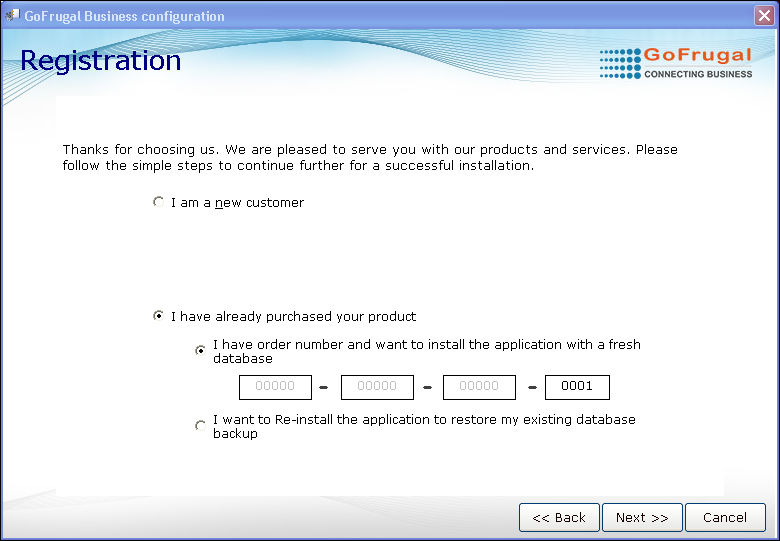
In the registration screen,
1. Select the option 'I have already purchased your product'.
2. Select the option 'I have order number and want to install the application with a fresh database'.
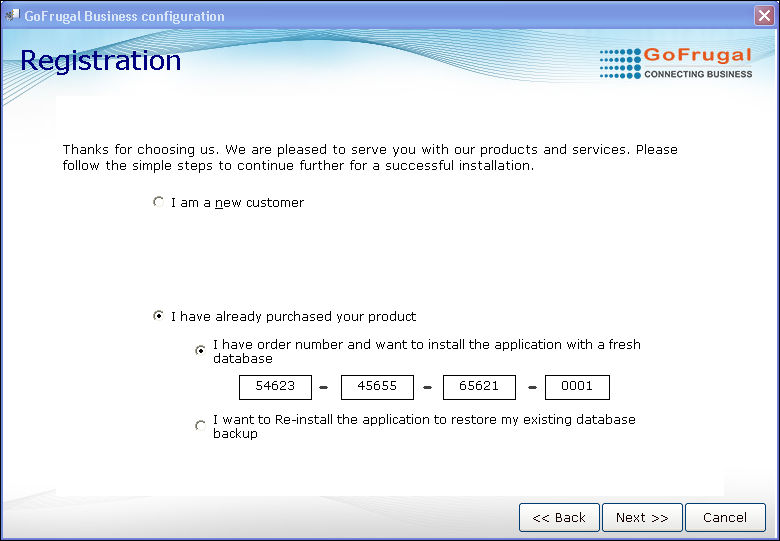
3. Enter the order number.
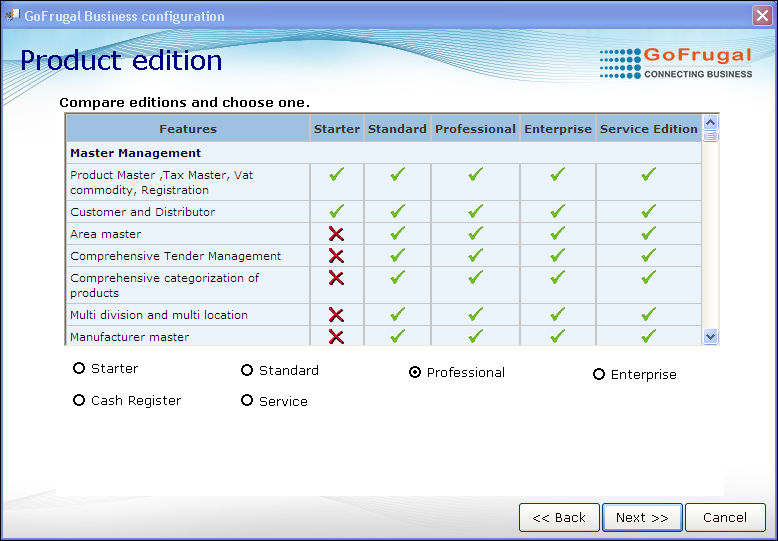
4. Click Next. The Product edition screen will be displayed. Based on the order number, the edition will be shown as selected.
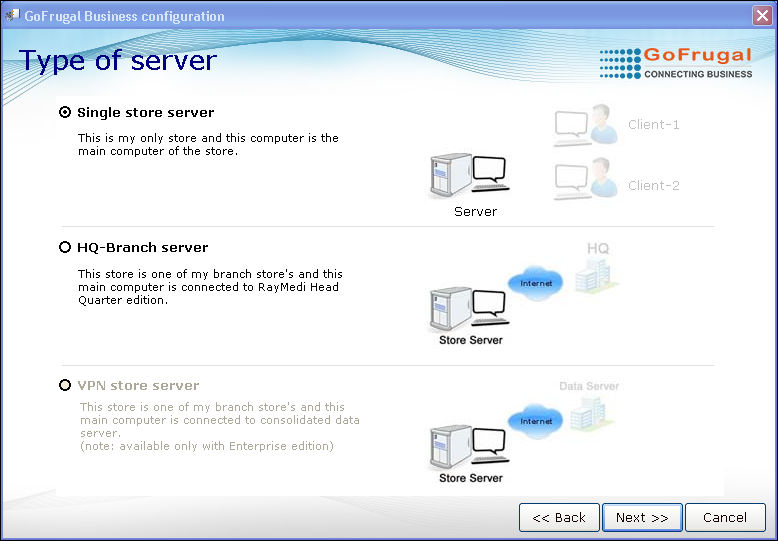
5. Click Next. The Type of Server screen will be displayed. The server type will be shown selected based on the order number.
6. Click Next. The Industry details screen will be displayed.
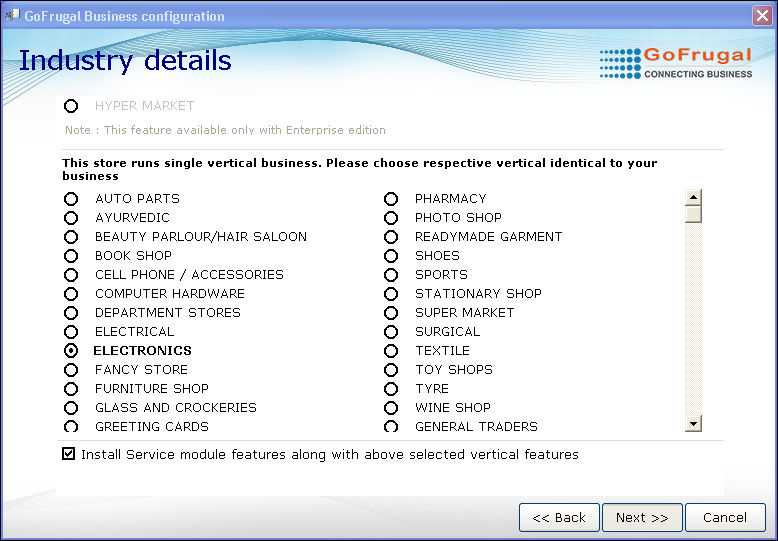
7. Select the Industry and click Next. The Store details screen will be displayed with the Business name auto-filled.
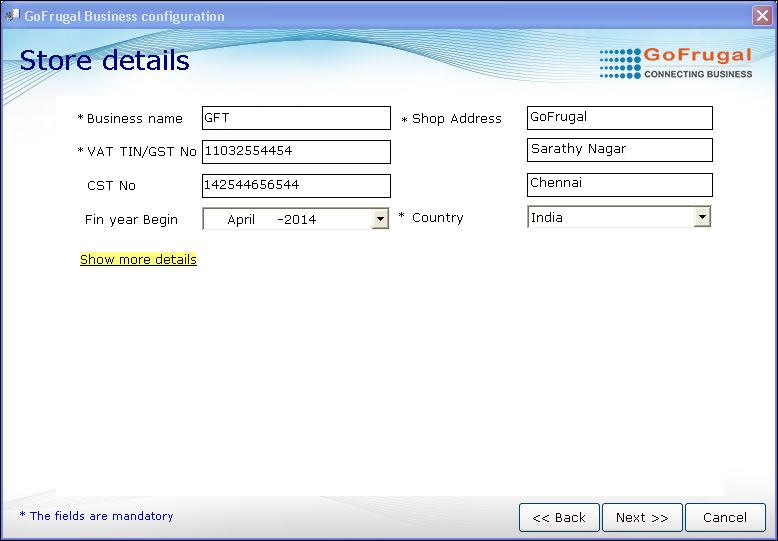
8. Enter the details in all the fields and click Next. The Default user screen will be displayed.
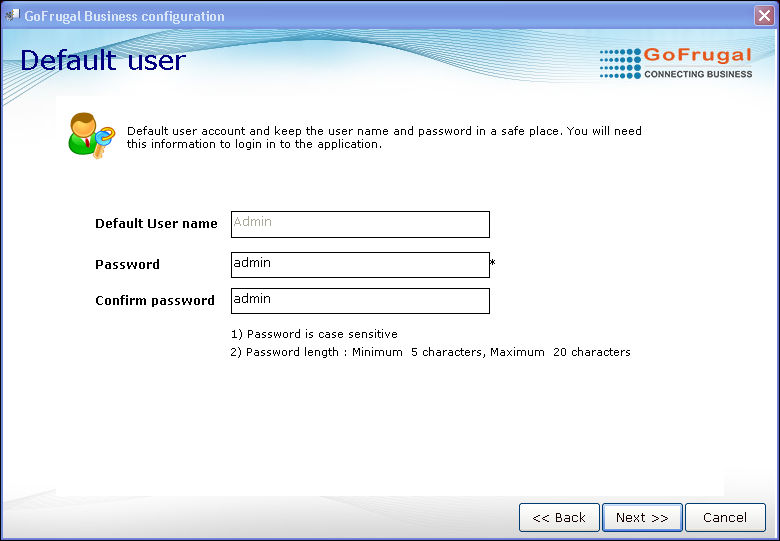
9. Click Next. The checklist screen will be displayed.
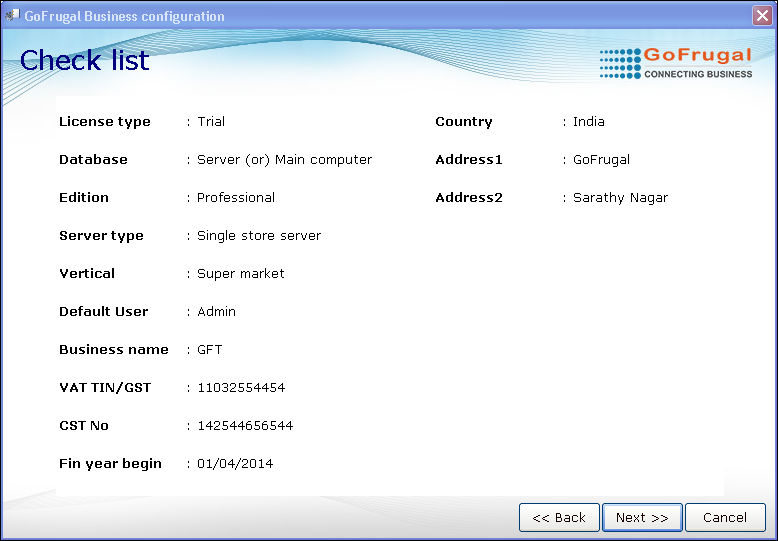
10. Click Next.
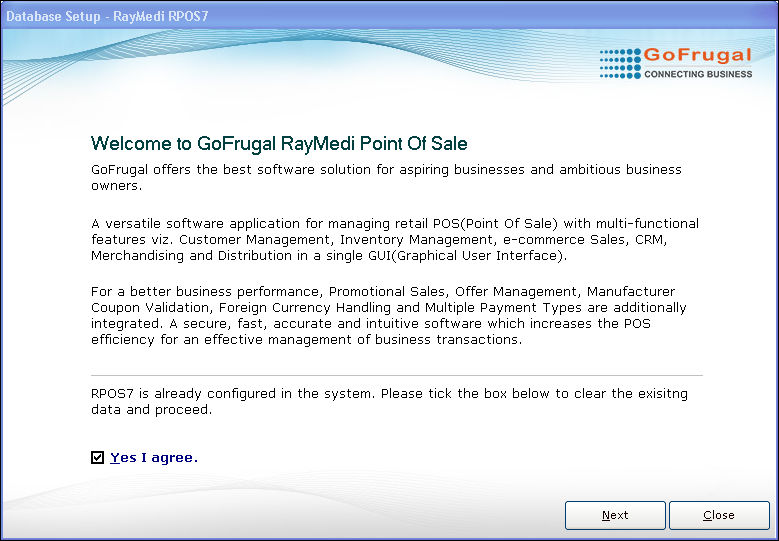
11. Select the checkbox 'Yes I agree' if you want to delete an existing database and create a new setup.
12. Click Next. The welcome screen will be displayed.
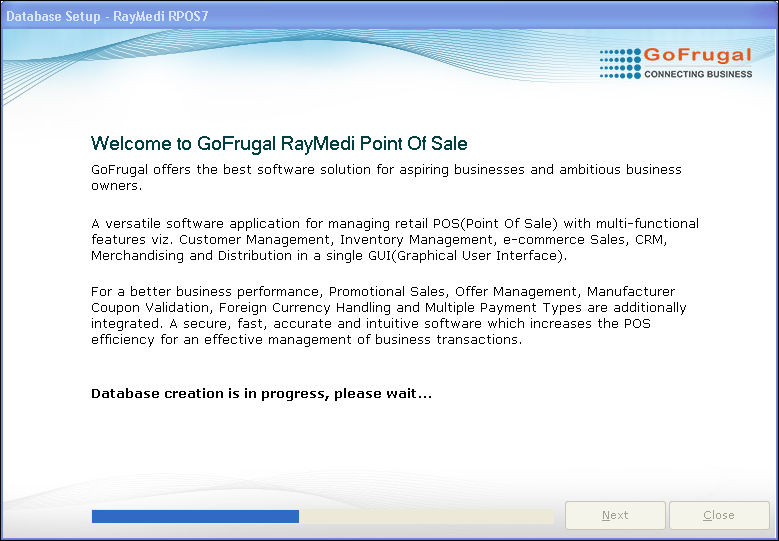
13. Double click to open the application.
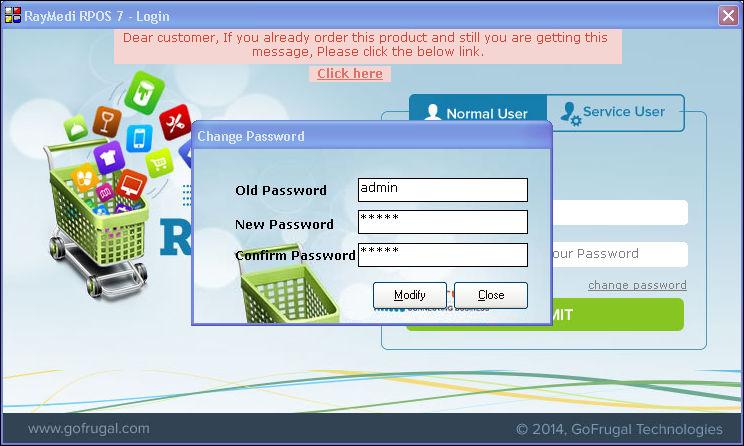
14. Enter the new password in the Change Password screen and Click Modify.
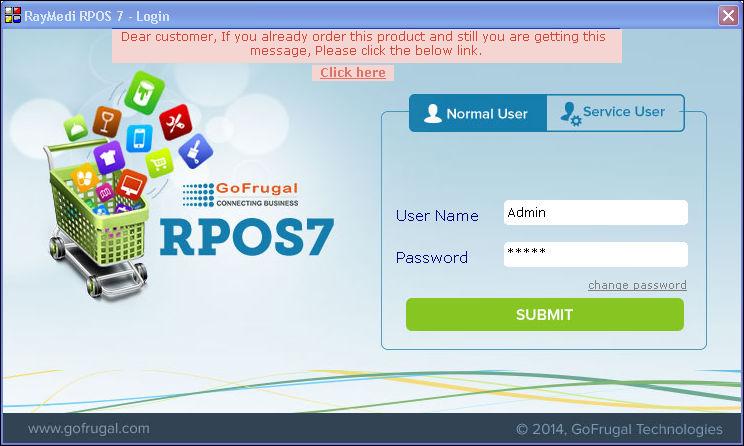
15. Enter the new password to log in and proceed further.
In the registration screen,
1. Select the option 'I have already purchased your product'.
2. Select the option 'I have order number and want to install the application with a fresh database'.
3. Enter the order number.
4. Click Next. The Product edition screen will be displayed. Based on the order number, the edition will be shown as selected.
5. Click Next. The Type of Server screen will be displayed. The server type will be shown selected based on the order number.
6. Click Next. The Industry details screen will be displayed.
7. Select the Industry and click Next. The Store details screen will be displayed with the Business name auto-filled.
8. Enter the details in all the fields and click Next. The Default user screen will be displayed.
9. Click Next. The checklist screen will be displayed.
10. Click Next.
11. Select the checkbox 'Yes I agree' if you want to delete an existing database and create a new setup.
12. Click Next. The welcome screen will be displayed.
13. Double click to open the application.
14. Enter the new password in the Change Password screen and Click Modify.
15. Enter the new password to log in and proceed further.