How to install GOFRUGAL client software in Client machine?
Client Machine - Setup installation (Windows 7 or Above):
PRE-REQUISITES
I. Setup Files
• Latest Web Installer file
• RPOS7 SMI setup file (same as server version)
• MSSQL (optional)
II. Proper Connection between Client and Server
III. Operating system -Windows 7 or above
IV. ANTI VIRUS/FIREWALL Turned OFF
Get the setup files from GoFrugal Support via LIVE CHAT.
Double click the GFTMSSQL setup to automatically install SQL with GFT instance.
STEP 1 :
• Run the WEB INSTALLER.
• Enter the customer ID and contact Info as "client".
• Tick the "I agree the license agreement"
• Click on continue
NOTE : If you have downloaded MSSQL file, run that file first to Install Microsoft SQL with
GFT Instance.
If you have not installed that , WebInstaller will automatically download and install it during
STEP 4.
STEP 2 :
• Choose the drive where to install . (Any drive with maximum space – Other than C:\)
• All other fields are auto-filled.
STEP 3 :
• Browse the RPOS7 SMI setup file that is same version as SERVER from POS browse and
click OPEN
STEP 4 :
• Put a TICK by clicking on "Still if you wish to continue" to execute Gofrugal system
assessment tool (Automated , so no need to worry).
• Click Start Installation. (If SQL is not installed, Webinstaller will start downloading SQL
and automatically install it during this step-after START INSTALLATION is clicked.)
STEP 5 : (OPTIONAL CASE)
• Click on Run if your system prompts for security warning.
STEP 6 :
• Enter your SERVER name or LAN IP address in the window
• Click on TEST CONNECTION.
STEP 7 :
• If there is a connection between server and client , you will get a message saying "TEST
SUCCESSFUL"
• Click on "OK".
• Click "NEXT"
STEP 8 :
• Wait for the Database creation . It will take approximatedly 2 mins to 10 mins depending on
system performance.
STEP 9 :
• Once DB is created , You will be asked to RESTART NOW/START APPLICATION
options.
• Click on RESTART NOW to restart your PC and you can use the software after system has
been restarted.
HOW TO FIND SERVER NAME ??
• In server machine , Click on START-->RUN-->CMD or type "CMD" in windows screen
(Win 8 and above) to open command prompt.
• In Command Prompt , type "hostname" to find the server's name (host's name) and click
ENTER.
• Immediately below your command , SERVER's name will be displayed.
(REFER IMAGE BELOW)
TO FIND SERVER IP ADDRESS
• In command prompt, type the command "ipconfig" and click enter.
• The IP address will be displayed next to Ipv4 address.
• In the below image , 10.0.3.244 is the IP address.
Incase of windows XP :
Please follow the steps below to install the application in the Client Machine.
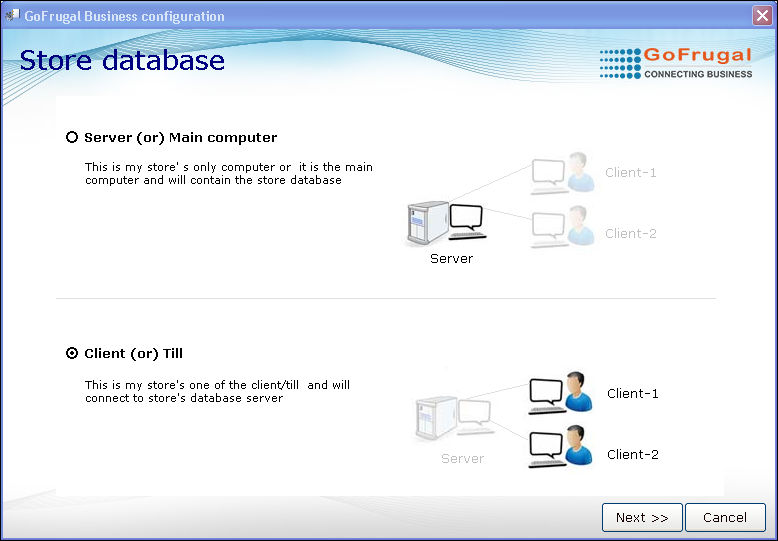
1. Select the option Client (or) Till. The client(s) will be connected to the store's database server.
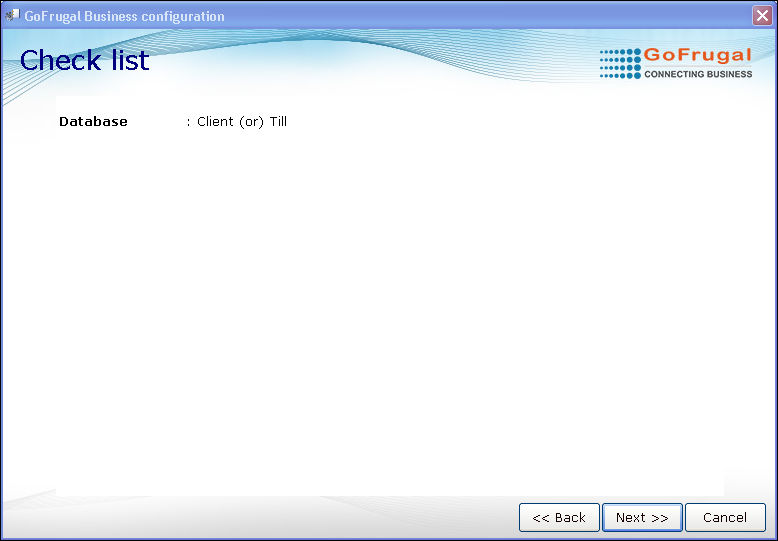
2. Click Next.
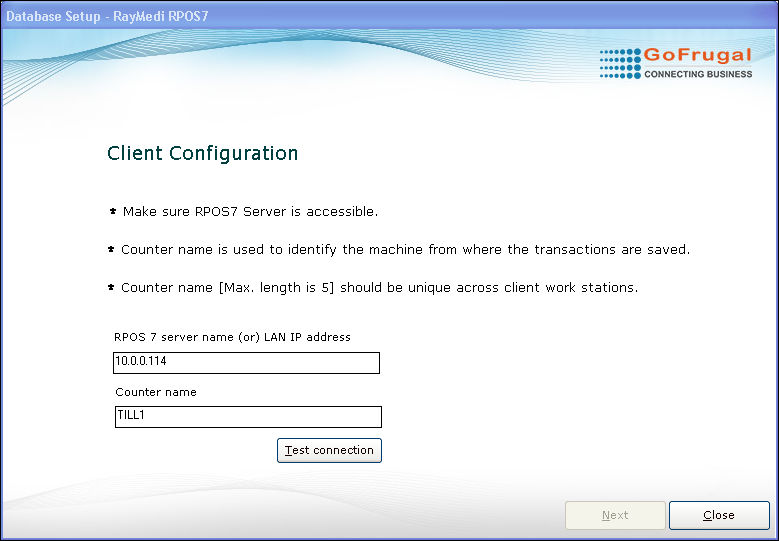
3. Enter the Server name or LAN IP address and the counter name in the respective fields.
4. Click 'Test Connection'. A message 'Test successful' will be displayed.
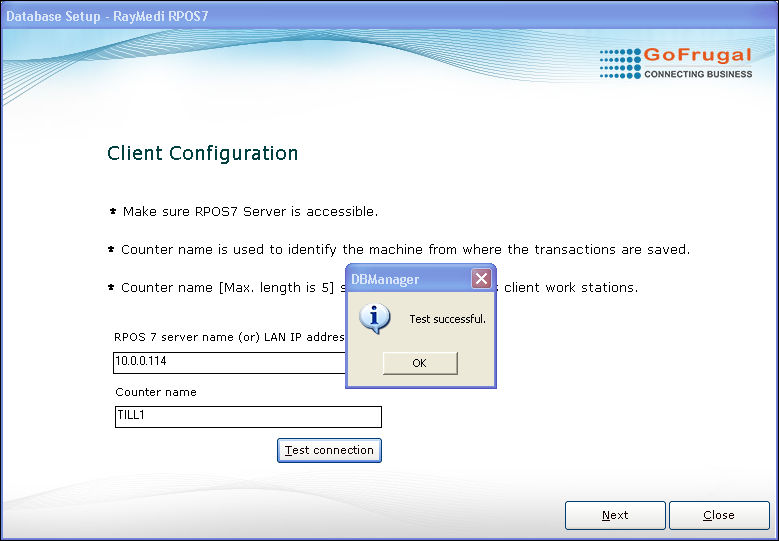
4. Click OK and click Next. The welcome screen will be displayed.
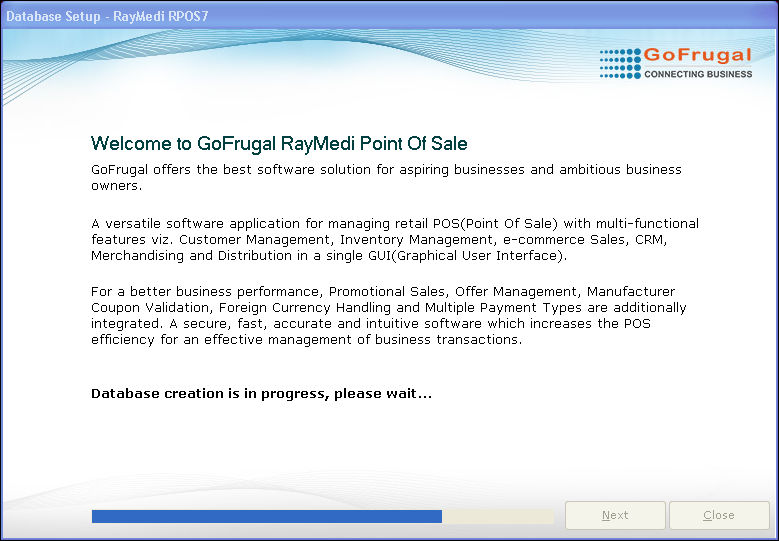
5. The database creation starts progressing. Please wait for some time to complete the DB creation.
6. Login the application to proceed further.
PRE-REQUISITES
I. Setup Files
• Latest Web Installer file
• RPOS7 SMI setup file (same as server version)
• MSSQL (optional)
II. Proper Connection between Client and Server
III. Operating system -Windows 7 or above
IV. ANTI VIRUS/FIREWALL Turned OFF
Get the setup files from GoFrugal Support via LIVE CHAT.
Double click the GFTMSSQL setup to automatically install SQL with GFT instance.
STEP 1 :
• Run the WEB INSTALLER.
• Enter the customer ID and contact Info as "client".
• Tick the "I agree the license agreement"
• Click on continue
NOTE : If you have downloaded MSSQL file, run that file first to Install Microsoft SQL with
GFT Instance.
If you have not installed that , WebInstaller will automatically download and install it during
STEP 4.
STEP 2 :
• Choose the drive where to install . (Any drive with maximum space – Other than C:\)
• All other fields are auto-filled.
STEP 3 :
• Browse the RPOS7 SMI setup file that is same version as SERVER from POS browse and
click OPEN
STEP 4 :
• Put a TICK by clicking on "Still if you wish to continue" to execute Gofrugal system
assessment tool (Automated , so no need to worry).
• Click Start Installation. (If SQL is not installed, Webinstaller will start downloading SQL
and automatically install it during this step-after START INSTALLATION is clicked.)
STEP 5 : (OPTIONAL CASE)
• Click on Run if your system prompts for security warning.
STEP 6 :
• Enter your SERVER name or LAN IP address in the window
• Click on TEST CONNECTION.
STEP 7 :
• If there is a connection between server and client , you will get a message saying "TEST
SUCCESSFUL"
• Click on "OK".
• Click "NEXT"
STEP 8 :
• Wait for the Database creation . It will take approximatedly 2 mins to 10 mins depending on
system performance.
STEP 9 :
• Once DB is created , You will be asked to RESTART NOW/START APPLICATION
options.
• Click on RESTART NOW to restart your PC and you can use the software after system has
been restarted.
HOW TO FIND SERVER NAME ??
• In server machine , Click on START-->RUN-->CMD or type "CMD" in windows screen
(Win 8 and above) to open command prompt.
• In Command Prompt , type "hostname" to find the server's name (host's name) and click
ENTER.
• Immediately below your command , SERVER's name will be displayed.
(REFER IMAGE BELOW)
TO FIND SERVER IP ADDRESS
• In command prompt, type the command "ipconfig" and click enter.
• The IP address will be displayed next to Ipv4 address.
• In the below image , 10.0.3.244 is the IP address.
Incase of windows XP :
Please follow the steps below to install the application in the Client Machine.
1. Select the option Client (or) Till. The client(s) will be connected to the store's database server.
2. Click Next.
3. Enter the Server name or LAN IP address and the counter name in the respective fields.
4. Click 'Test Connection'. A message 'Test successful' will be displayed.
4. Click OK and click Next. The welcome screen will be displayed.
5. The database creation starts progressing. Please wait for some time to complete the DB creation.
6. Login the application to proceed further.