How to perform Stock taking via bar-code scanning from Physical inventory screen?
Physical inventory - Barcode scanning
Use this option if you want to take the stock count by barcode scanning. This option is not available for serialised items.
The steps for Standard items are illustrated below.
1. Click Inventory >> Physical Inventory. The Physical inventory screen is displayed.
2. Press F3 or click New. The Physical inventory screen is displayed.
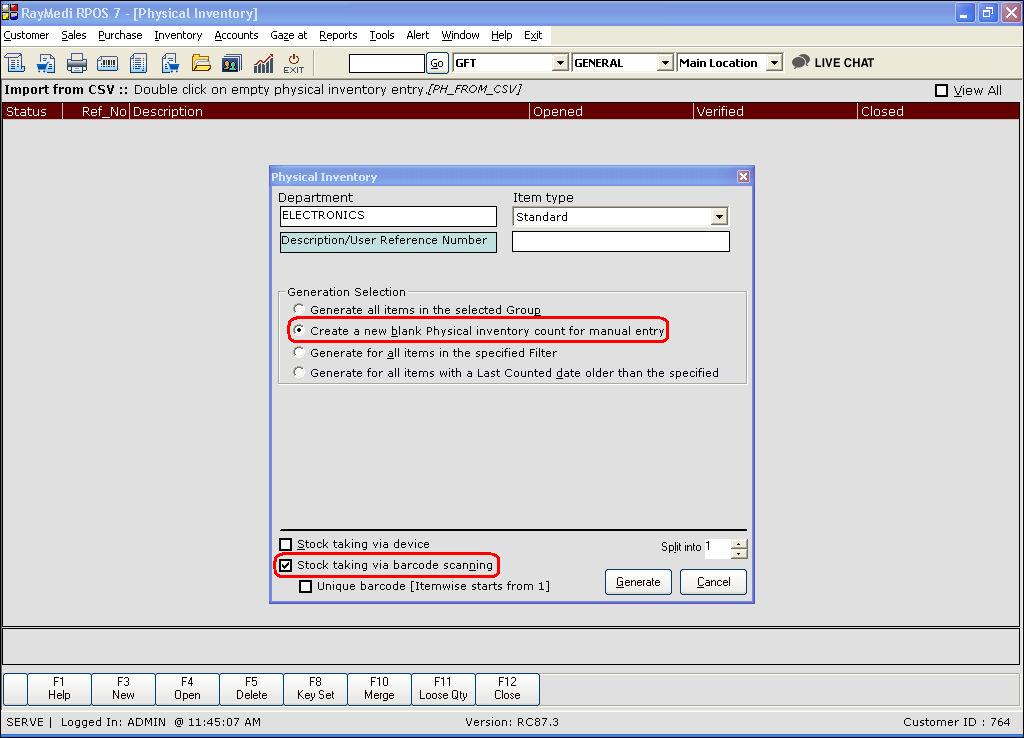
3. In the Item Type field, select the option Standard.
4. In the Generation Selection section, select Create a new blank physical inventory count for manual entry. The other three options are not useful for barcode scanning.
5. Select the option Stock taking via barcode scanning. Enable the Unique barcode checkbox below if you are using unique barcodes.
6. Click Generate. A confirmation message is displayed. Click Yes. An entry for the above physical stock selection is created with a Reference number.
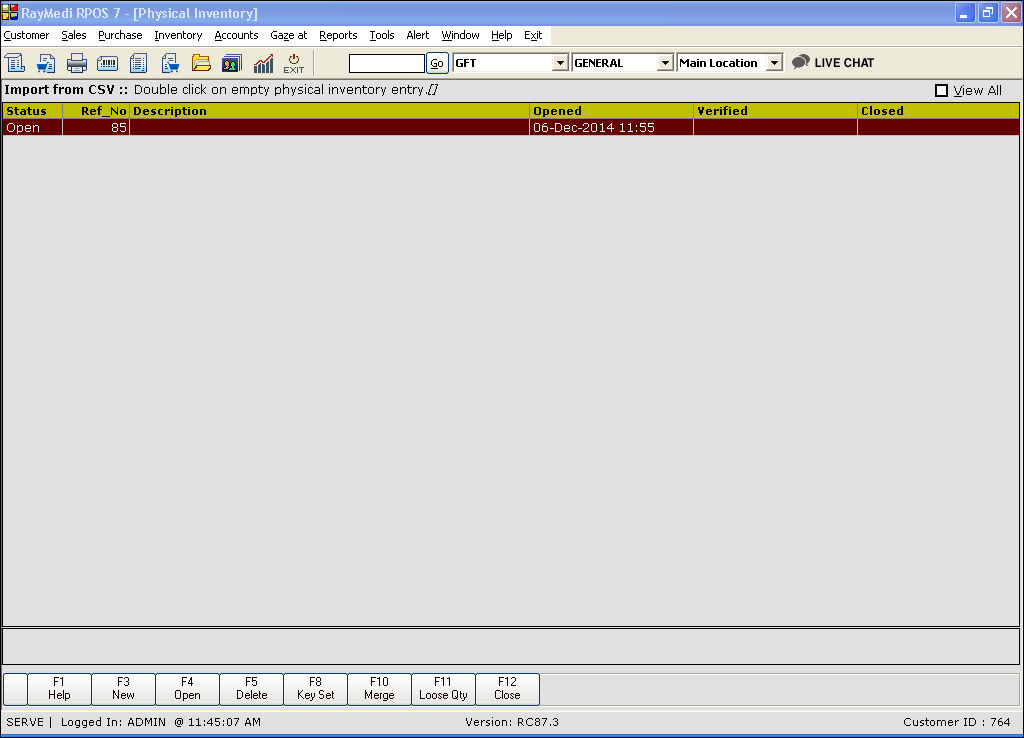
7. Press F4 or click Open. The Physical stock entry screen is displayed. A blank physical stock entry screen in displayed as the option Create a new blank physical inventory count for manual entry is selected under Group selection.
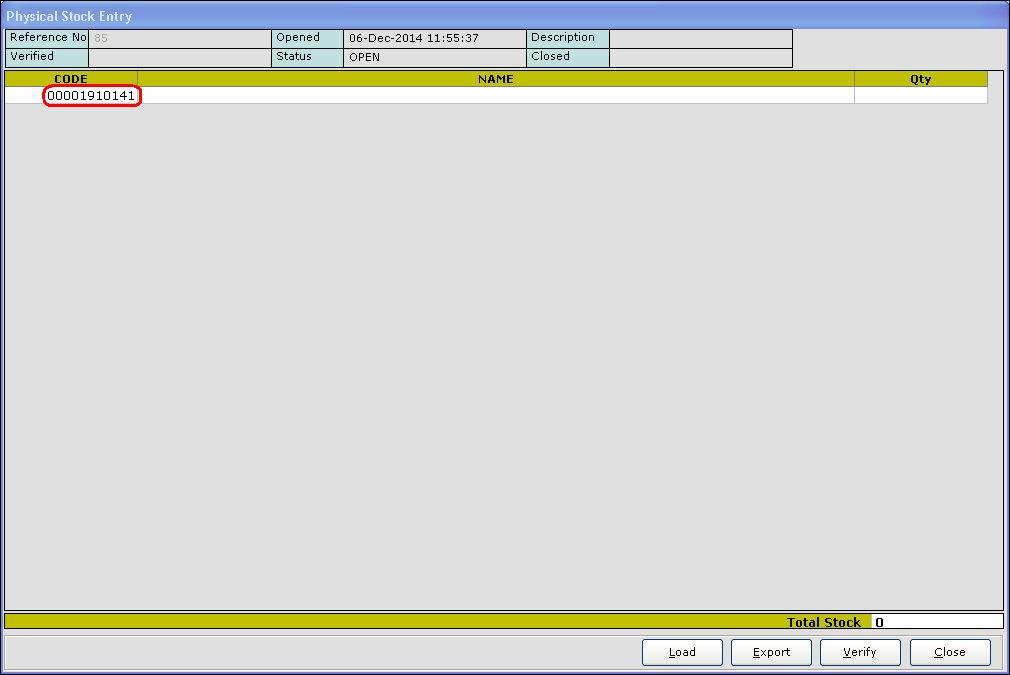
8. In the Code column, enter the barcode and press Enter.
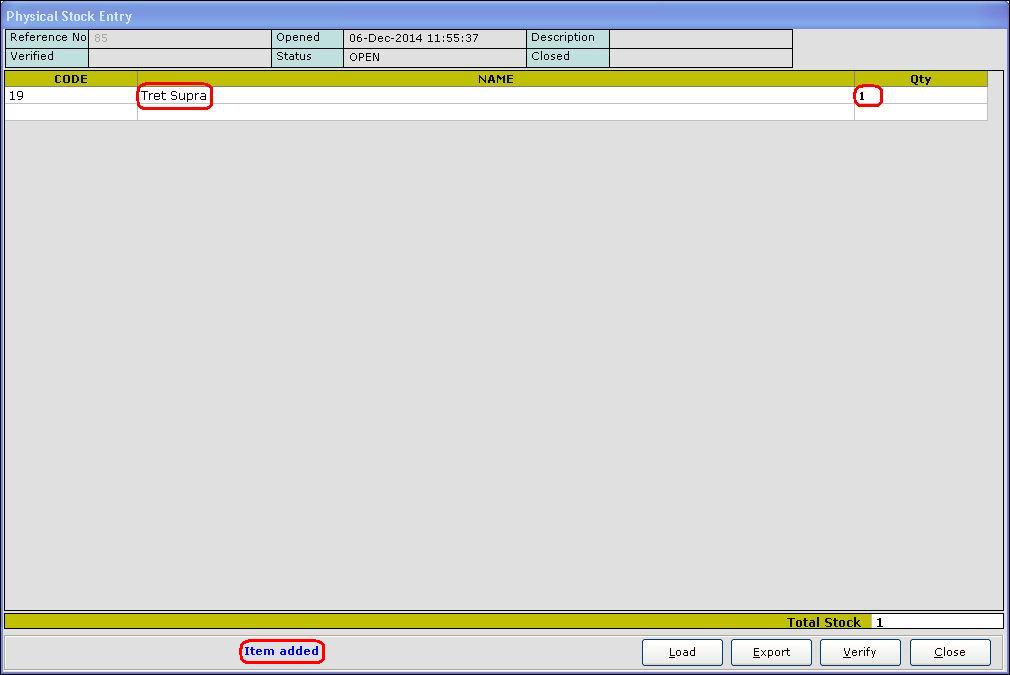
9. The item is loaded in the screen. In the Qty column, the quantity of the scanned item is automatically added.
10. Similarly load the other items for which you are taking the stock.
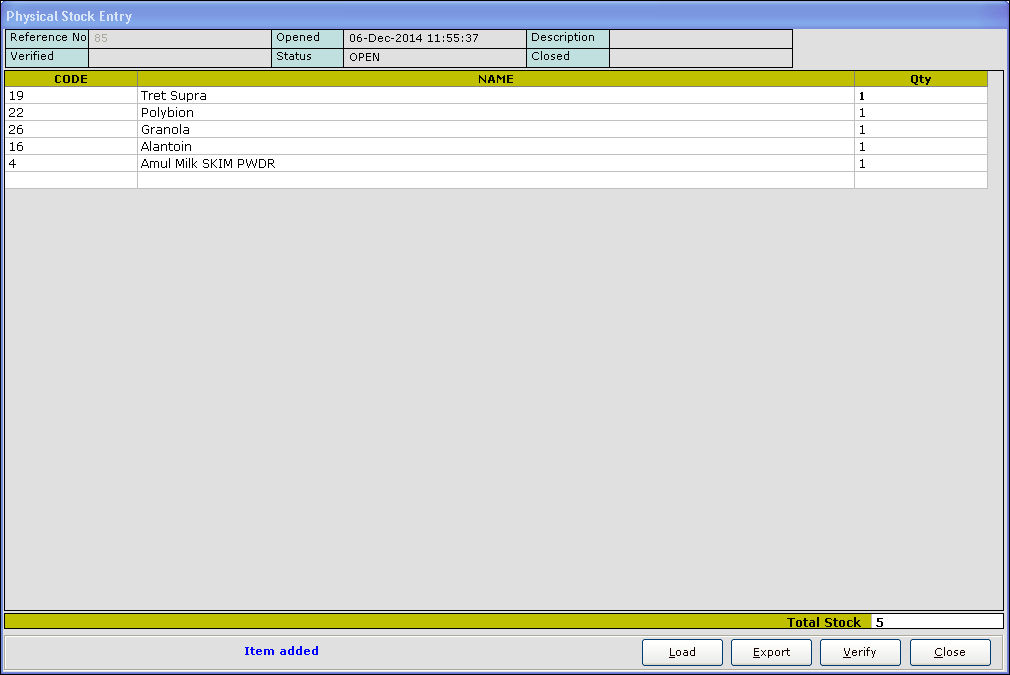
11. Click Verify. The difference between the current quantity (available in system) and physical quantity (available in hand) is displayed in the Diff column.
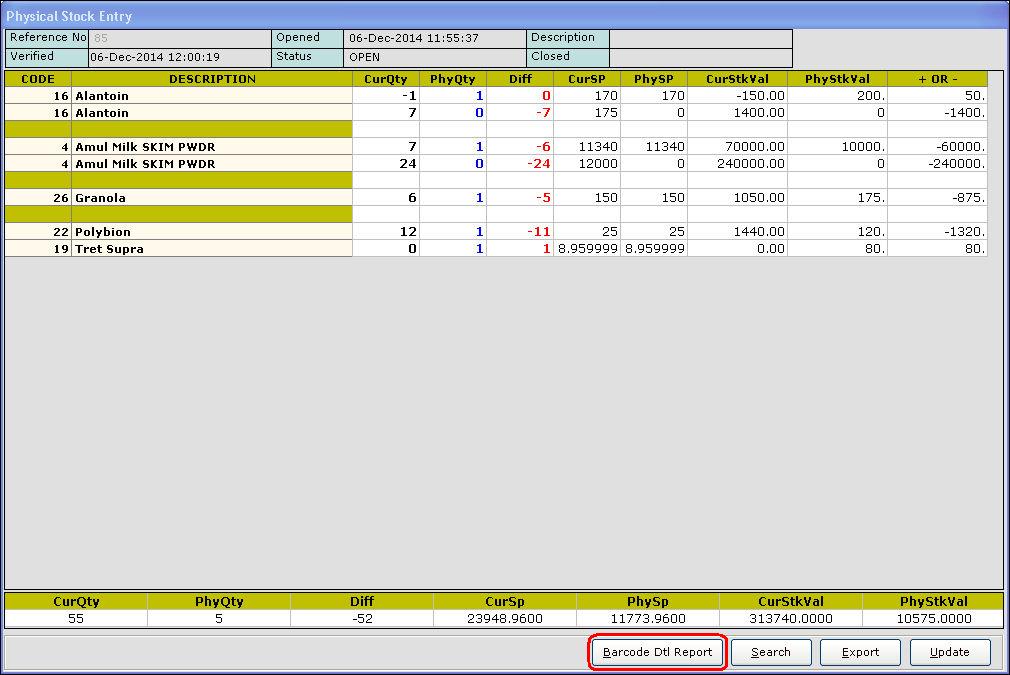
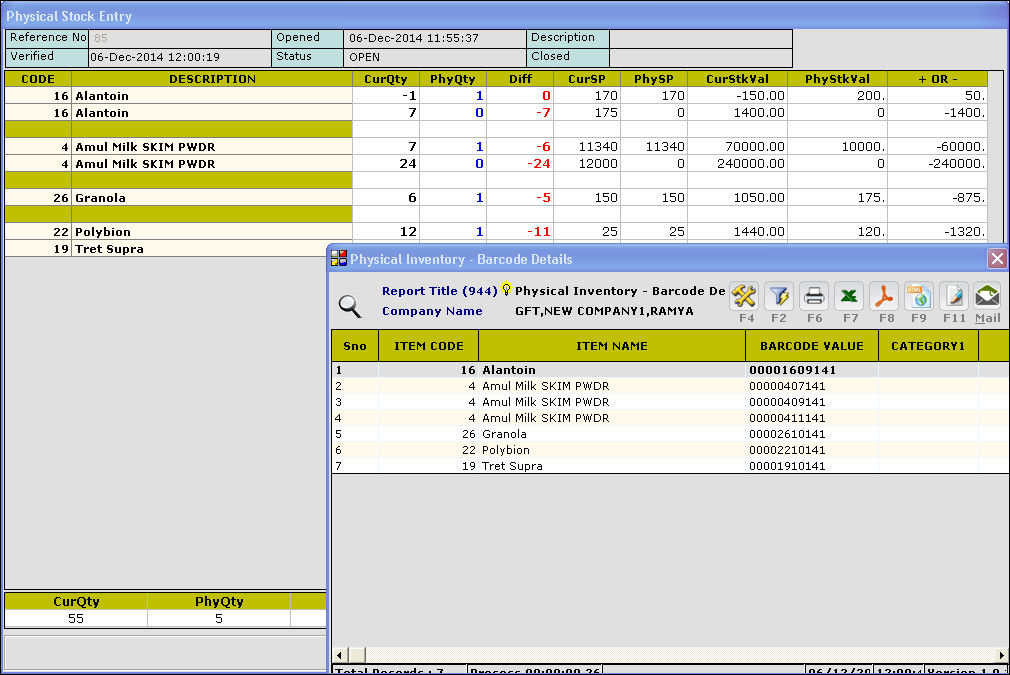
12. Click Barcode Dtl Report to view the barcode detail report [shown in the below image].
Note: This report is not available in the GO menu.
13. Click Update to update the physically entered values.
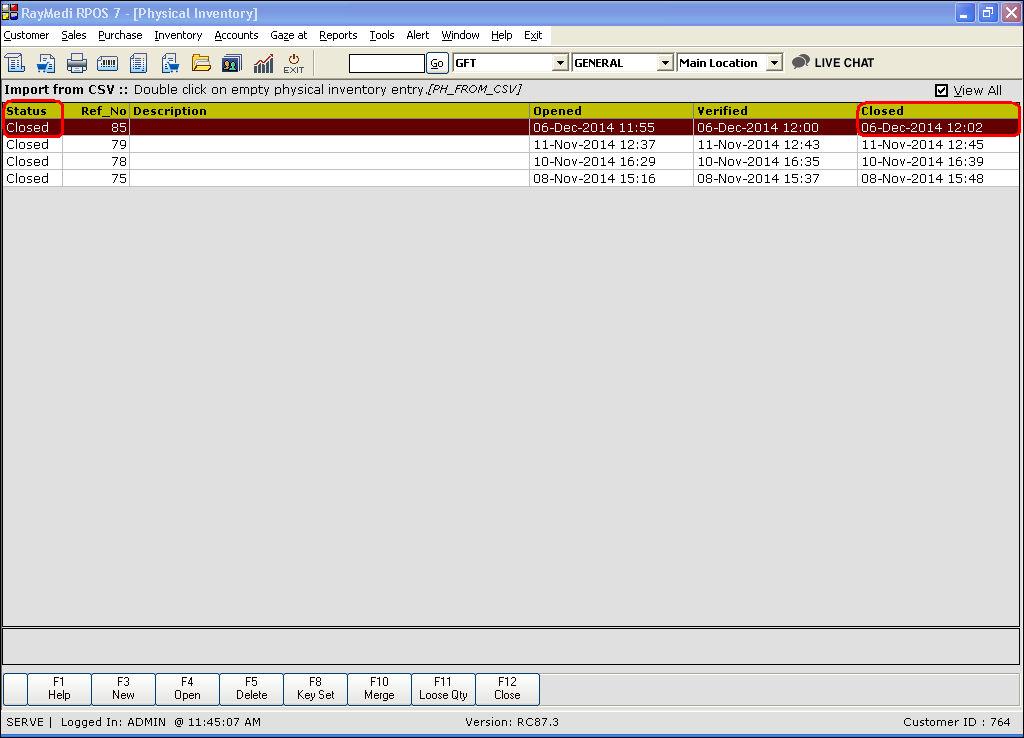
14. The status for the above physical entry is closed as shown in the above image.
Use this option if you want to take the stock count by barcode scanning. This option is not available for serialised items.
The steps for Standard items are illustrated below.
1. Click Inventory >> Physical Inventory. The Physical inventory screen is displayed.
2. Press F3 or click New. The Physical inventory screen is displayed.
3. In the Item Type field, select the option Standard.
4. In the Generation Selection section, select Create a new blank physical inventory count for manual entry. The other three options are not useful for barcode scanning.
5. Select the option Stock taking via barcode scanning. Enable the Unique barcode checkbox below if you are using unique barcodes.
6. Click Generate. A confirmation message is displayed. Click Yes. An entry for the above physical stock selection is created with a Reference number.
7. Press F4 or click Open. The Physical stock entry screen is displayed. A blank physical stock entry screen in displayed as the option Create a new blank physical inventory count for manual entry is selected under Group selection.
8. In the Code column, enter the barcode and press Enter.
9. The item is loaded in the screen. In the Qty column, the quantity of the scanned item is automatically added.
10. Similarly load the other items for which you are taking the stock.
11. Click Verify. The difference between the current quantity (available in system) and physical quantity (available in hand) is displayed in the Diff column.
12. Click Barcode Dtl Report to view the barcode detail report [shown in the below image].
Note: This report is not available in the GO menu.
13. Click Update to update the physically entered values.
14. The status for the above physical entry is closed as shown in the above image.
Related Articles
How to scan the bar code scanning for matrix items?
Matrix items - Barcode scanning 1. Click Inventory >> Physical Inventory. The Physical inventory screen is displayed. 2. Press F3 or click New. The Physical inventory screen is displayed. 3. In the Item Type field, select the option Matrix. 4. ...Introduction of Physical Inventory
Introduction Physical inventory refers to the stock of the items physically available in the store. In other words, it is a process of physically counting the inventory i.e. taking the actual count of the stock manually. This is usually done in the ...How to perform stock taking for standard items?
Standard items 1. Click Inventory >> Physical Inventory. The Physical inventory screen is displayed. 2. Press F3 or click New. The Physical inventory screen is displayed. 3. In the Item Type field, select the option Standard. 4. In the Generation ...Batch mandatory items Stock taking
Batch items - stock taking 1. Click Inventory >> Physical Inventory. The Physical inventory screen is displayed. 2. Press F3 or click New. The Physical inventory screen is displayed. 3. In the Item Type field, select the option Standard. 4. In ...How do we stock count the serialised items in the Physical inventory screen?
Batch items - stock taking 1. Click Inventory >> Physical Inventory. The Physical inventory screen is displayed. 2. Press F3 or click New. The Physical inventory screen is displayed. 3. In the Item Type field, select the option Serialized. 4. In ...