What are the types of "Bill Offers", in POS?
Bill Offer
The following offers are applicable on the total bill amount specified under condition
1. Creating Bill Offer - Disc%
Use this bill offer to give N% discount on the total bill amount.
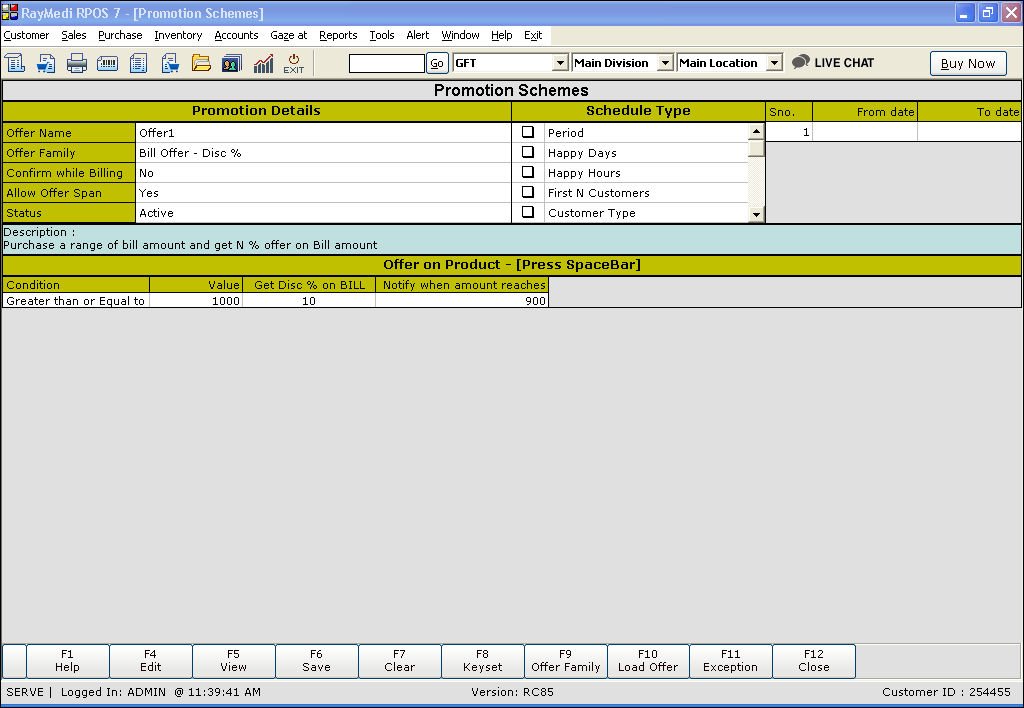
Promotion Details:
1. In the Offer Name field, enter the offer name.
2. In the Offer Family field, select the offer Bill Offer - Disc%
3. The Description field displays the description: Purchase a range of bill amount and get N % offer on Bill amount.
Offer on Product:
1. The Condition field is a read-only. It displays the options: Equal to, Greater than or equal to and Range.
In the Condition field, select the option Equal to. Press the space bar to change the option.
2. In the Value field, enter the amount for which the offer is applicable.
3. In the Get Disc% on BILL field, enter the discount amount for the bill.
4. In the Notify when amount reaches field, enter the amount. A notification message is displayed when this amount is reached.
5. Click Save to save the offer.
Click here to see the Example
2. Creating Bill Offer - Disc Amt
Use this bill offer to give N amount discount on the total bill amount.
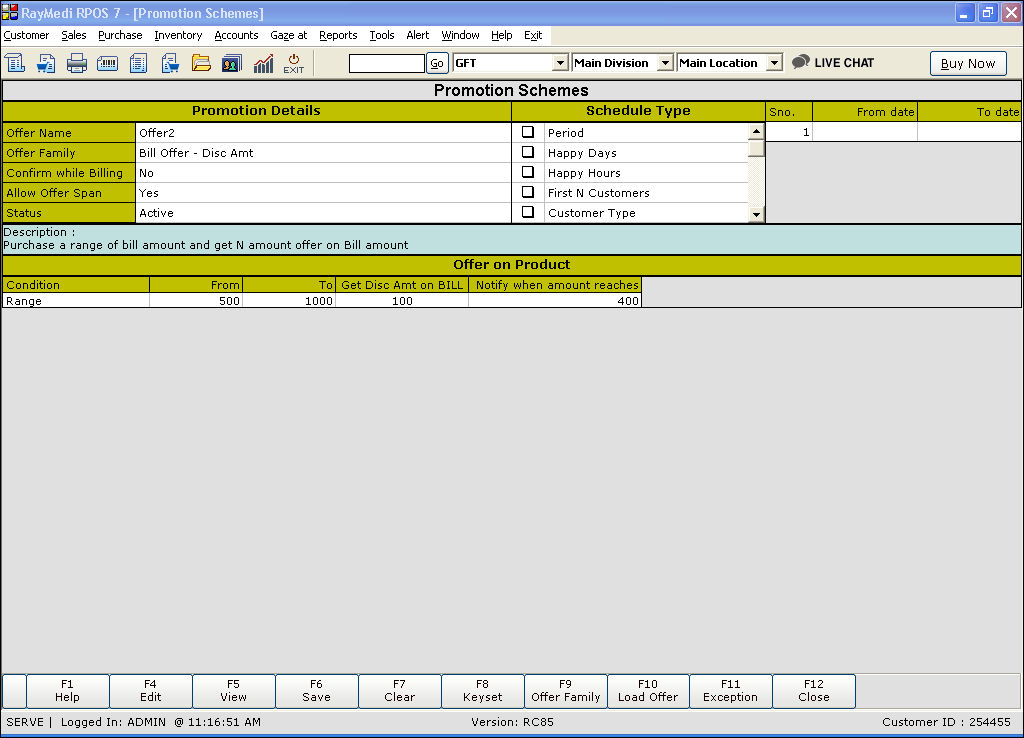
Promotion details:
1. In the Offer Family field, select the offer Bill Offer - Disc Amt
2. The Description field displays the description: Purchase a range of bill amount and get N amount offer on Bill amount.
Offer on Product:
1. In the Condition field, press the Space Bar to select the condition Range.
2. In the From and To fields, enter the amount for which the offer is applicable.
3. In the Get Disc Amt on BILL field, enter the discount amount for the bill.
4. Click Save to save the offer.
3. Creating Bill Offer - Free
Use this bill offer to offer an item as free on the total bill amount.
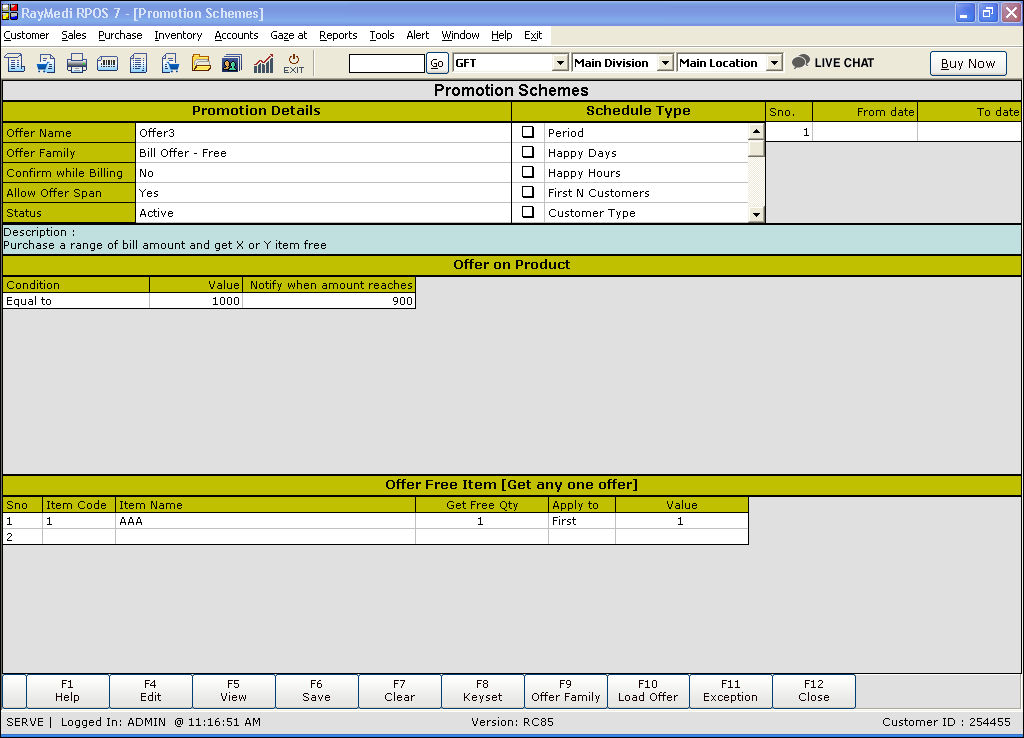
Promotion details:
1. In the Offer Family field, select the offer Bill Offer - Free.
2. The Description field displays the description: Purchase a range of bill amount and get X or Y item free.
Offer on Product:
Enter the details as shown above for Bill Offer - Disc%.
Offer Free Item:
1. In the Item code field, press Enter. The item LOV is displayed. Select the item from the LOV.
2. In the Get Free Qty field, enter the quantity.
3. In the Apply to the field, press ENTER. The select LOV is displayed. Select the option First from the LOV.
4. Click Save to save the offer.
4. Creating Bill Offer - Free(Set)
Use this bill offer to offer a set of items as free on the total bill amount.
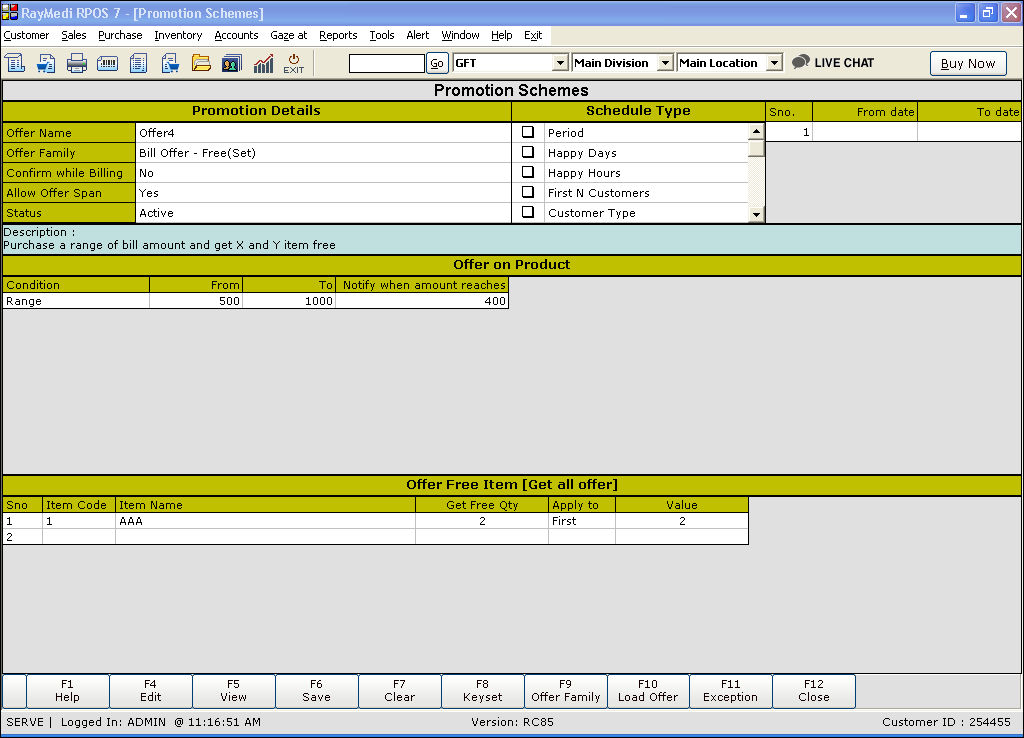
Promotion details:
1. In the Offer Family field, select the offer Bill Offer - Free(Set).
2. The Description field shows Purchase a range of bill amount and get X and Y item free.
3. In the Offer on Product section, enter the details as shown for the above offers.
4. In the Offer Free Item section, enter the details as shown for the above offers.
5. Click Save to save the offer.
Load Offer
Use the Load Offer (F10) key to load the created offers.
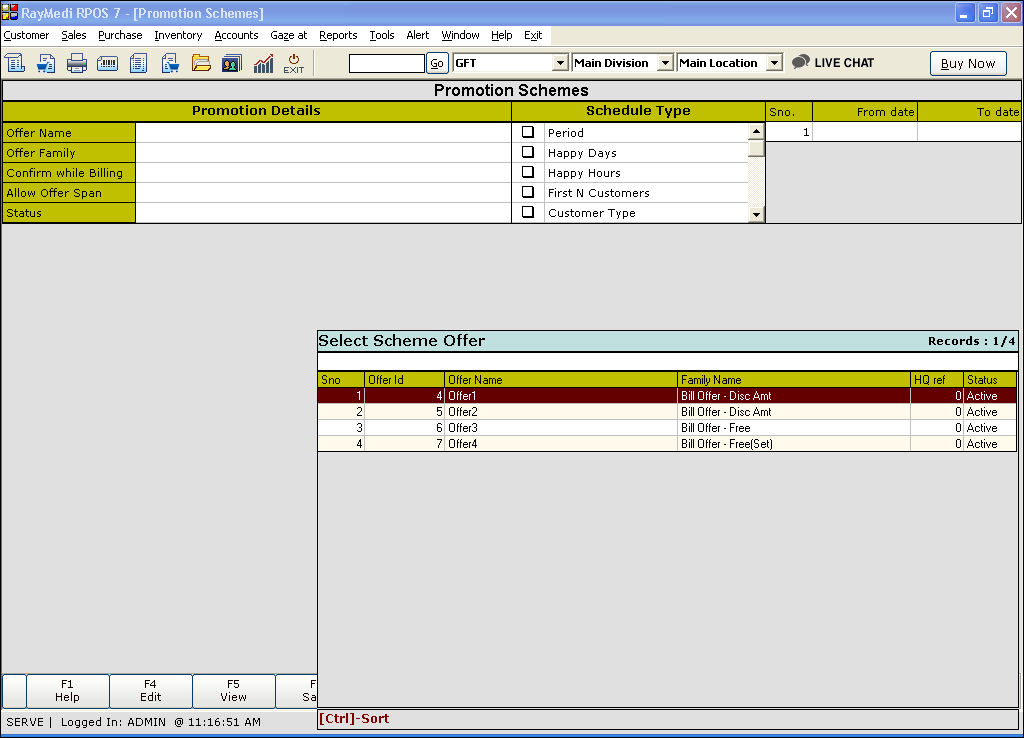
The following offers are applicable on the total bill amount specified under condition
- Bill Offer - Disc% (To offer N% discount on the total bill amount)
- Bill Offer - Disc Amt (To offer N Amount discount on the total Bill amount)
- Bill Offer - Free (To offer an item (X or Y) free for the bill)
- Bill Offer - Free(Set) (To offer a set of items (X and Y) free for the bill)
1. Creating Bill Offer - Disc%
Use this bill offer to give N% discount on the total bill amount.
Promotion Details:
1. In the Offer Name field, enter the offer name.
2. In the Offer Family field, select the offer Bill Offer - Disc%
3. The Description field displays the description: Purchase a range of bill amount and get N % offer on Bill amount.
Offer on Product:
1. The Condition field is a read-only. It displays the options: Equal to, Greater than or equal to and Range.
In the Condition field, select the option Equal to. Press the space bar to change the option.
2. In the Value field, enter the amount for which the offer is applicable.
3. In the Get Disc% on BILL field, enter the discount amount for the bill.
4. In the Notify when amount reaches field, enter the amount. A notification message is displayed when this amount is reached.
5. Click Save to save the offer.
Click here to see the Example
2. Creating Bill Offer - Disc Amt
Use this bill offer to give N amount discount on the total bill amount.
Promotion details:
1. In the Offer Family field, select the offer Bill Offer - Disc Amt
2. The Description field displays the description: Purchase a range of bill amount and get N amount offer on Bill amount.
Offer on Product:
1. In the Condition field, press the Space Bar to select the condition Range.
2. In the From and To fields, enter the amount for which the offer is applicable.
3. In the Get Disc Amt on BILL field, enter the discount amount for the bill.
4. Click Save to save the offer.
3. Creating Bill Offer - Free
Use this bill offer to offer an item as free on the total bill amount.
Promotion details:
1. In the Offer Family field, select the offer Bill Offer - Free.
2. The Description field displays the description: Purchase a range of bill amount and get X or Y item free.
Offer on Product:
Enter the details as shown above for Bill Offer - Disc%.
Offer Free Item:
1. In the Item code field, press Enter. The item LOV is displayed. Select the item from the LOV.
2. In the Get Free Qty field, enter the quantity.
3. In the Apply to the field, press ENTER. The select LOV is displayed. Select the option First from the LOV.
4. Click Save to save the offer.
4. Creating Bill Offer - Free(Set)
Use this bill offer to offer a set of items as free on the total bill amount.
Promotion details:
1. In the Offer Family field, select the offer Bill Offer - Free(Set).
2. The Description field shows Purchase a range of bill amount and get X and Y item free.
3. In the Offer on Product section, enter the details as shown for the above offers.
4. In the Offer Free Item section, enter the details as shown for the above offers.
5. Click Save to save the offer.
Load Offer
Use the Load Offer (F10) key to load the created offers.
Related Articles
Types of Items for Optical Business
Types of Items for Optical Business Purpose: RetailEasy Optical is a POS (Point of Sale) software designed specifically for optical businesses, helping them manage their sales, inventory, and customer information efficiently. The "Item types" in this ...Restrict Offers when Price Level is Applied
Restrict Offers when Price Level is Applied Purpose: When price levels are applied, the system can restrict certain offers or promotions that are not applicable or may conflict with the current pricing structure. For example, if a business offers a ...Inactivating Offers Automatically
Inactivating Offers Automatically Purpose: The purpose of using the feature "Inactivating offers automatically" in RetailEasy Apparel POS is to streamline the offer management process and reduce manual effort. This feature allows the system to ...Types of Barcode in Apparel Business
Types of Barcode in Apparel Business Purpose: Barcodes are widely used in the apparel business to track products throughout the supply chain, from production to point of sale. There are majorly three types of barcodes used in the apparel industry, ...Barcode based offers using Datewise Pricing for Apparel Business.
In an apparel business, customers cannot currently run barcode-based offers, as this functionality is not available in the HQ Offer Management module. To address this, an alternative solution exists through the Datewise Pricing feature at the outlet ...