How to apply a Group offer?
Applying Group Offer
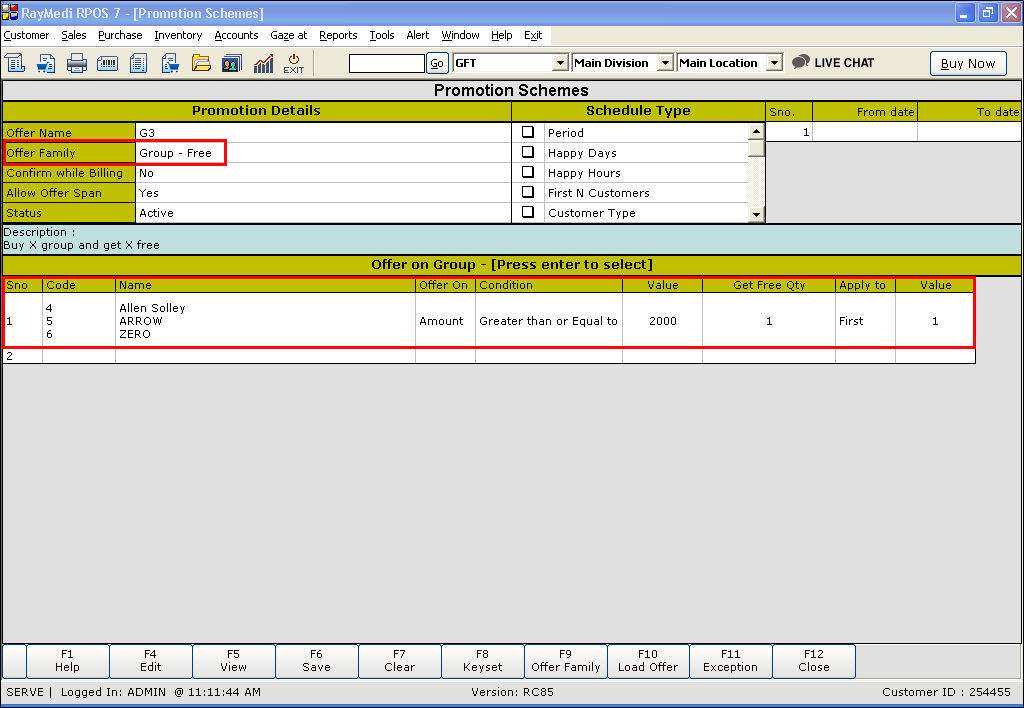
Follow the steps below to apply the created offers:
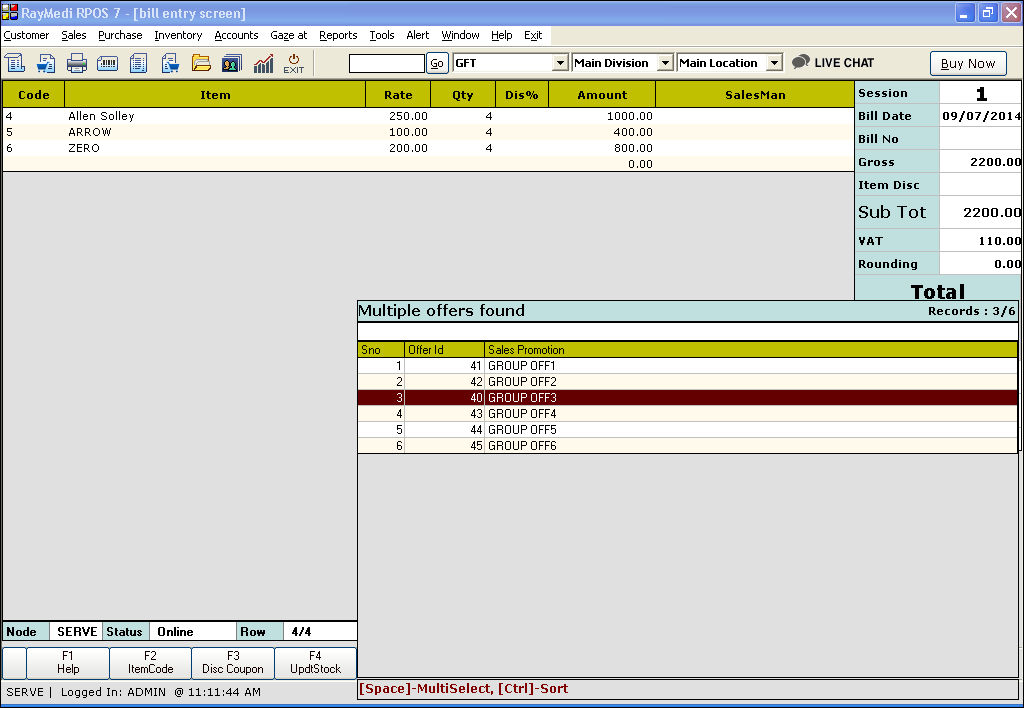
Refer the images below on applying the above offer.
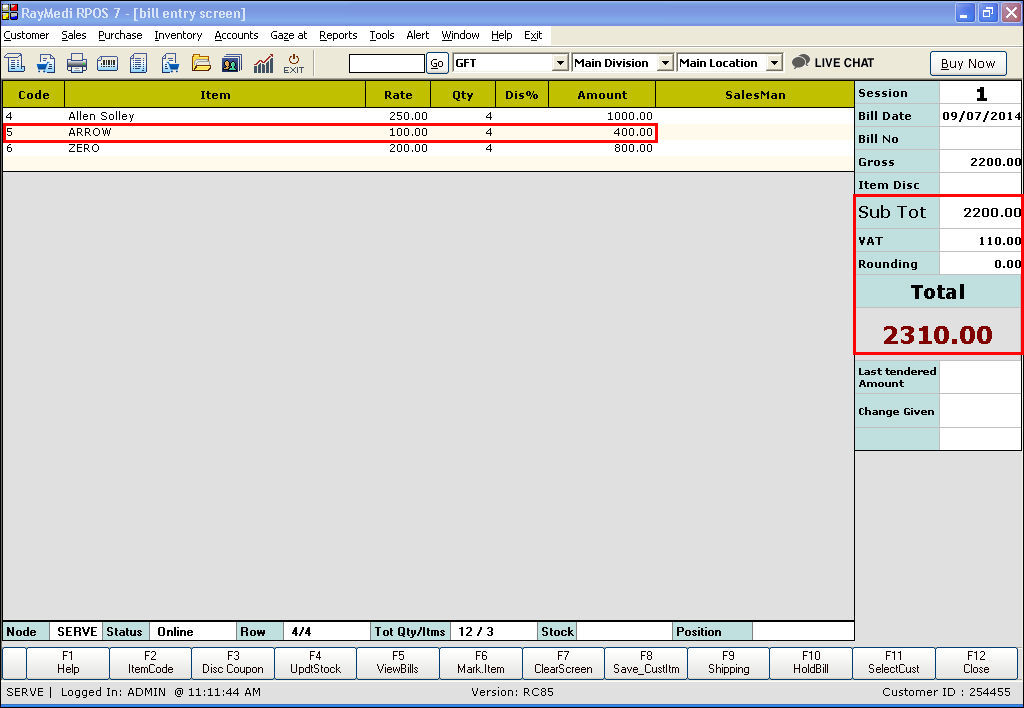
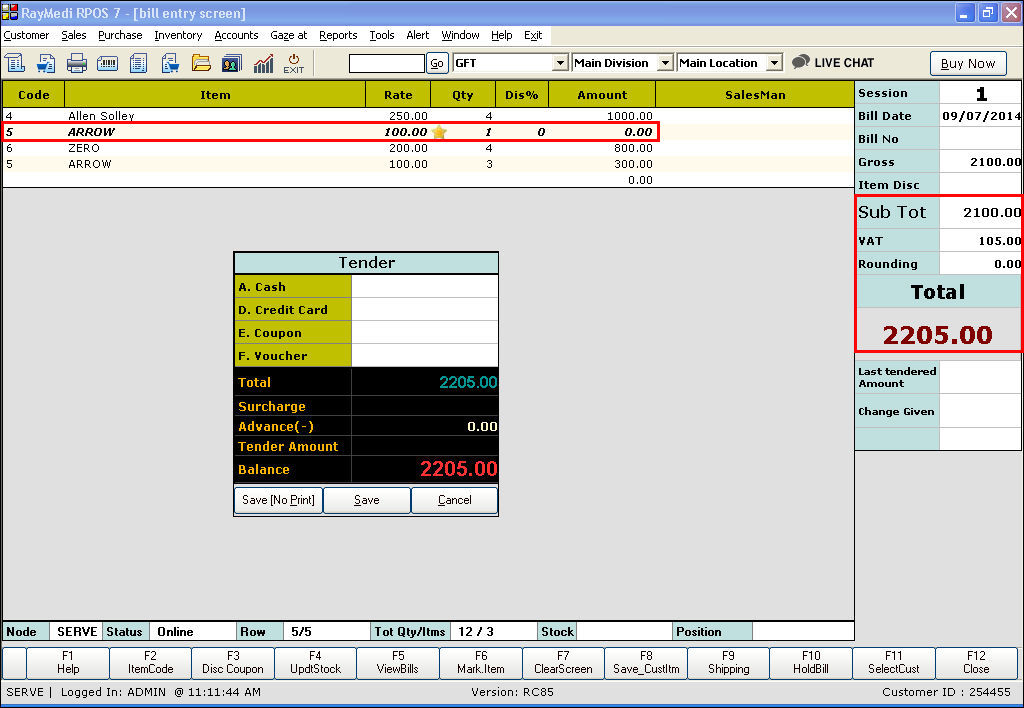
5. Click Save to save the bill.
Follow the steps below to apply the created offers:
- Click Sales >> Sales Bill to open the billing screen
- Select the items from the item LOV
- Invoke the tender screen and the offer is applied for that bill
- If you have created more than one offer, the offer LOV is displayed. Select the appropriate offer from the LOV
Refer the images below on applying the above offer.
5. Click Save to save the bill.
Related Articles
How to apply Item with Bill Amount offer?
An item with Bill amount offer The following offers are applicable to selling an X item with a specified bill amount. 1. An item with Bill amount - Disc% (To offer N% discount on X item for a specified bill amount ) 2. An item with Bill amount - Disc ...What are the types of Group Offers?
Group Offer The following offers are applicable on selling an X item 1. Group - Disc% (To offer N% discount on X group) 2. Group - Disc Amt (To offer N amount discount on X group) 3. Group - Free (To offer X group free) 4. Group - Spl (To offer X ...Example of a group with Bill amount
The group with Bill Amount - Special Price Follow the steps below to apply the created offers: Click Sales >> Sales Bill to open the billing screen Select the items from the item LOV Invoke the tender screen and the offer is applied for that bill ...Barcode Wise Offer
Barcode wise offer Purpose: Barcode wise offer in RetailEasy Apparel POS is a feature that allows retailers to offer discounts or promotions on specific products that are identified by their barcode. With this feature, retailers can create special ...Customized offer - Example
Customized - All Item from group Follow the steps below to apply the created offers: Click Sales >> Sales Bill to open the billing screen Select the items from the item LOV Invoke the tender screen and the offer is applied for that bill If you have ...