How to give scheme based salesman commission? | Based on time period
Scheme based Salesman Commission - based on the time period
Use this option to provide seasonal commissions such as in the festival times, monthly offers etc. You can set the time period for the sales.
Use the Salesman Commission screen to provide scheme based commissions to the sales person.
1. Click Sales >> Masters >> Salesman commission[New]. The Salesman Commission screen is displayed.
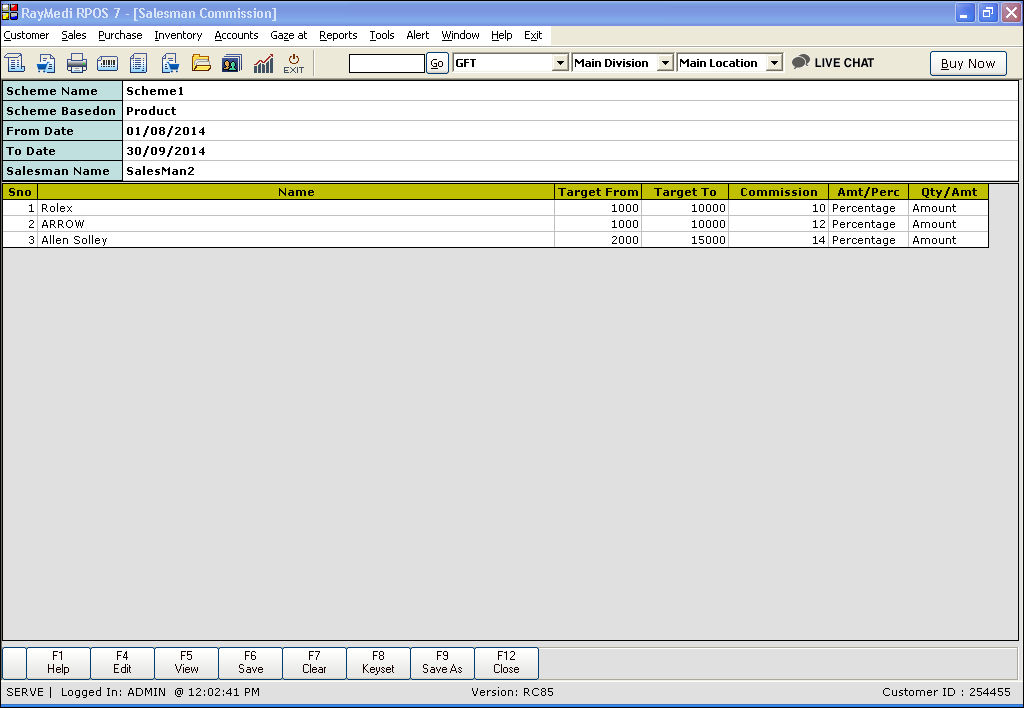
2. In the Scheme Name field, enter the name of the Scheme.
3. In the Scheme based on field, press Enter to select the option Category (or) Item.
4. In the From Date and To date fields, enter the dates.
5. In the Salesman field, press Enter. The Salesman LOV is displayed. select the Salesman from the LOV.
6. In the Name field, press Enter. The item LOV is displayed.
The category LOV is displayed if Item is selected in the Scheme based on field.
7. In the Target From and Target to fields, enter the values.
8. In the Commission field, enter the commission value.
9. In the Amt/Perc field, press A to select Amount (or) P to select Percentage.
10. In the Qty/Amt field, press Q to select Quantity (or) A to select Amount.
11. Press F6 key to save the record.
Other Features:
Save as functionality [F9 key]
Use this key if you want to set the same commission target for other salesmen.
Use this option to provide seasonal commissions such as in the festival times, monthly offers etc. You can set the time period for the sales.
Use the Salesman Commission screen to provide scheme based commissions to the sales person.
1. Click Sales >> Masters >> Salesman commission[New]. The Salesman Commission screen is displayed.
2. In the Scheme Name field, enter the name of the Scheme.
3. In the Scheme based on field, press Enter to select the option Category (or) Item.
4. In the From Date and To date fields, enter the dates.
5. In the Salesman field, press Enter. The Salesman LOV is displayed. select the Salesman from the LOV.
6. In the Name field, press Enter. The item LOV is displayed.
The category LOV is displayed if Item is selected in the Scheme based on field.
7. In the Target From and Target to fields, enter the values.
8. In the Commission field, enter the commission value.
9. In the Amt/Perc field, press A to select Amount (or) P to select Percentage.
10. In the Qty/Amt field, press Q to select Quantity (or) A to select Amount.
11. Press F6 key to save the record.
Other Features:
Save as functionality [F9 key]
Use this key if you want to set the same commission target for other salesmen.