Report>>Send and Schedule Mail
To Send Report Via Mail:
Purpose:The Send Report via Mail option in POS software allows automatic sharing of reports with selected users for quick and easy access.
Please follow the below steps to send the report via mail using the Mail option.
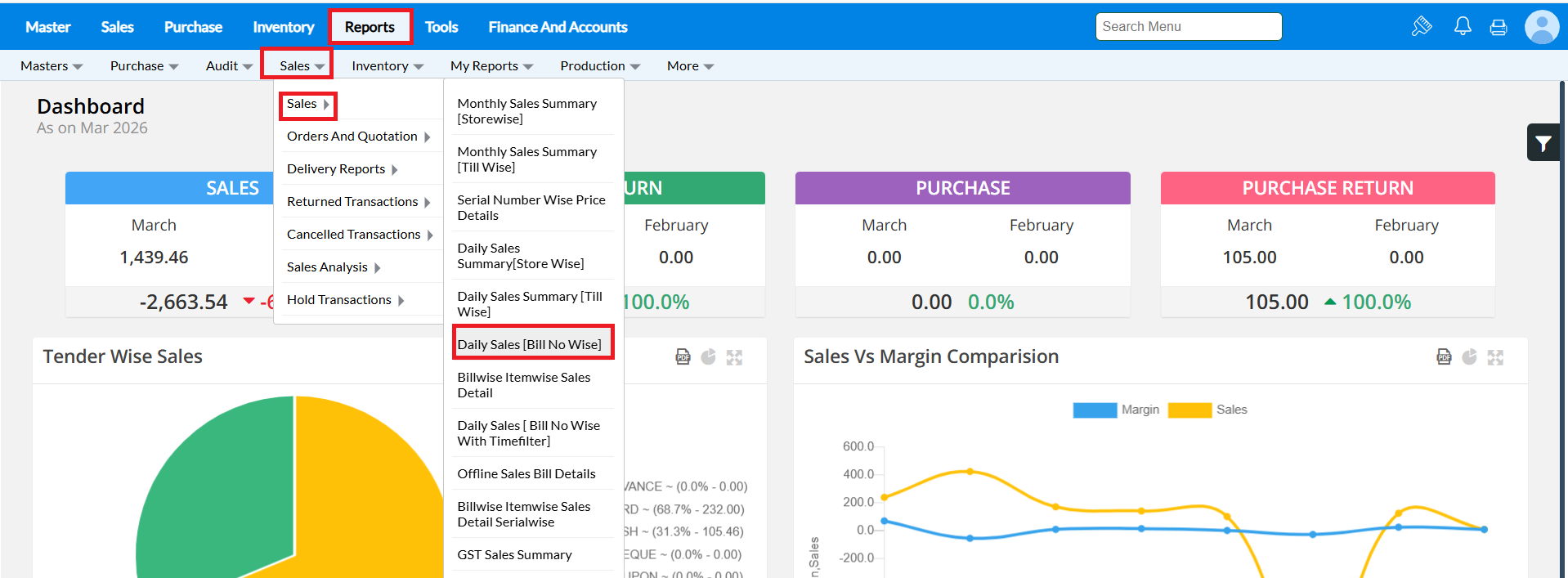
Step 1: Generate the report which you want to send mail.For Example, We are taking Daily Sales Bill No.wise report by following path: Reports-->Sales-->Sales-->Daily Sales Bill No.Wise Report.
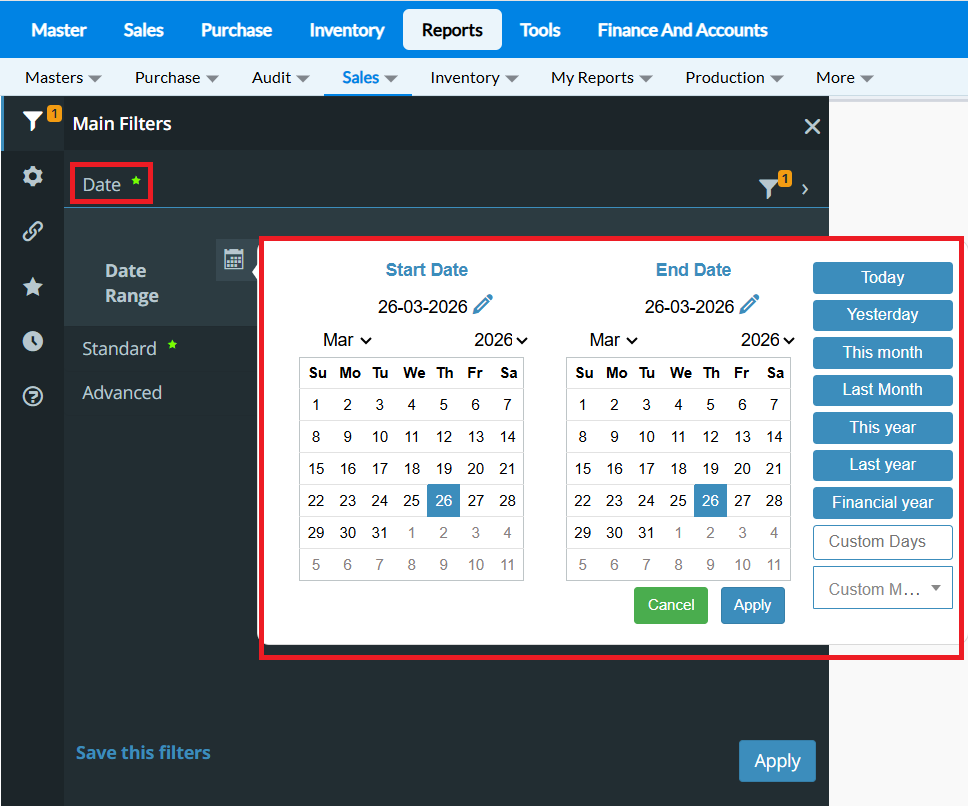
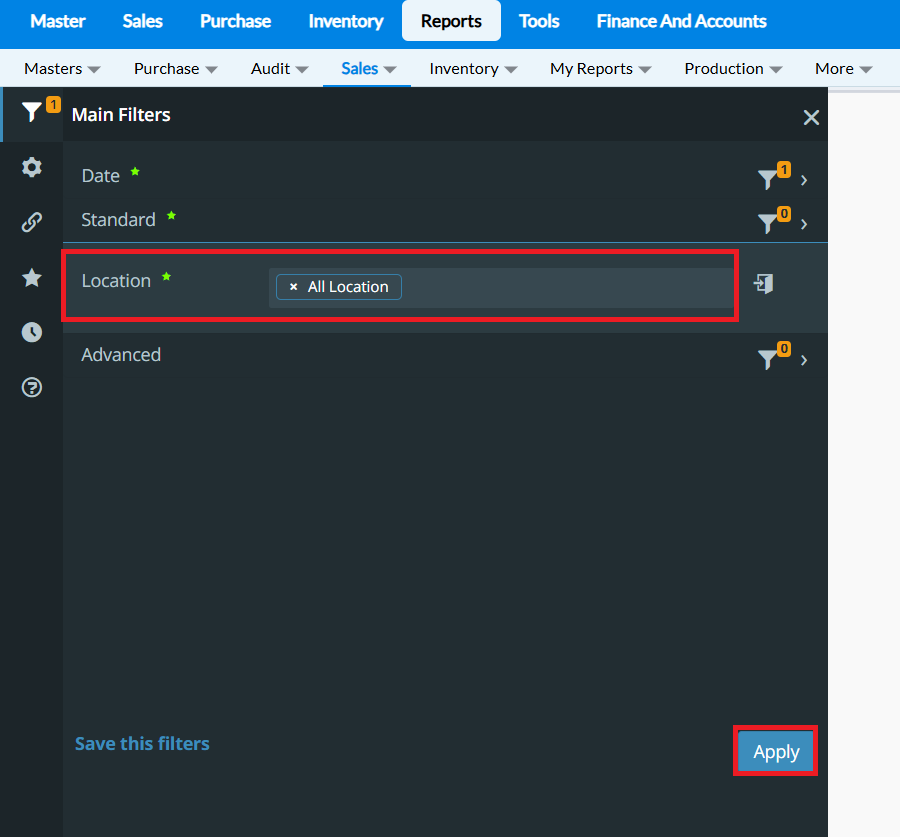
Step 2:Select a date by clicking Select Period. Select the Branch from the list. Multiple branch selection is also allowed. By default, it will take "All locations", and select apply button, by which data will be generated.
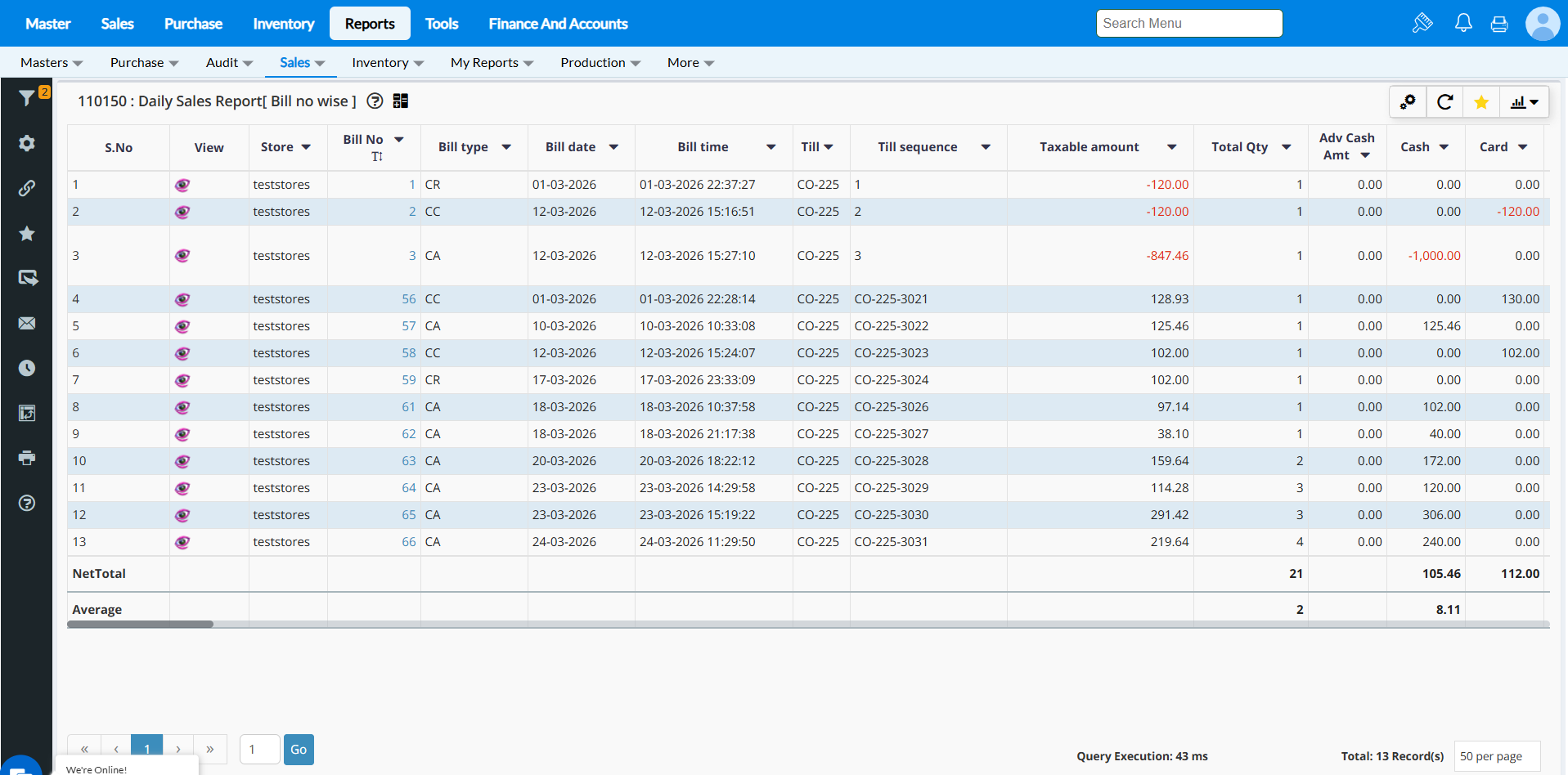
And data will be generated in the reports.
Step 2:Select a date by clicking Select Period. Select the Branch from the list. Multiple branch selection is also allowed. By default, it will take "All locations", and select apply button, by which data will be generated.
And data will be generated in the reports.
Step 3: On the left side panel,Click on Mail icon
Step 4: Choose the to mail id and cc mail id to whom you want to send the report

Step 5: You can choose the Roles or Users and enable the Role/ Users to whom you want to send the report as mail

Step 6: Choose the Report format you want to send as mail and enter the message ( Mail content )
Click on Send button once the required field is updated

To Schedule the Report
Purpose: The Schedule Report via Mail option in POS software enables automatic sending of reports at predefined intervals, eliminating manual effort and ensuring timely updates for efficient business monitoring.
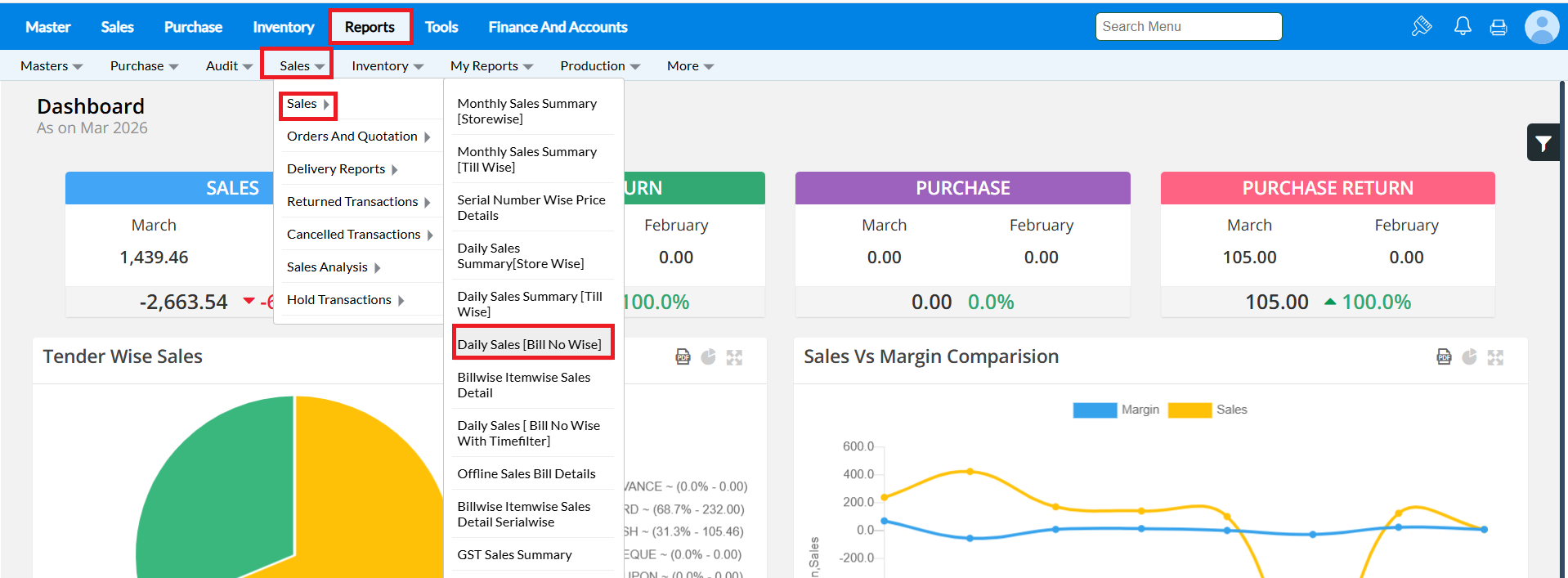
Step 1: Generate the report which you want to send mail.For Example, We are taking Daily Sales Bill No.wise report by following path: Reports-->Sales-->Sales-->Daily Sales Bill No.Wise Report.
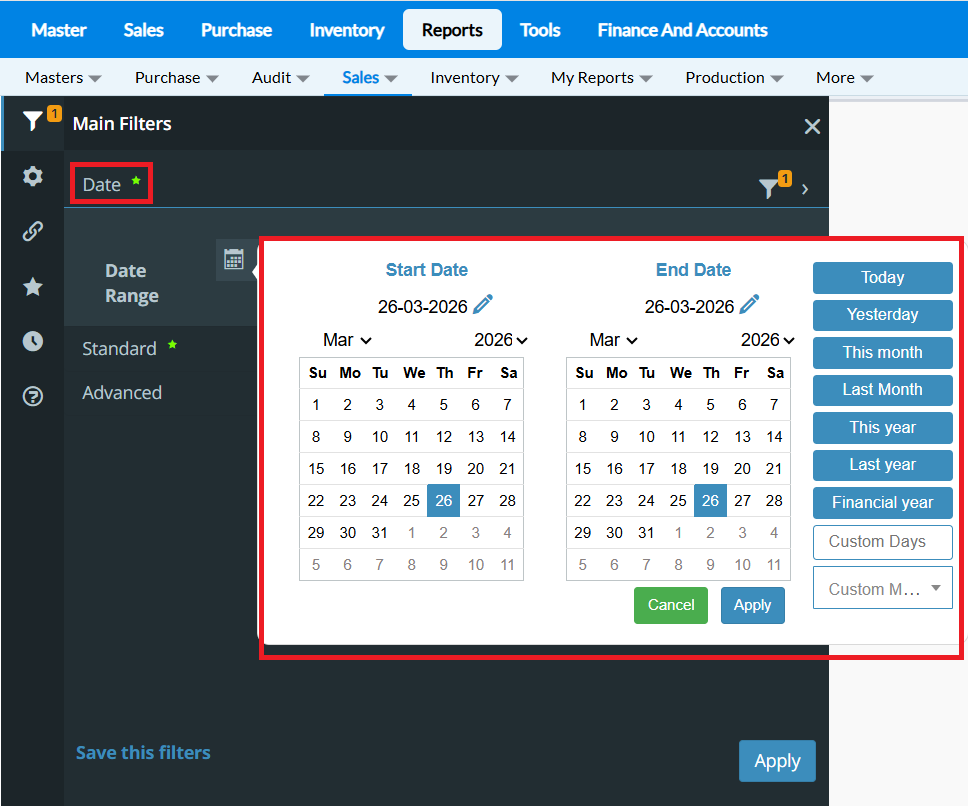
Step 2: Select a date by clicking Select Period. Select the Branch from the list. Multiple branch selection is also allowed. By default, it will take "All locations", and select apply button, by which data will be generated.
And data will be generated.
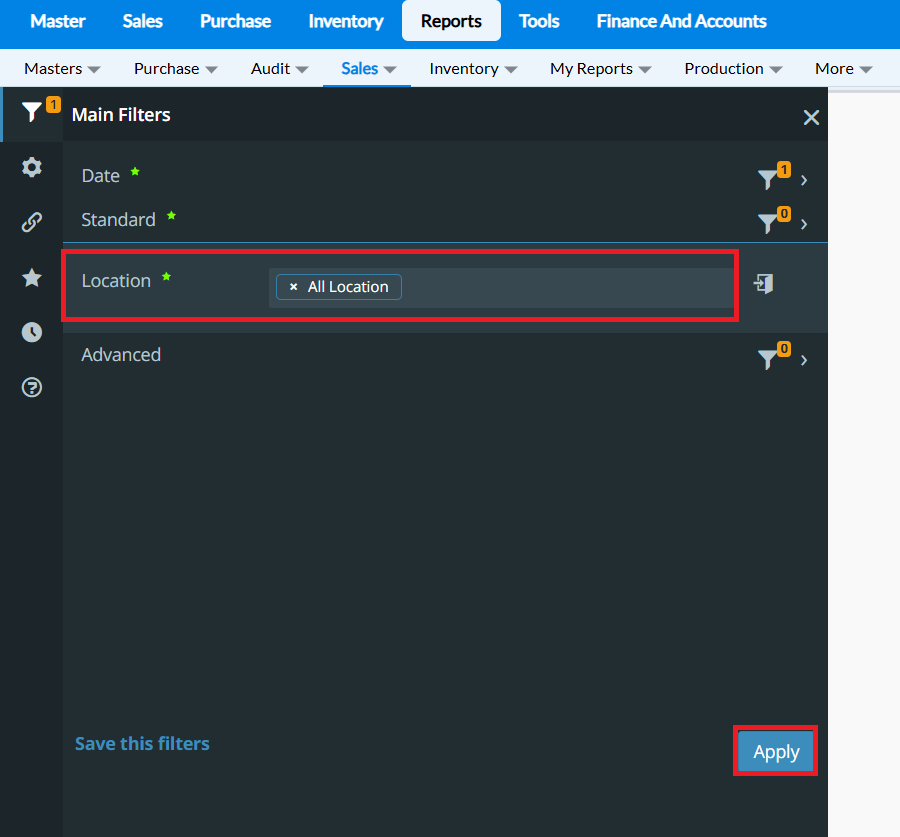
Step 2: Select a date by clicking Select Period. Select the Branch from the list. Multiple branch selection is also allowed. By default, it will take "All locations", and select apply button, by which data will be generated.
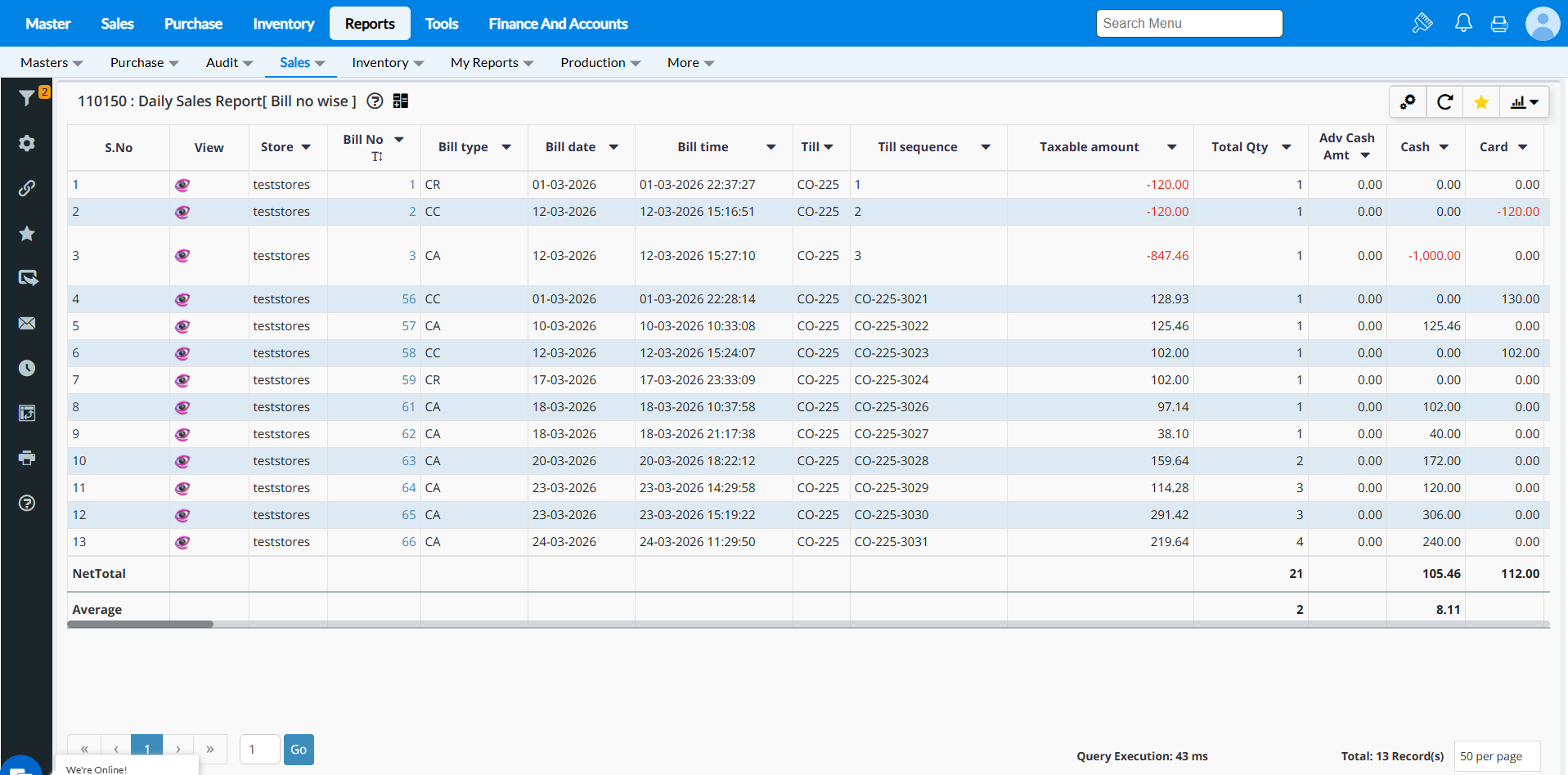
And data will be generated.
Step 3: Click on Schedule icon and to create the new schedule report click on Create a new Schedule

Step 4: Choose the to mail id and cc mail id to whom you want to send the report
Step 5: You can choose the Roles/ Users and enable the Role and User to whom you want to send the report as mail
Step 6 : Choose the Report format you want to send as mail and enter the message

Step 7:Choose the schedule time and select the time you want schedule the report .If you select daily and give particular time then daily at this time you will receive the mail. In this way you can choose the weekly,monthly or interval .If you choose interval for every 10 days at this time mail will be received
If you want to schedule the report with applied filters then enable the check box. You can choose the group level after filing all details as per need and click on Save

FAQ:
Q1.How many reports can be scheduled?
Ans-You can schedule up to 3 reports, which is the maximum limit.
Ans-You can schedule up to 3 reports, which is the maximum limit.
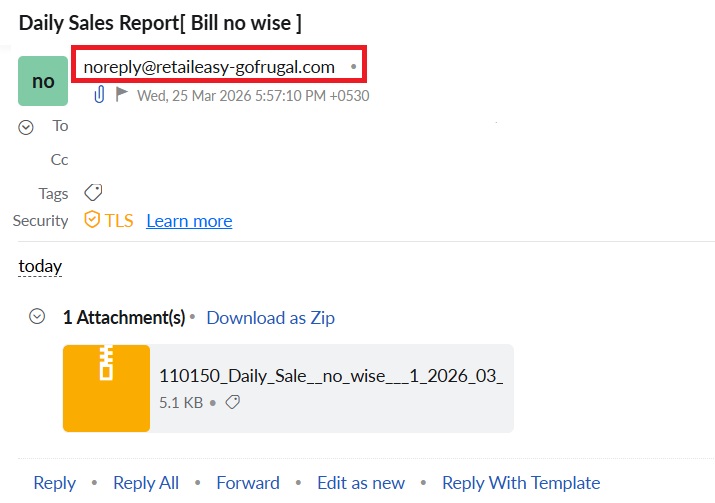
Q2. How do we receive mail?
Ans: You will receive emails for the scheduled reports from "
noreply@retaileasy-gofrugal.com"
.
Related Articles
How to send the invoice in CSV format
To send the invoice in CSV format Purpose - We can import the invoice in csv format to any other software or purchase. Steps to send the invoice in CSV Format: 1.Go Master->Customer 2.Click on Add New Customer 3.Enter the valid email id, Choose the ...Delivery Note Reports
Purpose: You can verify the Sales Delivery note status and Other details regarding your Delivery note from the following reports: Sales Delivery note summary Sales Delivery note detail There are four types of statuses in a Delivery Note to manage ...View Account Receivables Summary Report
The Accounts Receivables reports are to enable you know how much your customers owed to you for goods and services that you provided them on credit; in addition to it, you can analyze your stores receivables by viewing the number of credits in ...How View Account Receivables Summary Report
Purpose : These reports show how much customers owe you for goods or services you've provided on credit. They also help you track overdue payments by breaking them down into categories: 0-30 Days 31-60 Days 61-120 Days Over 120 Days This way, you can ...How to do Credit Bill Adjustment and see receivable summary report in RetailEasy On Cloud
Purpose : The purpose of a credit bill adjustment is to ensure the customer's credit balance reflects the accurate amount, user can adjust the credit by partial or full payment adjustments. This helps maintain accurate financial records. Steps to ...