Employee Master
Employee Master
Create Node Users and Anywhere Users |
An Employee can be created with 2 different set of permissions and restrictions for data privacy and security purpose.
Node User - The Node User is a type of access that a user is restricted to access TruePOS only a specific store that too particular nodes (i.e. Billing Registers).
The Node Users cannot access TruePOS except the Node they are authorized.
Anywhere User - The anywhere user is a type of access that a user can access TruePOS in any machine irrespective of network.
This access can be preferably given to business owners and approval managers who wish to access real time application data even when not physically present in store.
Steps to create a Node/Anywhere User -
1. Navigate to Tools -> Configuration -> Security Configurations -> Employee Master.
2. Click on Create Employee

Under the Employee Details section,
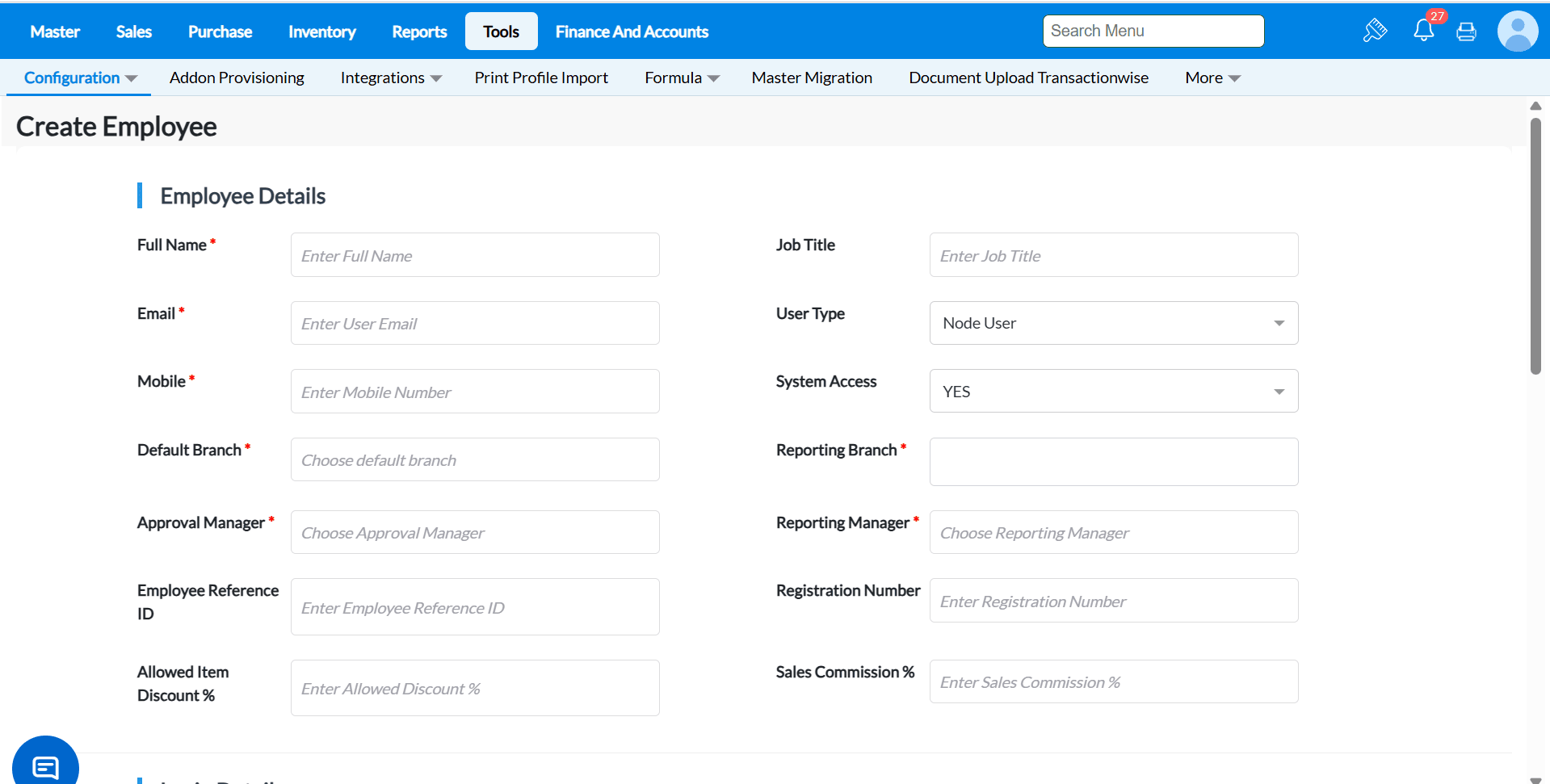
- Enter the Full Name of the Employee.
- Enter the Job Title of the employee.
- Enter the Email Id of the employee
- Enter the correct Mobile number of the employee. This has to be mandatorily given while creating a new employee.
- To create a node user, in the User Type field, select 'Node User' from the drop down list.
- To create a anywhere user, in the User Type field, select 'Anywhere User' from the drop down list.
- Click dropdown in System Access and choose YES or NO(non user).
YES - for users that require to access TruePOS application. For ex., manager, billing person, stockiest etc.,
NO - for users that do not require to access TruePOS. For ex., delivery agent, salesman, freight in charge etc.,
- Click dropdown in Approval Manager and then select the Employee Name from the pop-up
Note:- If the Default branch/Reporting branch is changed, then the list of employees will be shown only from selected reporting branch(s) and not from all branches. - Click dropdown in Default Branch to select a branch, for which the user has access by default.
- Click dropdown in Reporting Branch to select all the branches that the user is allowed to access.
- Click dropdown in Reporting Manager and then select the Employee.
- Enter the Employee reference ID if required. This can be used for report purpose.
- Enter the Registration number if required. This can be used for report purpose.
- If required, specify the Discount Percent in Allowed Item Discount % to allow the user to allow up to the specified percent of Discounts in Bills.
- If required, specify the salesman commission value in Salesman Comission % to allow the user to allow up to the specified percent of discounts in Bills.
Under the Login Details section,
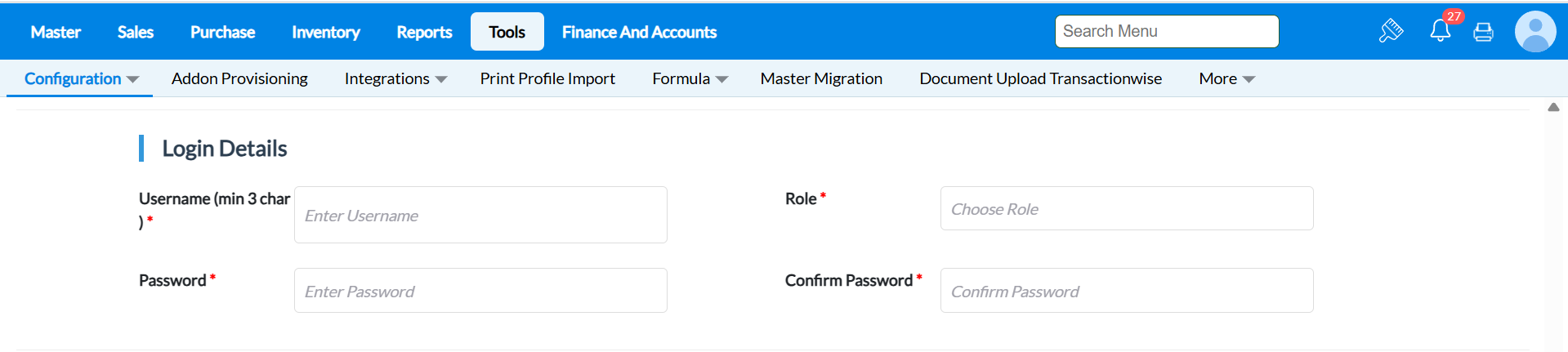
- Enter the Username, which must be unique for every employee.
- Click on Role and select the appropriate role for the employee.
- Enter Password and upon hovering the field, you will be shown the password policy to be followed.
- Retype the same in Confirm Password to confirm.
Under the General Information section,

- If required, click dropdown in Department and then select a Department from pop-up.
Note:- Click Masters > Tools > Department to add a new Department.
- If required, click dropdown in Designation and then select a Designation from pop-up.
Note:- Click Masters > Tools > Designation to add a new Designation.
- Select a Node Register Access from the list for node user.
NO REGISTER - to deny the 'Node User' from accessing TruePOS.
REGISTER NEW NODE - to allow the 'Node User' to set up new Billing Registers and to login to any existing Registers. (The counter or register name can be created newly)
RE-REGISTER ALSO - to allow the 'Node User' to allow login to only existing Registers. (The counter name will have to chosen from the existing counter or register name)
- Select the MyGofrugal Role if required, from the dropdown.
- If GoSure license is activated, then select the User-Type - GoSure dropdown, and corresponding GoSure roles will be listed. Choose the appropriate role for the employee and click Select.
Note:- This field will be visible only when GoSure license is purchased.
Under the Contact Information section, enter necessary information if required.
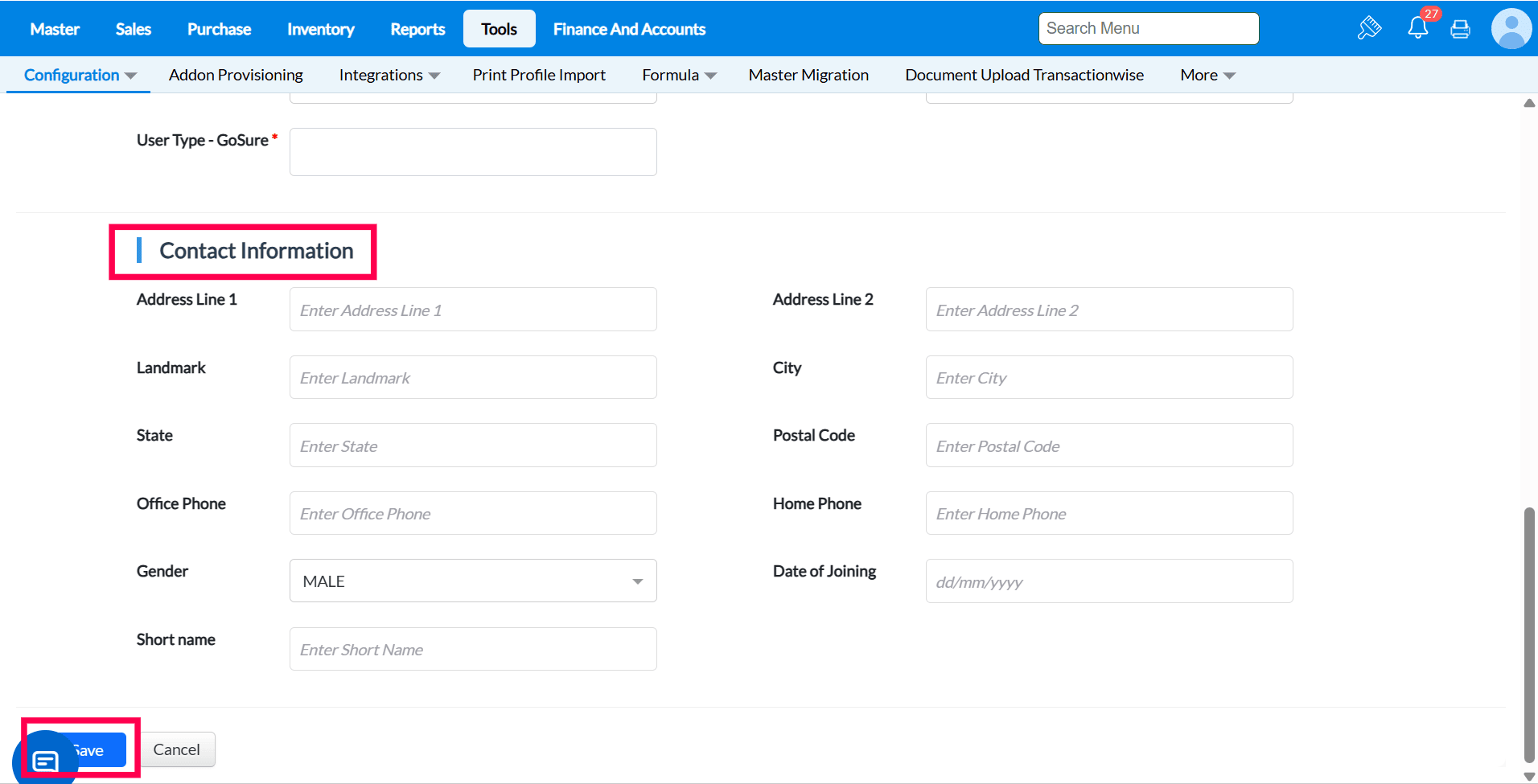
- Enter the Address 1 and Address 2.
- Enter the Landmark.
- Enter the City, State and Postal Code.
- Enter the Office Phone number and Home Phone number.
- Choose the Gender.
- Select the Date Of Joining.
- Enter the Short Name.
- Click Save
FAQ:-
1. How do I proceed with node re registration if my old system is not working?
In order to Re register and existing system, Refer the link Node User Re Registration .
Example - If your old billing system or register is not working or under repair, you wish to use the same user in another register machine available, in that case, the user can be provided Re register access and registered with any already existing system
In order to Re register and existing system, Refer the link Node User Re Registration .
Example - If your old billing system or register is not working or under repair, you wish to use the same user in another register machine available, in that case, the user can be provided Re register access and registered with any already existing system
2. Can I use the same mobile number again?
No, mobile number is unique for every employee.
No, mobile number is unique for every employee.
3. Can I use the same username again?
No, username is unique for every employee.
4. After creating node user, how to assign it to a till machine?
After creating a node user, the system or the machine has to be registered with the node user in order to use the same. Refer the link Register New Billing Nodes or Registers in order to create and register new system
5. How to create non-users as employees?
In the System Access field dropdown choose NO to indicate the employee is non-user like Sales Rep, Shipment Authority...etc
In the System Access field dropdown choose NO to indicate the employee is non-user like Sales Rep, Shipment Authority...etc
6. How to inactivate an existing employee?
In the Employee Master screen -> click on Edit against the employee -> and in the Status field choose 'Inactive'.
7. I use GoSure product but how do I create an employee without GoSure access?
In the User-Type - GoSure field, click and select None.
In the User-Type - GoSure field, click and select None.
8. Can two roles be mapped to one user?
No it is not possible to map 2 roles to one user 9. How will you provide the branch access for the user? Is no of branch access restricted to certain number?
Branch access for the user can be provided via Employee master - Default branch and Reporting branch fields.
Default branch can be mapped for only 1 location. We can map N no of available branches in reporting branch as per required.
Default branch can be mapped for only 1 location. We can map N no of available branches in reporting branch as per required.
10. Where will you provide the maximum discount allowed for that employee?
Refer the link Restrict Item Disc % for sales person on how to provide maximum discount and how it works.
11. What is the difference between approval manager and reporting manager?
Approval Manager - Approval Manager plays vital role in discount approval and transfer approval. The user who is mapped for approval manager will have the rights to approve transactions made. Only 1 user can be mapped as approval manager.
Reporting Manager - Reporting Manager is a user to whom the user reports to, this is just for record purpose. Only 1 user can be mapped as Reporting manager.
Approval Manager - Approval Manager plays vital role in discount approval and transfer approval. The user who is mapped for approval manager will have the rights to approve transactions made. Only 1 user can be mapped as approval manager.
Reporting Manager - Reporting Manager is a user to whom the user reports to, this is just for record purpose. Only 1 user can be mapped as Reporting manager.
12. What is the difference between Default branch and reporting branch?
Default Branch - By default, a branch need to be mapped mandatorily. It is the branch where the user belongs and makes the transactions. Ex : A sales cashier of a super market who belong to chennai
branch. Only 1 branch can be mapped as default branch
branch. Only 1 branch can be mapped as default branch
Reporting Branch - Reporting branches are the ones where the user have access to. If the user is said to work on 2 or more branches, then those branches can be mapped. The report and transactions can be done in reporting branches as well. Any number of branches can be mapped as reporting branch. Ex : A Store manager who belongs to Chennai branch can also visit Bangalore branch.
13. What are the details that cannot be edited after creating the user?
The Only detail which cannot be edited after creating the user is "User type" which determines whether the user is anywhere or node. To change the user type from Node user to Anywhere user or Vice Versa and the only possible solution is you need to inactivate the existing user and create new user with the Correct user type.
14. How to delete any user?
In order to delete the user, the status field of the user should be set as "Inactive". It won't delete the user permanently, but you won't be able to use the user anymore. If needed, it can be activated by changing the status as "Active" and used.
15. How to buy license in Truepos?
By using Manage Subscription page we can buy license in Truepos, Refer the help link Manage subscription for the same
16. How many types of license does TruePOS has?
Two types of license
- Node user/Register user
- Anywhere user
17. What is the purpose of registering the counter ?
The user can access only the registered system. Its mainly used for security purpose
18. What is the impact of registering the counter?
The user can access only from the registered system cant login into other system
19. How to change the Approval manager for an user ?
- Go To Tools -> Configurations -> Security configurations -> Employee master
- Click on Edit button against the user for which approval manager need to be changed.
- Against the Approval manager field, select the value and in the modal list, click appropriate user.
- Select whichever user need to be mapped as approval manager and it will get selected and loaded in the list.
20. How to change branch for an user?
- Go to Tools -> Configurations -> Security configurations -> Employee master.
- The list of users available will be listed. Search for username and click on the Edit against the user for which branch needs to be edited.
- Click on Reporting Branch field -> the User's reporting branch list will appear. Please click and select the branch and click on Confirm.
21. How to change password for an existing user?
- Go to Tools -> Configurations -> Security configurations -> Employee master.
- The list of users available will be listed. Search for username and click on the Edit against the user for which branch needs to be edited.
- Click on Password field -> the User's password will not appear for security purpose. Please click and enter the new password and click on Save.
- Click on Confirm Password field -> the User's password will not appear for security purpose. Ensure the confirm password and password is the same. Please click and enter the new password and click on Save.
22. Can I map approval manager from another branch which is not selected in default branch?
In approval manager dropdown, the employees of the branches mentioned in reporting branch will only be displayed. If the employee belongs to any one of the selected reporting branch then that employee can be assigned as approval manager.
23. In employee master screen, I'm unable to view my approval manager details?
23. In employee master screen, I'm unable to view my approval manager details?
An employee's approval manager details cannot be seen as he doesn't have that privilege to change those details. He can only view other employee details and his reportee's details.
24. I changed the approval branch/reporting branch in employee master and why the mapped approval manager got removed?
If the already mapped approval managers are of different branch, then it will get cleared as we can map approval manager only who belongs to the branch mentioned in reporting branch.
If the already mapped approval managers are of different branch, then it will get cleared as we can map approval manager only who belongs to the branch mentioned in reporting branch.
25. How to search in List View?
- Click on the Search icon.
- Select and apply the required filter conditions (e.g., Emp Name starts with, Role contains, etc.) in the Employee Master screen.
- Click the Search button to view the filtered results.
Related Articles
Stock update approval
Stock Update Approval Intro on Stock update approval Stock maintaining and management is one of the most important and vital task for every businesses. Stock update approval is one of the efficient feature introduced by Truepos in order to keep track ...How do I add, edit, and bulk-update the GST rates, effective September 22, 2025
Purpose - Based on the 56th GST Council meeting, the tax slab structure has been simplified. The GST Council's reforms, effective September 22, 2025. To add, edit, and bulk-update your tax rates and associated items to align with the new tax changes. ...Tender Master
Introduction to Tender Master Tender refers to the different forms of payment accepted by a retail store for sales and other transactions. TruePOS provides the Tender Master, where businesses can add and manage different payment methods such as Cash, ...Purpose of Master Attribute
The Master Attribute feature in TruePOS allows administrators to control the edit option in the Masters screen. This ensures data accuracy and prevents accidental or intentional modifications to critical business information. By disabling the edit ...Introduction to Master Merge
Master Merge is a feature in TruePOS used to merge duplicate master data records into a single, accurate record. This helps businesses eliminate redundant or duplicate entries in their database. Currently, the Master Merge functionality is available ...