How to Check the combo pack Sales Report?
The details report for Combo pack item and child are obtained through -
- Combo pack Sales - Detailed
- Combo pack Sales - Summary
- Click Reports > Sales > Analysis > Combo Pack Sales - detailed.
- The Date Filter screen is displayed.
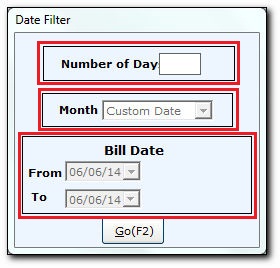
Note: Select any of the options to filter the data -- Number of Day - To filter the data for the number of days specified.
- Month - To filter the data by number of month specified.
- Bill Date - To filter the data between two dates.
- Click Go or press F2 to display Report Filter screen.
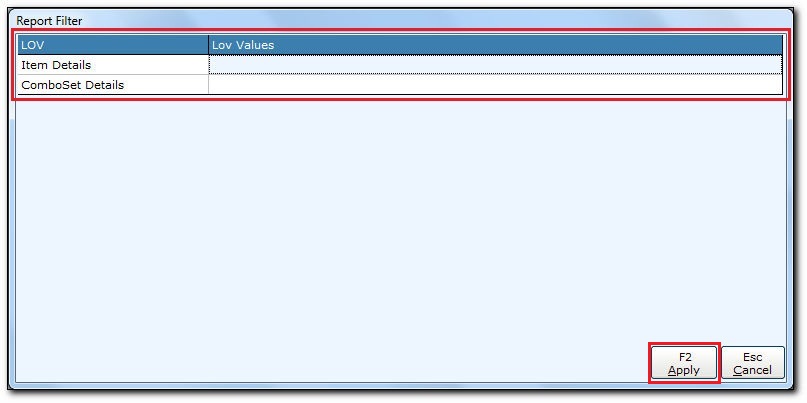
- In the Item Details field, press ENTER. A list of Item Details screen is displayed.
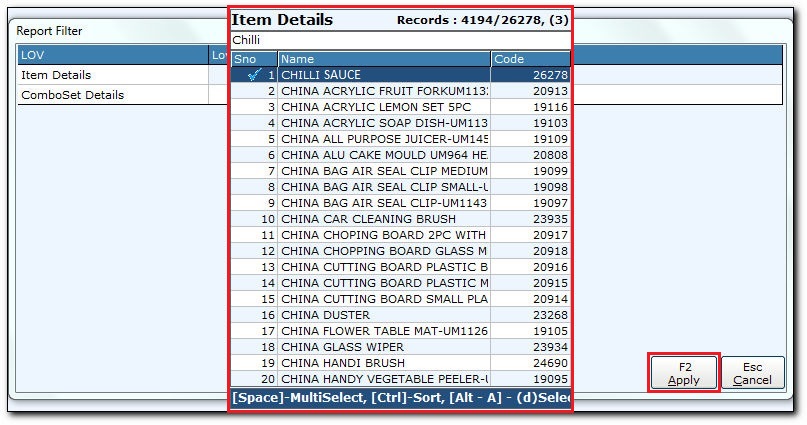
- In the Item Details list, select the items.
Note: You can select the multiple items by pressing SPACE BAR. - In the ComboSet Details field, press ENTER. A list of ComboSet Details is displayed, select the combo item.
- Click Apply or press F2.
- In the Item Details field, press ENTER. A list of Item Details screen is displayed.
- The Combo pack Sales - Detailed screen is displayed.
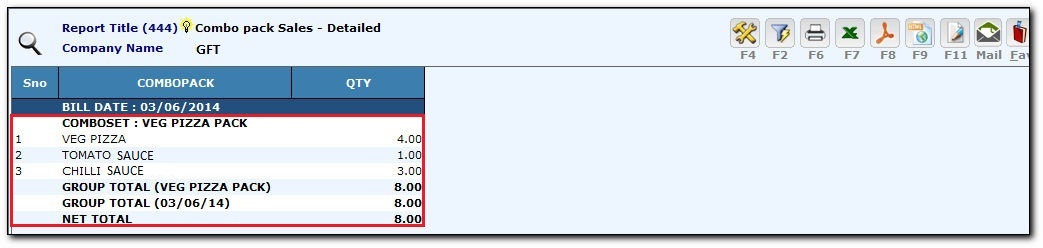
- Press Esc key to close the Combo pack Sales - Detailed screen.
- A confirmation message is displayed, click Yes.
- Click Reports > Sales > Analysis > Combo Pack Sales - Summary.
Note: Follow the same steps from step 2 - 3 as shown above for Combo pack Sales - Summary report. - The Combo pack Sales - Summary screen is displayed.

- Press Esc key to close the Combo pack Sales - Summary report.
- A confirmation message is displayed, click Yes.