Business Configuration[Tender]
Business Configuration[Tender]
Steps to access Tender Business Configurations:-
2. Under the Configurations tab, click on the Tender tab and all the configurations under this tab will be listed.
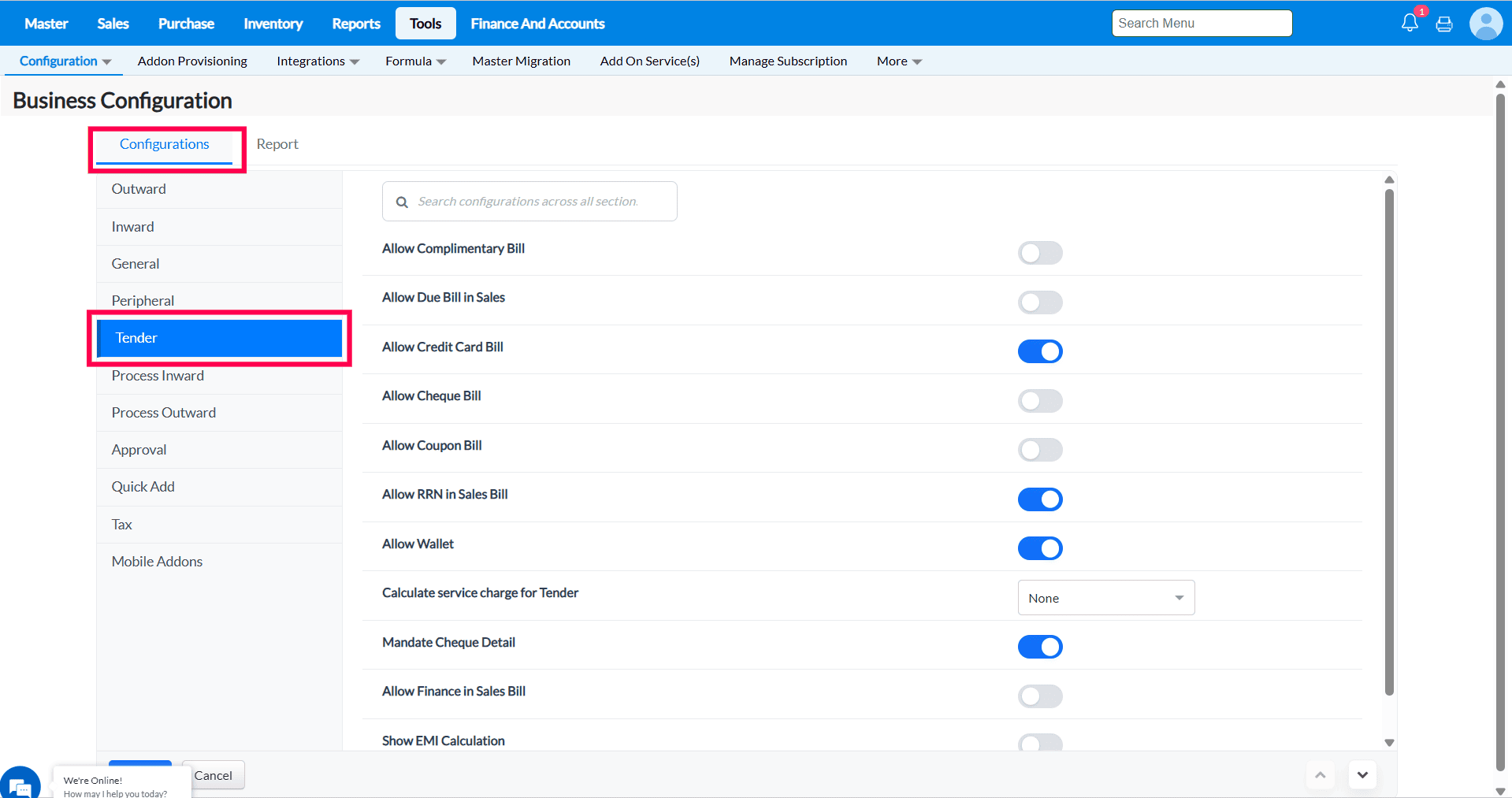
Q 1. What does the “Allow Compliment Tender in Sales Order” option do?
Note - To enable (Allow Compliment Tender in Sales Order ) Configuration Kindly Reach Support
2. If you untick/clear this checkbox: the system Disable the Compliment Tender during Sales Order save.
Q 2. What does the “Allow Complimentary Bill” option do?
Purpose → This option is used to record sales that are given free of cost to customers. When the Allow Complimentary Bill checkbox is selected, the system enables the Complimentary option during billing. This helps staff mark items as free without affecting regular sales records. The purpose is to track complimentary items for reporting properly, stock management, and audit purposes while maintaining clear sales data.
1. If you tick this checkbox: the system enables the Complimentary Tender during billing
2. If you untick/clear this checkbox: the system Disable the Complimentary Tender during billing
Reports To Track The Complimentary Bill
1. Billwise Itemwise Sales Detail
Report Path - Report → Sales → Sales → Billwise Itemwise Sales Detail
2. Daily Sales Report ( Bill No Wise )
Report Path - Report → Sales → Sales → Daily Sales Report ( Bill No Wise )
Q3. What does the “Allow Due Bill in Sales” option do?
Purpose → This option allows you to create due bills for customers. When this checkbox is selected, the Due Bill option appears during sales, enabling you to record unpaid or partially paid bills. It helps track customer dues clearly and manage outstanding payments effectively.
1. If you tick this checkbox: the system enables the Due Bill Tender during billing.
2. If you untick/clear this checkbox: the system Disable theDue Bill Tender during billing
Reports To Track The Due Bill
1. Billwise Itemwise Sales Detail
Report Path - Report → Sales → Sales → Billwise Itemwise Sales Detail
2. Daily Sales Report ( Bill No Wise )
Report Path - Report → Sales → Sales → Daily Sales Report ( Bill No Wise )
Q4. What does the “Allow Credit Card Bill” option do?
1. If you tick this checkbox: the system enables the Card Tender during billing.
2. If you untick/clear this checkbox: the system Disable the Crad Tender during billing
Reports To Track The Card Bill
1. Billwise Itemwise Sales Detail
Report Path - Report → Sales → Sales → Billwise Itemwise Sales Detail
2. General Ledger In accounts and finance you can track the Card Bill in Credit Card Reimbursement Ledger.
Q5. What does the “Allow Cheque Bill” option do?
Purpose - This option enables cheque payments during billing. When the checkbox is selected, the Cheque option appears on the tender screen, allowing users to record cheque payment details. It helps businesses accept cheque payments and maintain proper records for tracking and reconciliation.
1. If you tick this checkbox: the system enables the Cheque Tender during billing.
2. If you untick/clear this checkbox: the system Disable the ChequeTender during billing
Reports To Track The Cheque Bill
1. Billwise Itemwise Sales Detail
Report Path - Report → Sales → Sales → Billwise Itemwise Sales Detail
2. General Ledger In accounts and finance you can track the Cheque Bill in Cheque in hand Ledger.
Q8. What does the “Allow Coupon Bill” option do?
Purpose - This option enables coupon payments during the billing process. When selected, the Coupon option appears on the tender screen, allowing users to accept and record coupon payment details from customers. It helps manage promotional offers properly and ensures accurate tracking of coupon-based sales in reports.
1. If you tick this checkbox: the system enables the Coupon Option in Tender during billing.
2. If you untick/clear this checkbox: the system Disable the Coupon Option in Tender during billing.
Reports To Track The Coupon Bill
1. Daily Sales Report ( Bill No Wise )
Report Path - Report → Sales → Sales →Daily Sales Report ( Bill No Wise )
2. General Ledger In accounts and finance you can track the Coupon Bill in Coupon Reimbursement(116) Ledger.
Q9. What does the “Allow RRN in Sales Bill” option do?
1. If you tick this checkbox: the system enables the RRN Option in Tender during billing.
Steps to proceed for RRN
1. Go to Sales --> Sales Bill and do a new Sales Bill and Save the bill.
2. Go to Sales --> Sales Return and enter the Bill number column and choose the Bill No that you want to return.
3. Choose the Return mode as 'RRN'
4. Enter the item which you have sold and enter the quantity that you want to return. and click on Save.
To make the payment through RRN In Sales Bill.
5. Go to Sales ->Sales bill and make a Bill and click on Save button.
6. Tender screen pop up will appear choose N for making payment through RRN
7. Enter the Return number as RRN No and Enter the adjusted amount
8. After making the payment click on OK
Reports To Track The RRN Bill
1. Daily Sales Report ( Bill No Wise )
Report Path - Report → Sales → Sales →Daily Sales Report ( Bill No Wise )
2. General Ledger In accounts and finance you can track the Coupon Bill in Coupon Reimbursement(116) Ledger.
Q10. What does the “Allow Wallet” option do?
Q11. What does the “Calculate service charge for Tender” option do?
Q12. What does the “Mandate Cheque Detail” option do?
Q14. What does the “Show EMI Calculation” option do?

Path to create the Dealer BuyDown - Master → Dealer BuyDown → Create New
Reports To Track The EMI In Bill
1. Daily Sales Report ( Bill No Wise )
Report Path - Report → Sales → Sales →Daily Sales Report ( Bill No Wise )
Report Path Reports -> My report -> Finance EMI investment
3. The amount received from the finance institute is saved as a credit entry and can be viewed in the Day Book report under the Finance & Accounts module.
When the customer pays the EMI amount, it can be adjusted using the Bill-wise Receipt screen available under Receivables/Payables in the Finance & Accounts module.
Related Articles
Tender Master
Introduction to Tender Master Tender refers to the different forms of payment accepted by a retail store for sales and other transactions. TruePOS provides the Tender Master, where businesses can add and manage different payment methods such as Cash, ...Business Configuration[Approval]
Purpose:- The configurations in the Approval tab display the types of approvals used in TruePOS such as Purchase and Sales approvals and explain the functionalities of each configuration.” Steps to access Approval Business Configurations:- 1. ...Business Configuration[Tax]
Taxes Configurations The Tax Configuration module allows you to enable or disable various tax options across all modules based on your business requirements. These configurations can be found at the following path: Dashboard → Tools → Configuration → ...Business Configuration[Process Outward]
Process Outward Configuration Purpose : The configurations present in the Outward tab allows to enable or disable functionalities that are common to most of the screens of TruePOS and not specific to any particular module. Steps to access General ...Business Configuration[System]
Business Configuration[System] Q3. What does the “Sales Order Caption” configuration do? Purpose: The Sales Order Caption configuration allows you to change the label displayed for the Sales Order screen, helping tailor the terminology to match ...