Reports >> Settings
In this document, we will learn the process of
1) Grouping the columns in report - To group the columns under one head column value for better ordering and dimensional view of the report.
2) Exporting report - To export the report in desired format so that data can be processed further
Grouping columns in report
Step 1 : Go to Reports and load any required reports which need to be grouped and exported (For Example, we are taking Reports -> Sales -> sales -> Billwise itemwise sales detail)

Step 2 : To group the column name right click on column name and click on Group this column

Step 3: Click on plus symbol to group the first level


To Export the Report
Step 1 : Click on Export icon and choose the Format you want to export the report

Step 2 : When you click on Export it will ask for group level,if you want to export group level one then click on 1 else click on All and click on OK

The report will be exported in the desired format

Note : It is not necessary to group the columns before exporting. We can follow the export process alone in order to export report as it is.
Report export settings
Step 1 : After loading any required reports, In the left corner panel, click on the Export icon
Step 2 : Click on the Export settings icon

Step 3 : The report settings window will appear,

* Show Total - We can map as to where the total amount or value should be displayed in exported report. (Ex : Total bill amount should come in Top or bottom of the report)
* Show Group Total - If the columns are being grouped, then we can map as to where the total group amount or value should be displayed in exported report
* Show Serial no- To Update auto serial no for each row entry exported in the report
* Need Pagination - To export the report pagewise separated by a line after each page
* Export to Zip - To export the report as Zip file always
* Show Address - To show the company address in the exported report
After making necessary changes in settings, click on Save to reflect the changes.
FAQ
1) Export option not showing for particular user?
Answer - The reason for this is, Report export option will be disabled for the role mapped for the user. To enable report export for the role mapped to the user, follow the below process
Step 1 : Login with "Admin" user. Go To Tools -> Configuration -> Security configuration -> Employee Master. Click on Modify across the user for which the export option is not showing.
Step 2: Under Login details Tab, check on the "ROLE" field mapped to the user and note it down. Close the window by clicking Close button
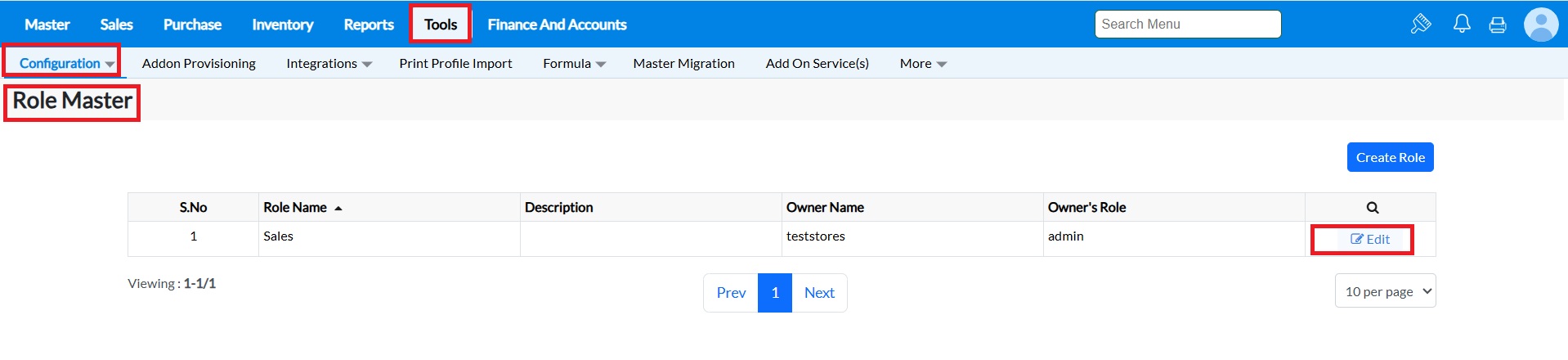
Step 3 : In the Same security configuration -> Role master, click on "Modify" against the Role mapped to the user.
Step 4 : Click on the Reports menu in the window and in the right panel, Disable the following options "CSV, Excel, Export Type, ODS and PDF" and click on Save.

Logout and login with the user login and check the report export option after loading the desired report.
Related Articles
Item Property Settings
Purpose The Item Property Settings feature in TruePOS enables users to configure various item attributes centrally. This simplifies inventory and transaction management across multiple locations, reducing the need for repetitive updates in the Item ...Delivery Note Reports
You can verify the Sales Delivery note status and Other details regarding your Delivery note from the following reports: Sales Delivery note summary Sales Delivery note detail Sale Delivery note Summary The Sales Delivery note Summary report displays ...Smart Report >>Report Settings
Purpose:Allows you to experience the following menus which helps the user to compile and run reports based on their requirements and at expected output. 1. Display - Where the user can enable/disable fields of the report based on their device ...Setting Tax inclusive and Exclusive
Intro on Tax inclusive and Exclusive It's easy to determine the difference between inclusive tax and exclusive tax. It all depends on whether the tax is added on top of the total retail price, or not. Inclusive tax - The taxes are already a part of ...How to Download Offline Reports in TruePos ?
Download Offline Reports Features * We can download reports with a maximum range of 31 days in Billwise Itemwise Sales detail report. * If you try to load the report more than 31 days, then the report will generate as a zip file and it will be ...