Repack
How to setup Products for Repacking bulk to Child/Repack ?
Purpose:
Repacking is an arrangement of converting bulk package into the small package of items (e.g. packing of sugar from a bulky bag of 100Kg to smaller packets like 1KG, 500 gm, 100 gm etc) depending on the requirement and demand. It is commonly used in the supermarket.
Repacking is an arrangement of converting bulk package into the small package of items (e.g. packing of sugar from a bulky bag of 100Kg to smaller packets like 1KG, 500 gm, 100 gm etc) depending on the requirement and demand. It is commonly used in the supermarket.
Benefits:
Repack helps you to achieve the following:
To monitor the quantity of items.
To minimize the wastage by repacking the item in right quantity.
To know all the details such as 'Number' and 'Quantity' of bulk items and repacked items.
To maintain the inward and outward flow of bulk item to repacked item.
A better utilization of work force.
Repack helps you to achieve the following:
To monitor the quantity of items.
To minimize the wastage by repacking the item in right quantity.
To know all the details such as 'Number' and 'Quantity' of bulk items and repacked items.
To maintain the inward and outward flow of bulk item to repacked item.
A better utilization of work force.
Steps to create a Repack item in item master
Menu Access : Master ->Item ->Add item.
- Click on the link to learn how to create a item
- Under the Packing tab,
1.In the Preparation status field, Select "Repackage".
2.In the Repack Conversion field, enter the weight of the Repack item in grams

3.In the Bulk Item mapping field, select the bulk item associated with the item to be repacked.
Note: For the Repackage item can be associated with multiple bulk items.

To map the Repack:
Menu Access: Go to Inventory->More->Repack
Step 1: Select the "Location" from the Dropdown and click on "Add Repack"

Step 2: Click on the Bulk Item textbox and select "Bulk item Selection" from the Item list.


Step 3: After selecting the Bulk item, you can then select the "batch". If the Item has multiple batch number.
Step 4: For Repackage, you need to select the item. Only the items that are configured as Bulk Item Selection Items in Item master screen, will be listed in the LOV for Repackage. Select the required item from the list to proceed with the Repackage process.
- In the Code Number field, press ENTER to select the repack item from the LOV.

Step 5: Enter the required details to add a Repack item
- In the Quantity field, enter the required quantity for the repack item.
- In the Sell Price and MRP fields, verify and edit the price of the repack item if required.
- Click "Add" to add the repack item, and then click Save to complete the process.

- Click Save button.

Once saved and Click view on the created Repack and click "Print" to take the print on the repack details.

- To print the barcode for the item, enable the "Print Barcode along with Repack" configuration.


- Click Print Barcode.

Note:
- Items can be repacked only if the there are stocks available for the bulk item.
Impact of adding the Repackage item in Sales bill
In Sales bill Screen , If "Repackage item" were added ,Will show the detail of "Packing uom" and "Packing QTY "

Reports to be referred :
1.Repack Summary Report(Report id:110411)
2.Datewise Repack Detail.(Report id:110450)
Menu access for the Report :Go to "Inventory"->"Stock Replenishment"->"Repack Summary" or "Repack Detail reports".
Function Key Available in the Repack Screen
1. Save - Through This Function key we can save the Repack entry once the Details Filled in the screen.
2. Cancel - Through Cancel Key If you want to proceed With Save any mistake happen or dont proceed with Repack than you can proceed with cancel through cancel key.
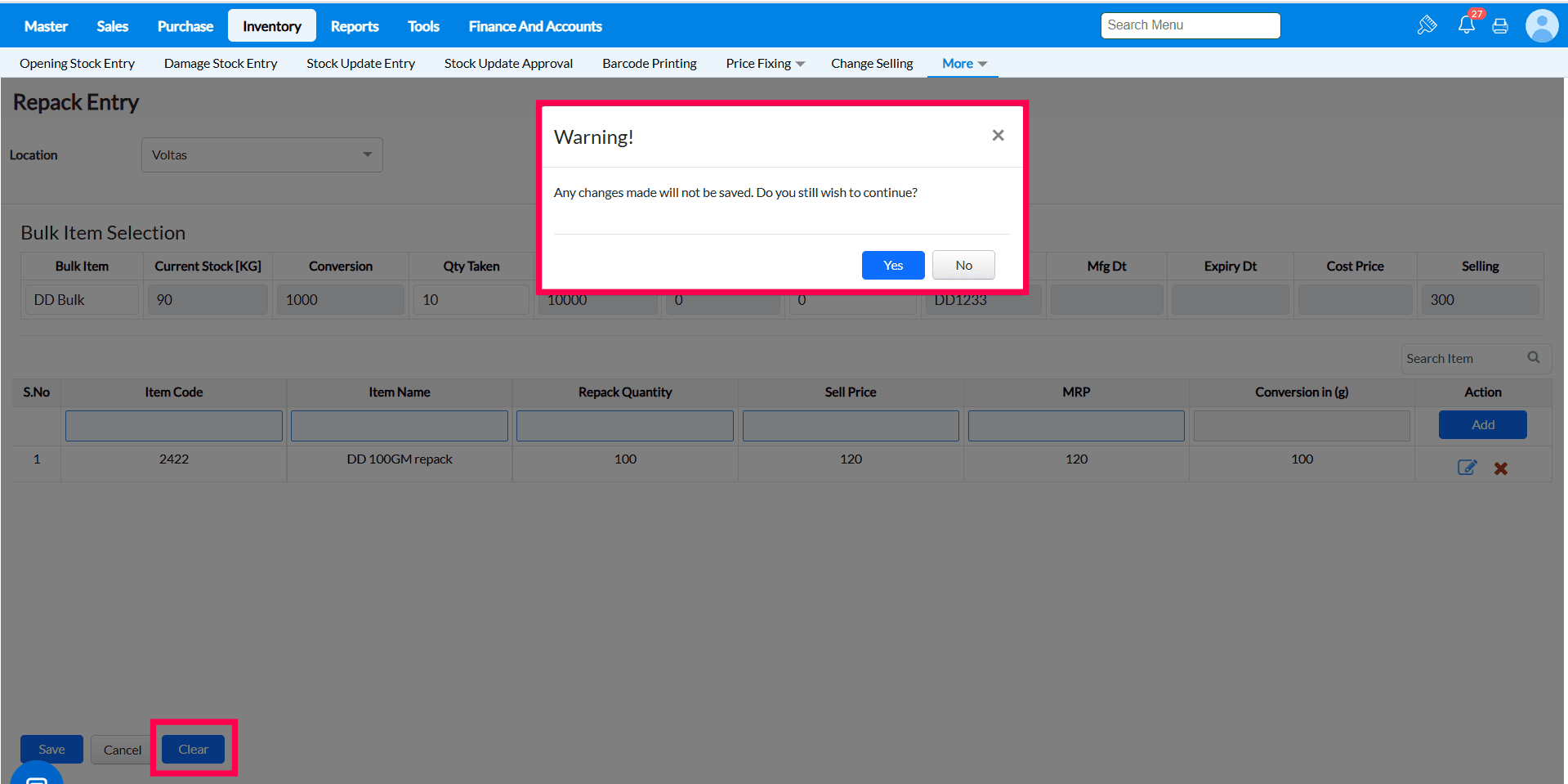
3. Clear - Through Clear Key we can clear the screen with Loaded Transaction.
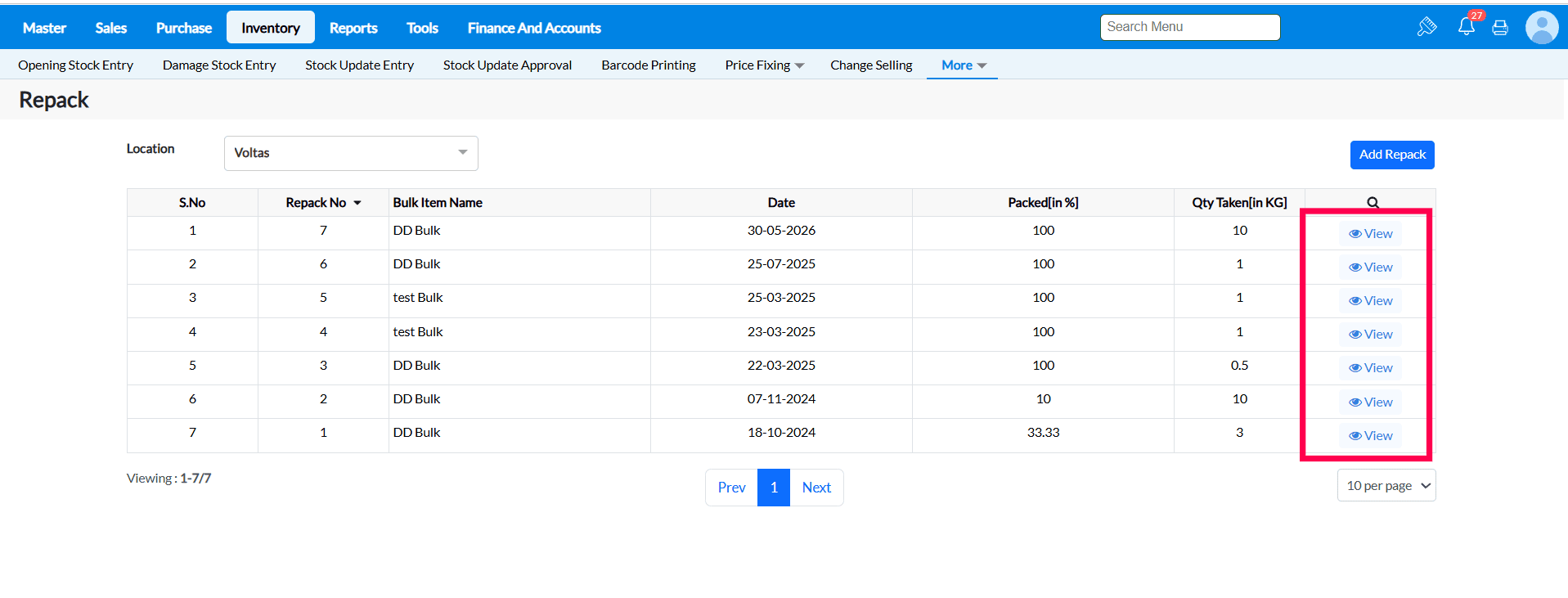
4. View - Through View Key we can check the Saved Transaction of repack screen.
5. Print - After Loading the Repack Screen in view Mode if we want to proceed the Print barcode then we can do through print command. 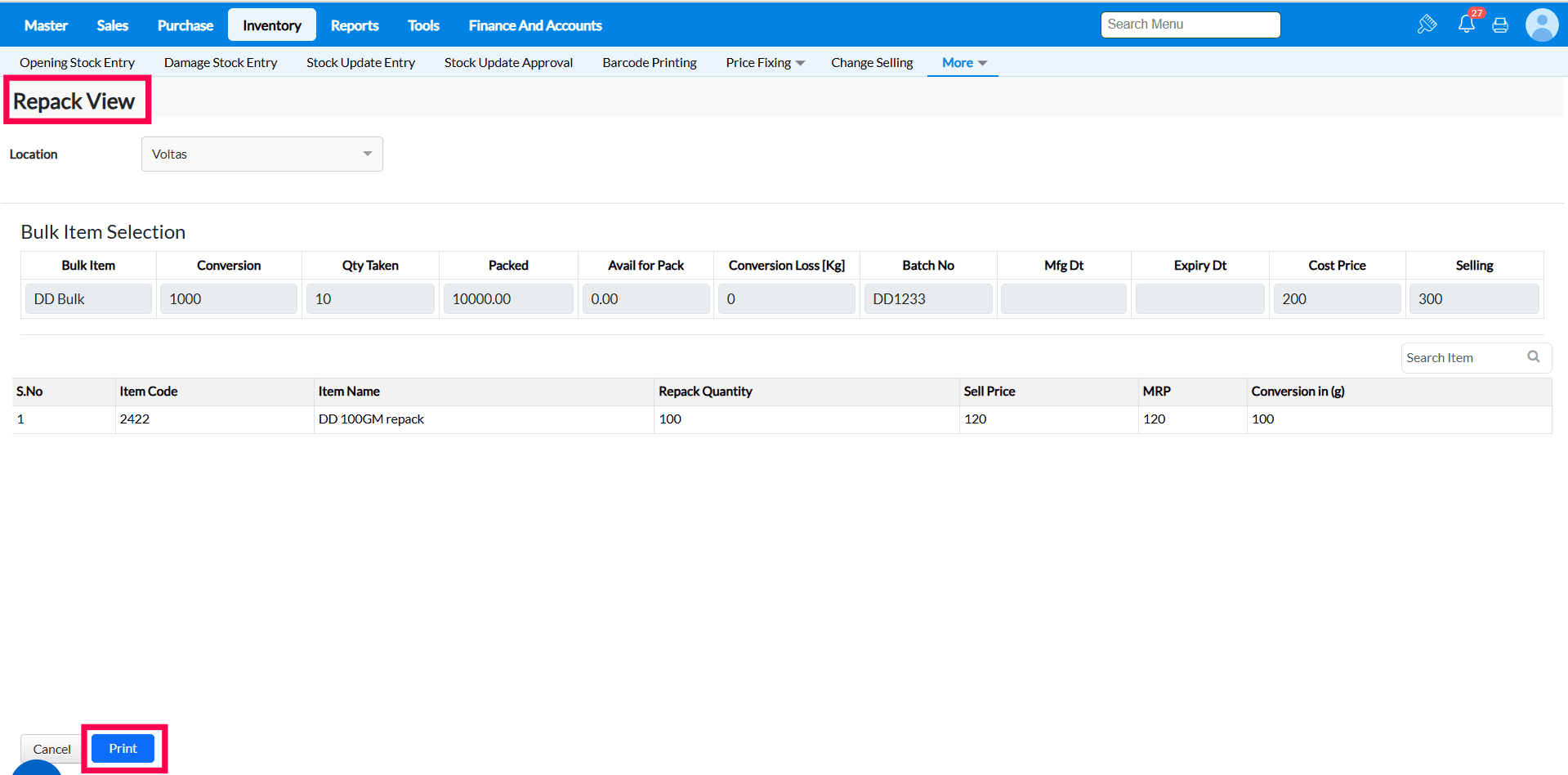
FAQ
1) Can we do repack branchwise?
Answer - Yes, in the repack menu top right corner, We have the option to select the branch location from the dropdown.
2) Can we edit an already repacked item?
Answer - No it is not possible to edit an already repacked items. Edit option is not available for repack. You can add new repack items, not modify existing repacked items
3) Can repack item quantity taken in decimal?
Answer - Yes, repack item can be provided in decimal qty.
4) Can multiple Bulk items be mapped to single repack item?
Answer - Yes, while mapping the preparation status as "Repack" in item master, an extra tab called 'Bulk item mapping' will appear where bulk item can be added. Click on Add new bulk item to add multiple bulk items to single repack item.
5) Where should we check if the repack item is not shown in the Repack screen?
Answer - Check if the preparation status is mapped as "Repack" for the repack item in Item master.
6) How to revert the repacked item and bulk item which was repacked by mistake?
Answer - Only way to revert the repack process to do stock update for the repack item and bulk item. Refer the help document for stock update
7) How can I print barcodes during the Repack process?
To print barcodes during Repack:
- Enable the "Print Barcode along with Repack" configuration.

- Create and save the Repack transaction.
- Click Print barcode to generate the repack details along with barcode labels.
Related Articles
How to setup Products for Repacking bulk to Child/Repack ?
Purpose : Repacking is an arrangement of converting bulk package into the small package of items (e.g. packing of sugar from a bulky bag of 100Kg to smaller packets like 1KG, 500 gm, 100 gm etc) depending on the requirement and demand. It is commonly ...Barcode Printing
Barcode Printing A barcode is a square or rectangular image that can be read by a scanner. It consists of a series of parallel black lines and spaces with varying widths. Products are labeled with barcodes for easy identification. Barcodes are widely ...How to perform Barcode printing for Repack Items
Purpose :Repacking refers to the process of converting bulk packages into smaller units (e.g., packing sugar from a 100kg bag into smaller packets such as 1kg, 500g, 100g, etc.), based on customer demand. This process is commonly used in ...Barcode Printing
Purpose of Barcode Printing Barcode printing is used to generate and label products, materials, or documents with unique, scannable identification codes. These barcodes store information such as product codes, prices, batch numbers, or inventory ...Item EAN/UPC entry
Overview EAN (European Article Number) and UPC (Universal Product Code) are widely used barcode systems in Europe and the U.S., respectively. TruePOS allows users to associate multiple EANs or UPCs with a single or multiple items for seamless barcode ...