Configuring the secondary backup path
Steps for configuring the secondary backup path.
It is recommended to configure the secondary backup path as it may be useful for restoring the data properly in case of any hardware issue.
STEPS:
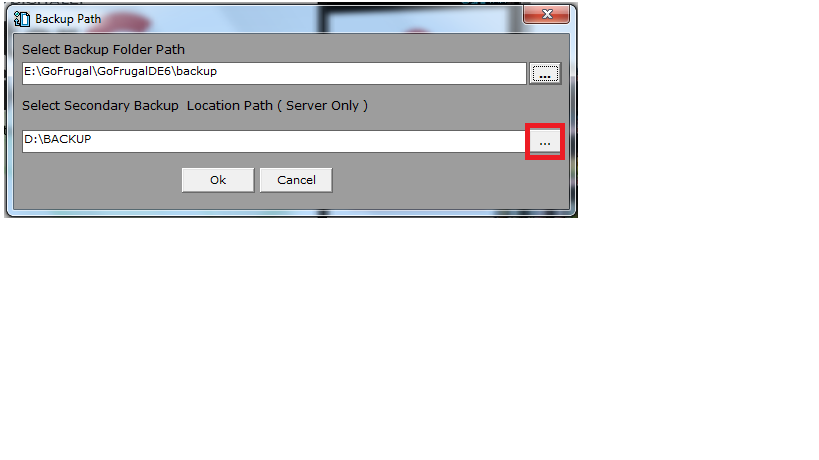
It is recommended to configure the secondary backup path as it may be useful for restoring the data properly in case of any hardware issue.
STEPS:
- Go to utility->Set backup path
- you can now create a folder named 'backup' in any of your desired locations.
- Click on the browse option(...) and browse the new location where the secondary backup must be taken.
Related Articles
Configuring customer wise rate setting
Go to the Options menu by typing "options" in the menu search box and hit ENTER In Options, go to Sales > Bill Offer Settings There will the Bill Offer Details settings. Change this by pressing F2 key. Set that option to customer wise rate setting ...Restrict to create and modify customers in customer master
To Configure Path: Tools-->options-->options. Path: Tools-->Option-->Options-> Master setting. In Mater setting Enable the option to Restrict Creating, Editing and Deleting of Customers in Customer Master using spacebar. After Enabling the option, In ...Year Begin Process for International Customers in ManageEasy (DE)
Year Begin Process in ManageEasy - 2026-2026 Purpose : The Gofrugal ManageEasy Year Begin process helps businesses seamlessly close the previous financial year and start a new one by carrying forward the current stock and outstanding balances and ...Bulk Update of Product Tax Codes using the Bulk Change Tool in Gofrugal ManageEasy
Purpose: GST Council has recommended a comprehensive reform package that includes rate rationalization with a simplified two-slab structure (5% and 18%) . So In order to update the product's tax code in bulk, we are using the bulk change tool. Steps ...Migrating to Next-Gen GST (GST 2.0) in Gofrugal ManageEasy
Gofrugal ManageEasy now supports Next-Gen GST (GST 2.0) to help your business stay compliant with the latest tax regulations. To migrate, update your application to the latest version (6.5.0.6) and follow the steps below along with the help videos: ...