Purpose: The created sales targets can be assigned to salesmen, and we can configure the current year sales targets for each salesman by comparing them with last year's targets.
Steps to Map Sales Target Vs Salesman
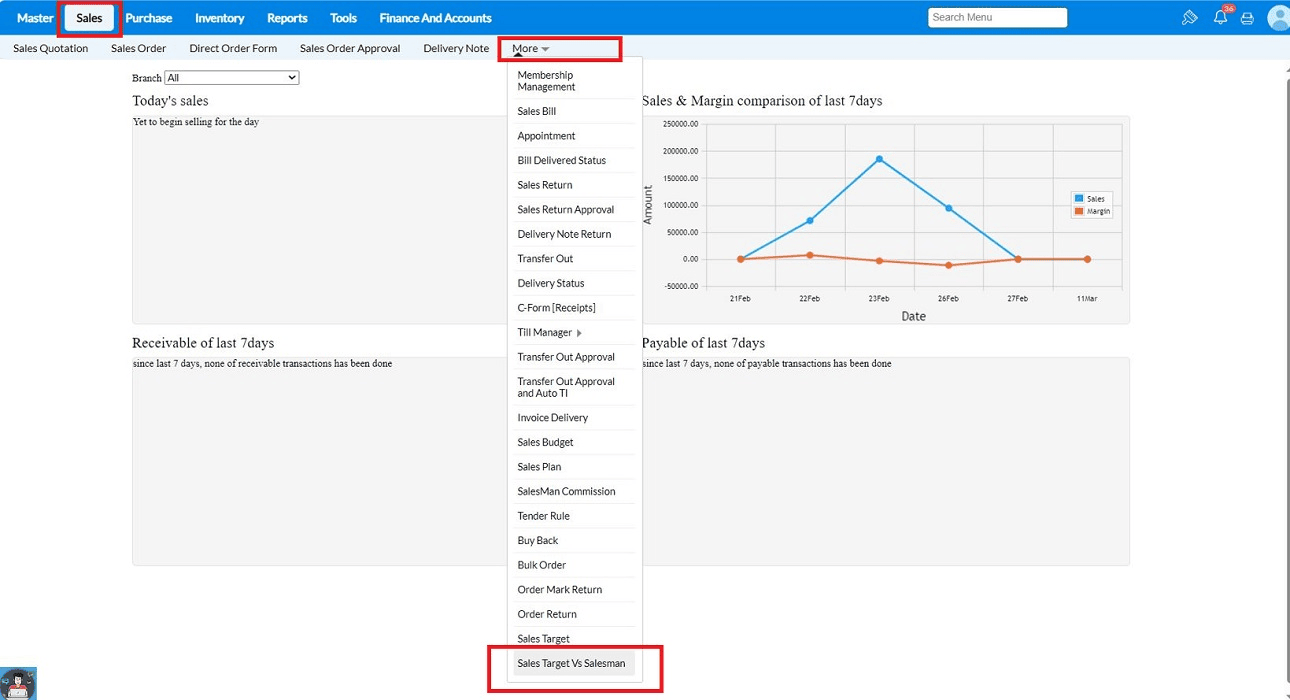
1.Navigate to Sales → More → Sales Target vs Salesman.
2. Click on Map Sales Target.
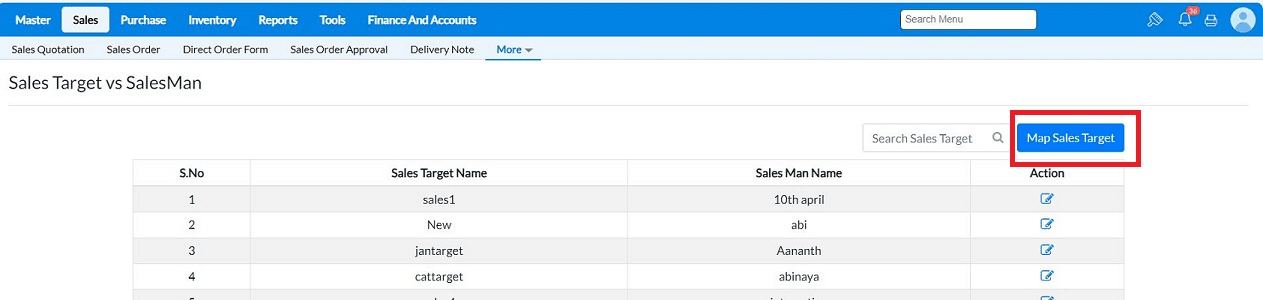
3. The created Sales Target will be displayed on the Sales Target vs Salesman screen.
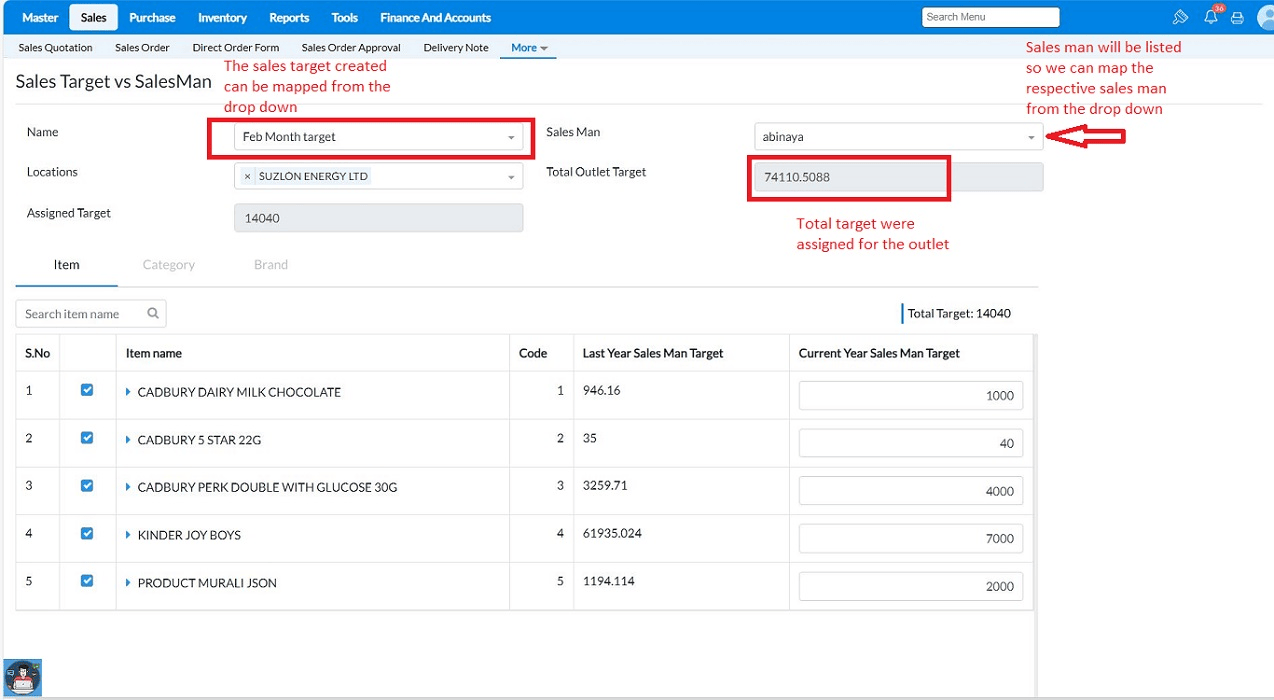
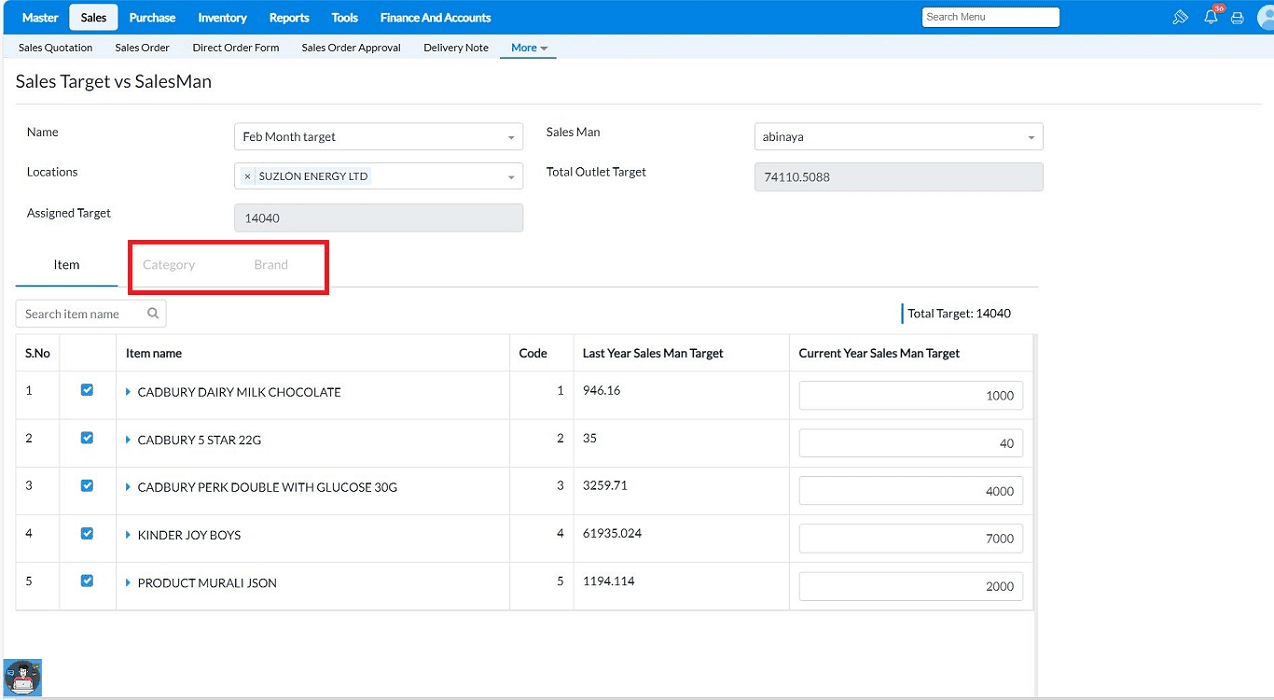
Select the Sales Target Name from the dropdown, which was created in the Sales Target screen. Select the SalesMan for the created sales target. Select the Location information will be fetched from the sales target. The Total Outlet target will be automatically fetched and displayed.
3. The 'Current Year Salesman Target' can be set by comparing it with the Last Year Sales Man Target. Based on this, the 'Total Target' and 'Assigned Target' will be calculated as the cumulative sum of the Current Year Salesman Targets for the items.
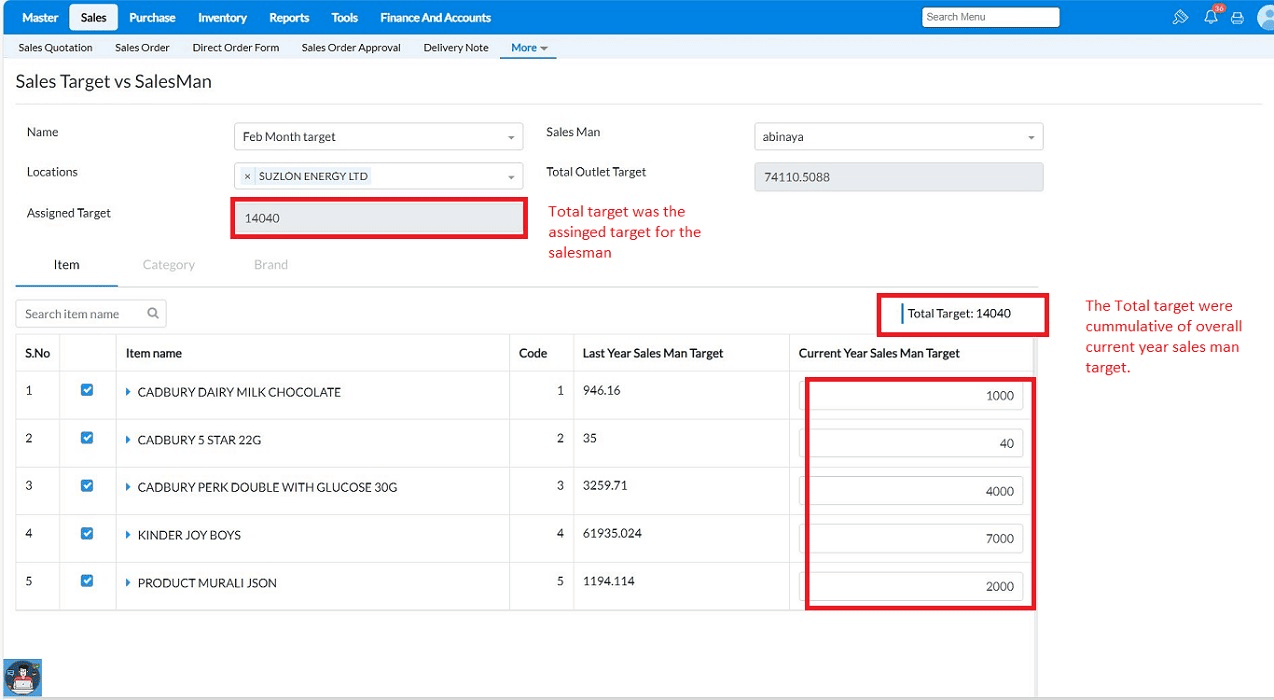
Note: If the sales target was created based on items, the target must be set item-wise. If it was configured based on categories, then the target should be set for category. Here, because the target was created based on items, the options for selecting "category" and "brand" are disabled.
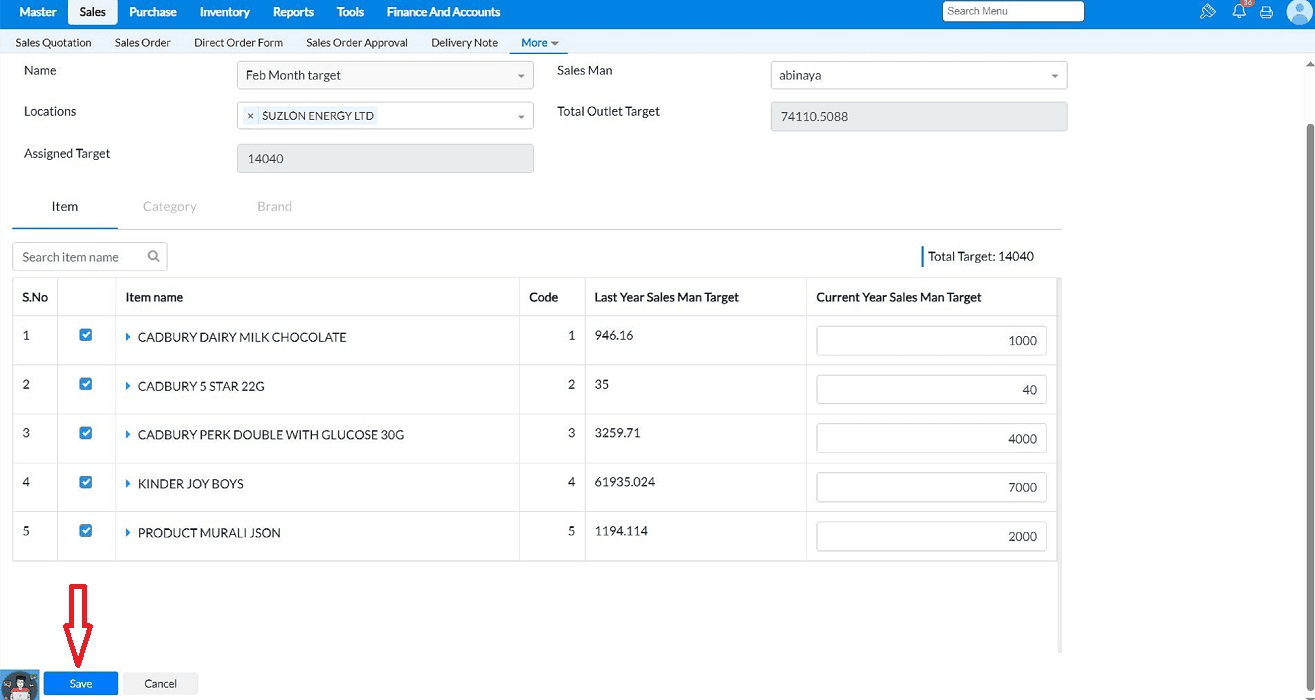
4.After configuring all the details, Click on "Save" to add it.
Frequently Asked Questions(FAQ)-
Q1. Once the Sales Target vs. Salesman is saved, where can I verify the Achieved Target details?
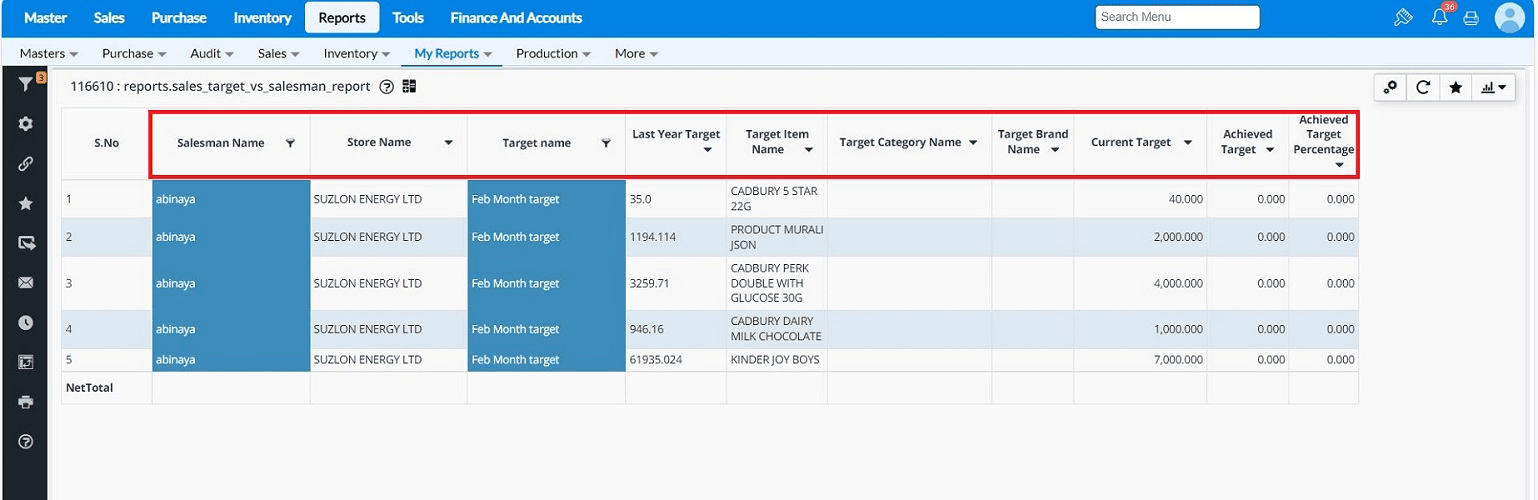
You can verify the complete details in Reports → My Report →Sales Target Vs Sales man report.
The details of the configured sales target for the sales man will be shown in the report. By the Achieved target percentage we can able to check the sales man target achieved.
|