General Business Configuration
Purpose:- The configurations present in the General tab allows to enable or disable functionalities that are common to most of the screens of TruePOS and not specific to any particular module.
Steps to access General Business Configurations:-
1. Navigate to Tools -> Configuration -> Business Configuration
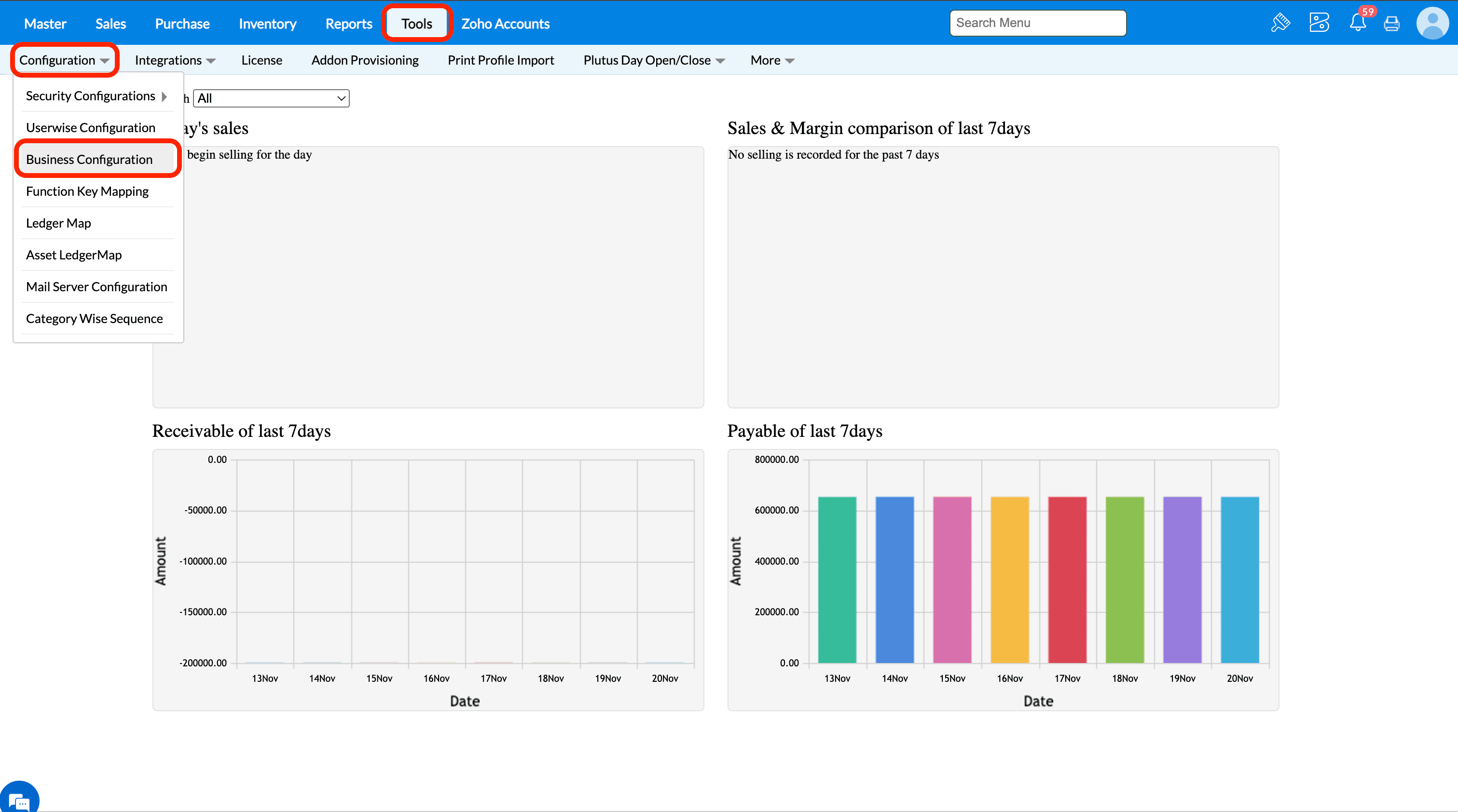
2. Under the Configurations tab, click on the General tab and all the configurations under this tab will be listed.
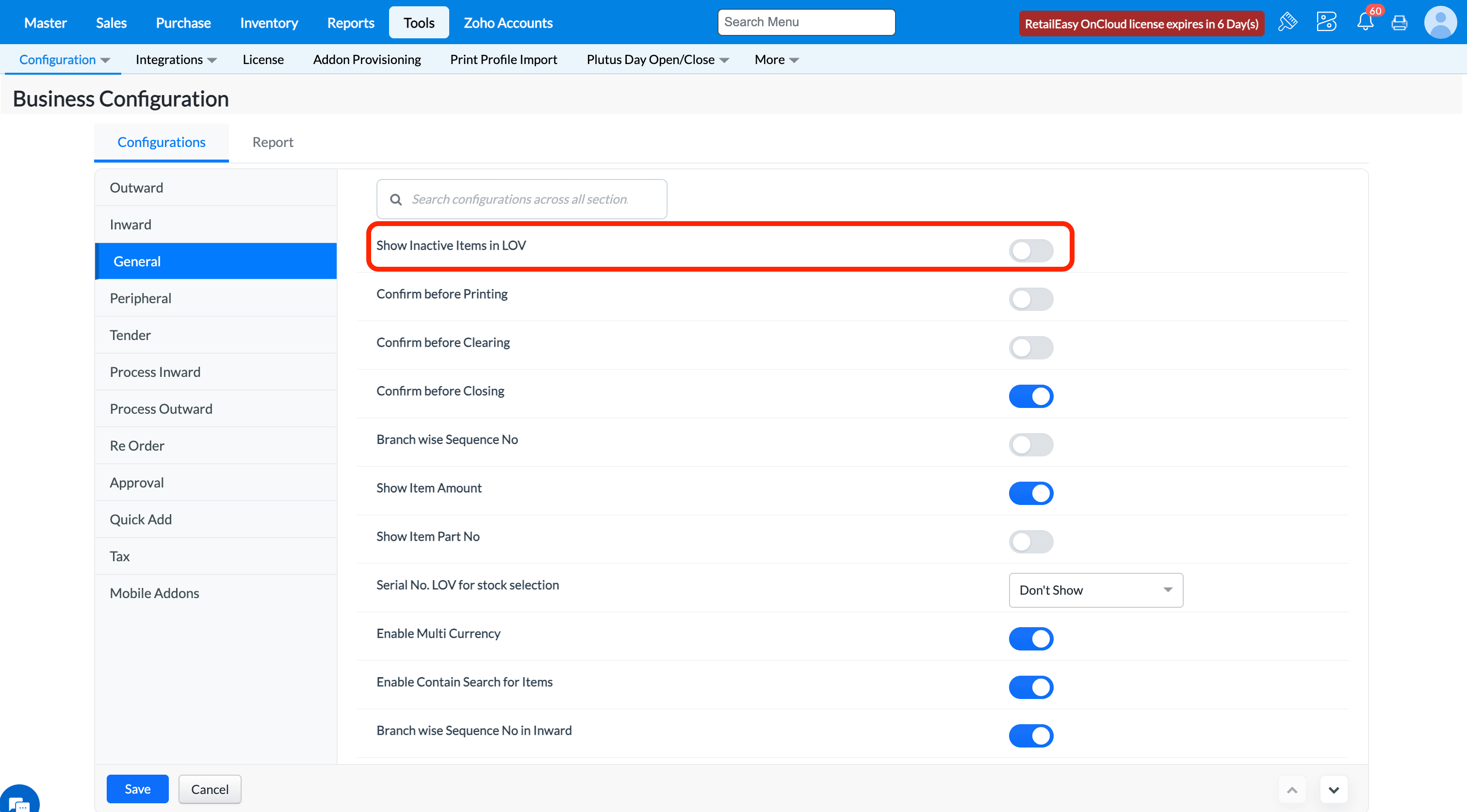
Q1.What does the "Show inactive Items in LOV"?
A1. Selecting this checkbox will cause to list out all the inactive items as well in item lov of transactions screens along with active items.
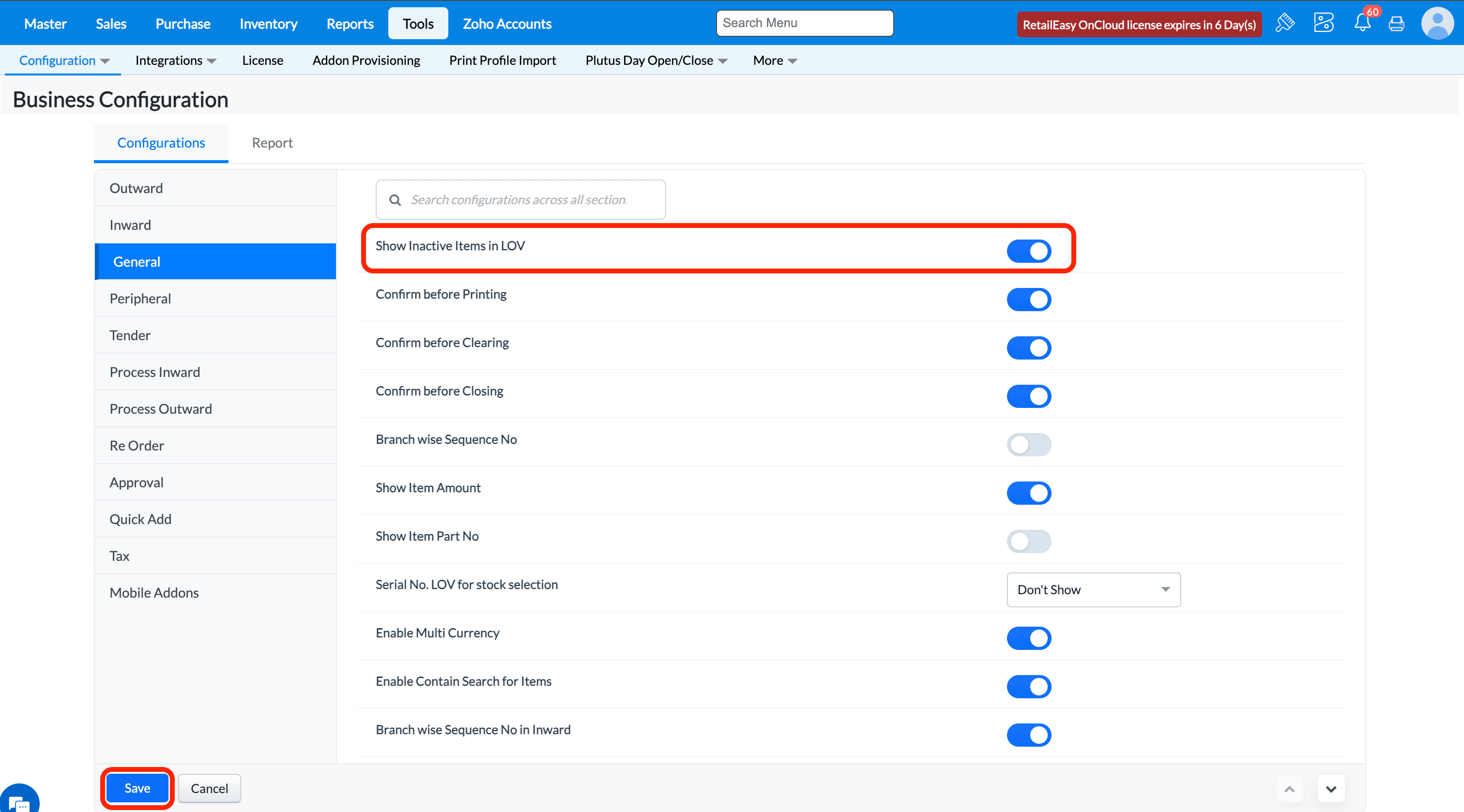
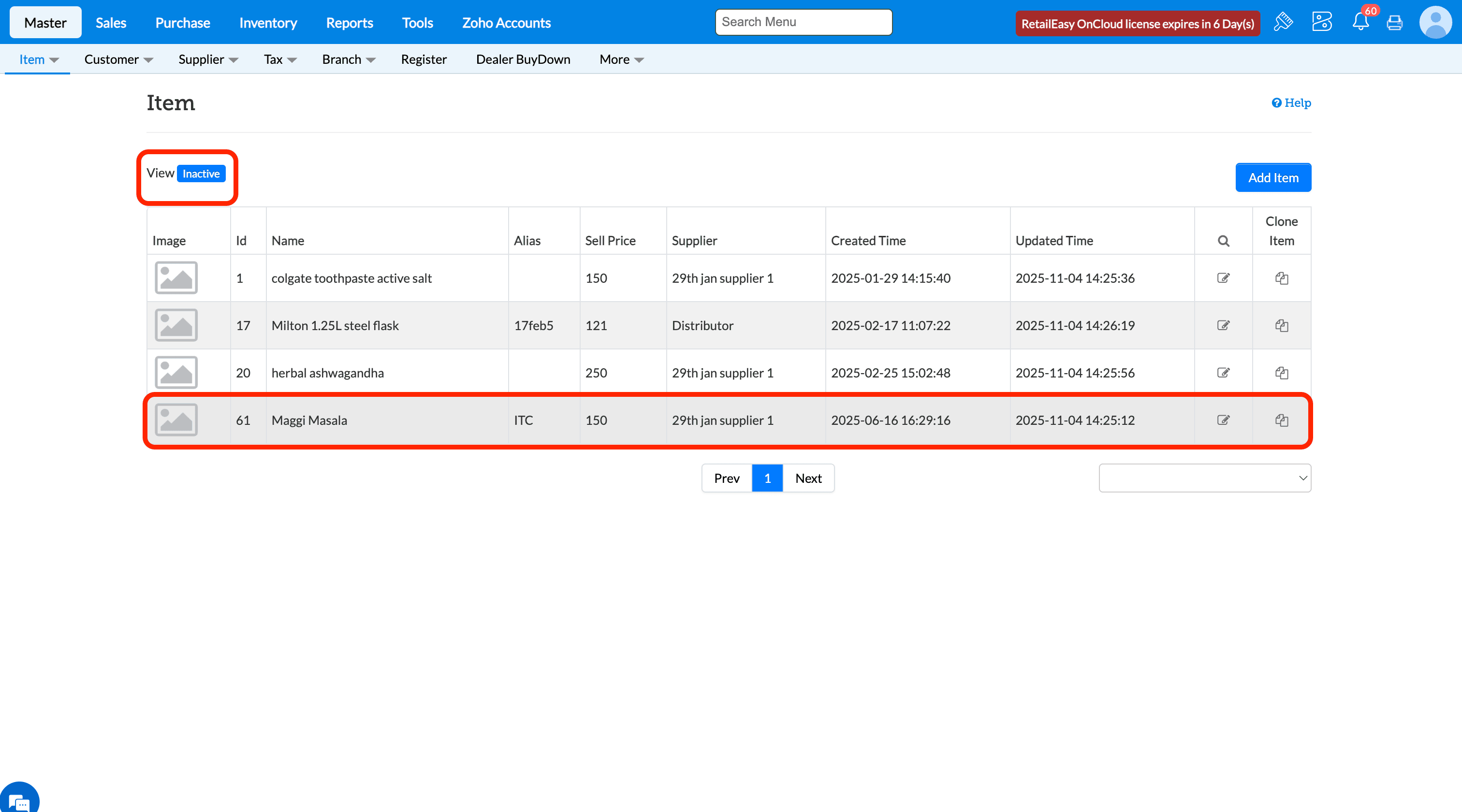
In Item Master screen, look for an inactive item and in any transaction screen, select ENTER key and open the item list lov and search for that inactive item.
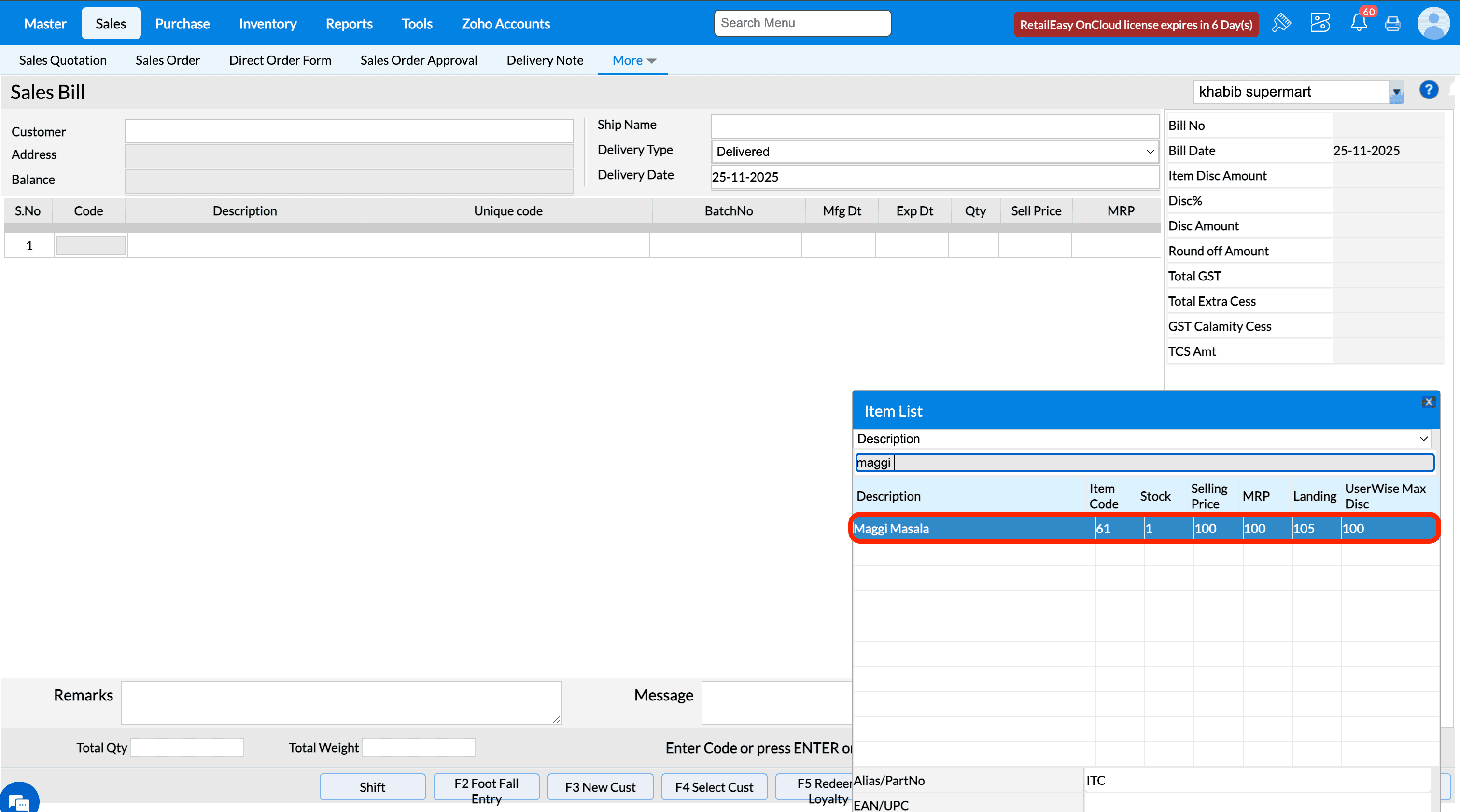
If the configuration is disabled and inactive items is searched it won't list in the lov.
Q2. What does the “Confirm before Printing” option do?
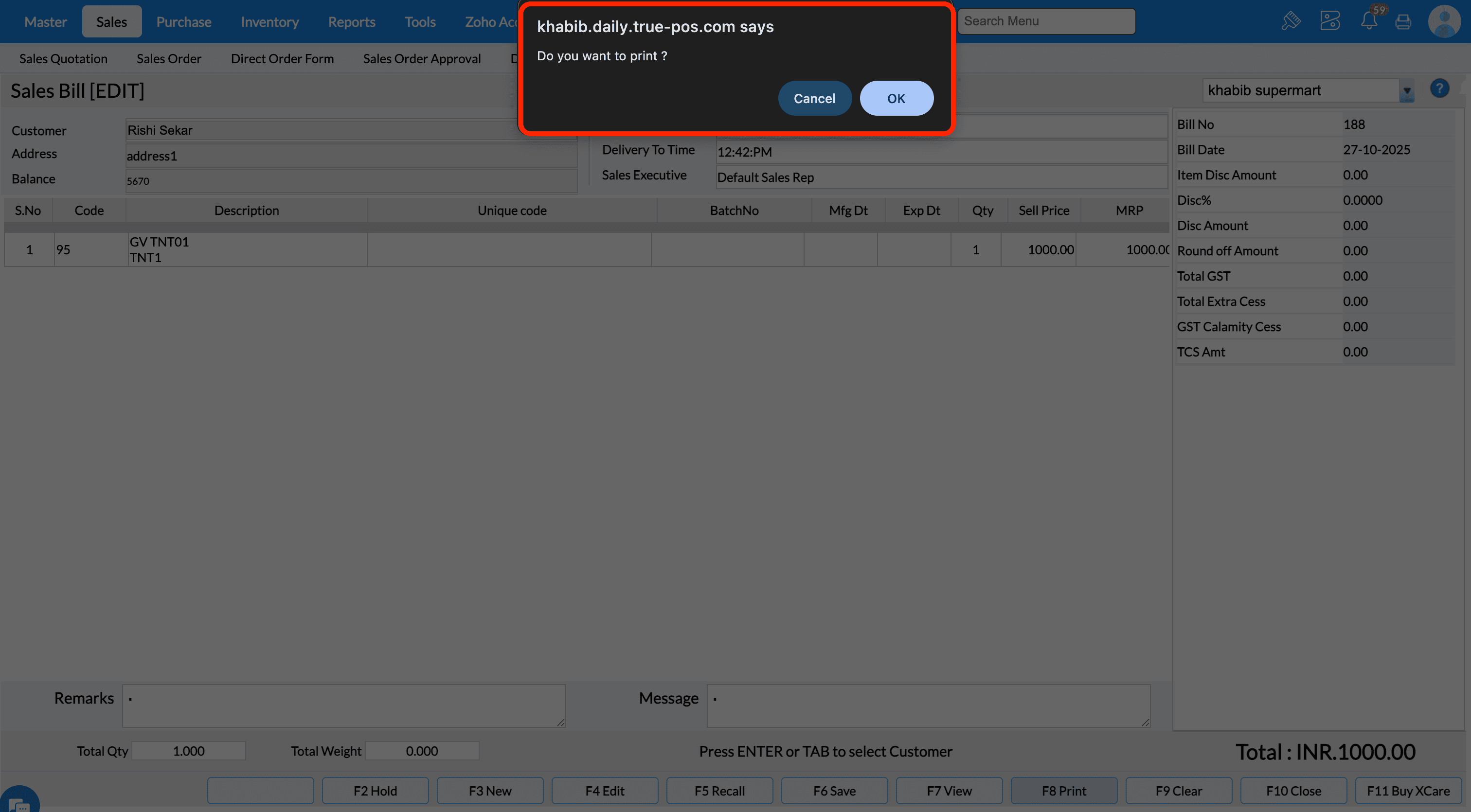
A1. If you select this check box, when you press F8 to print documents (such as Sales Bill, Goods Inward Note, etc.), TruePOS will display a “Do you want to print?” confirmation message.
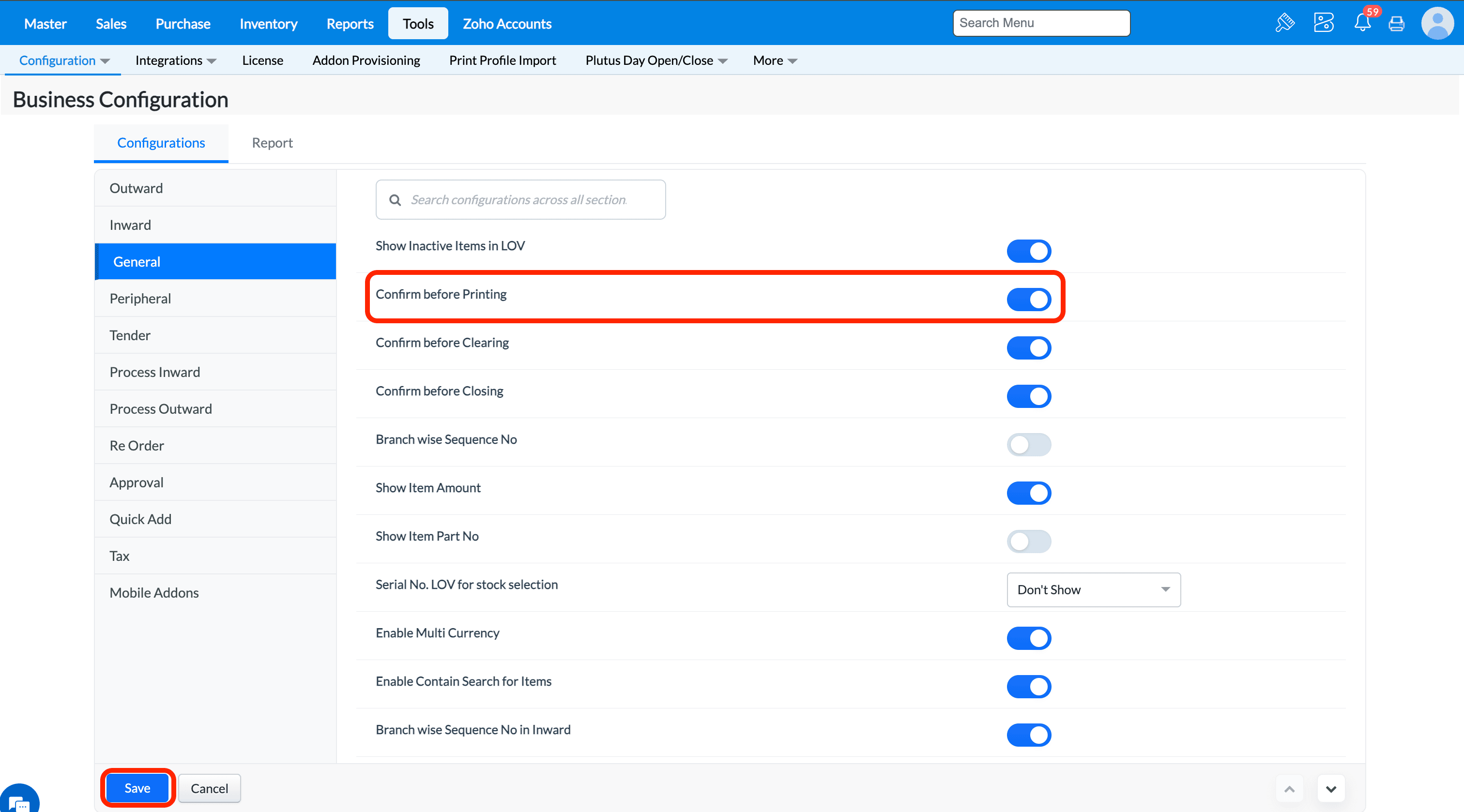
Enable this configuration to ask for confirmation message whenever print function is used in Sales Bill, GIN, Sales Return and so on.
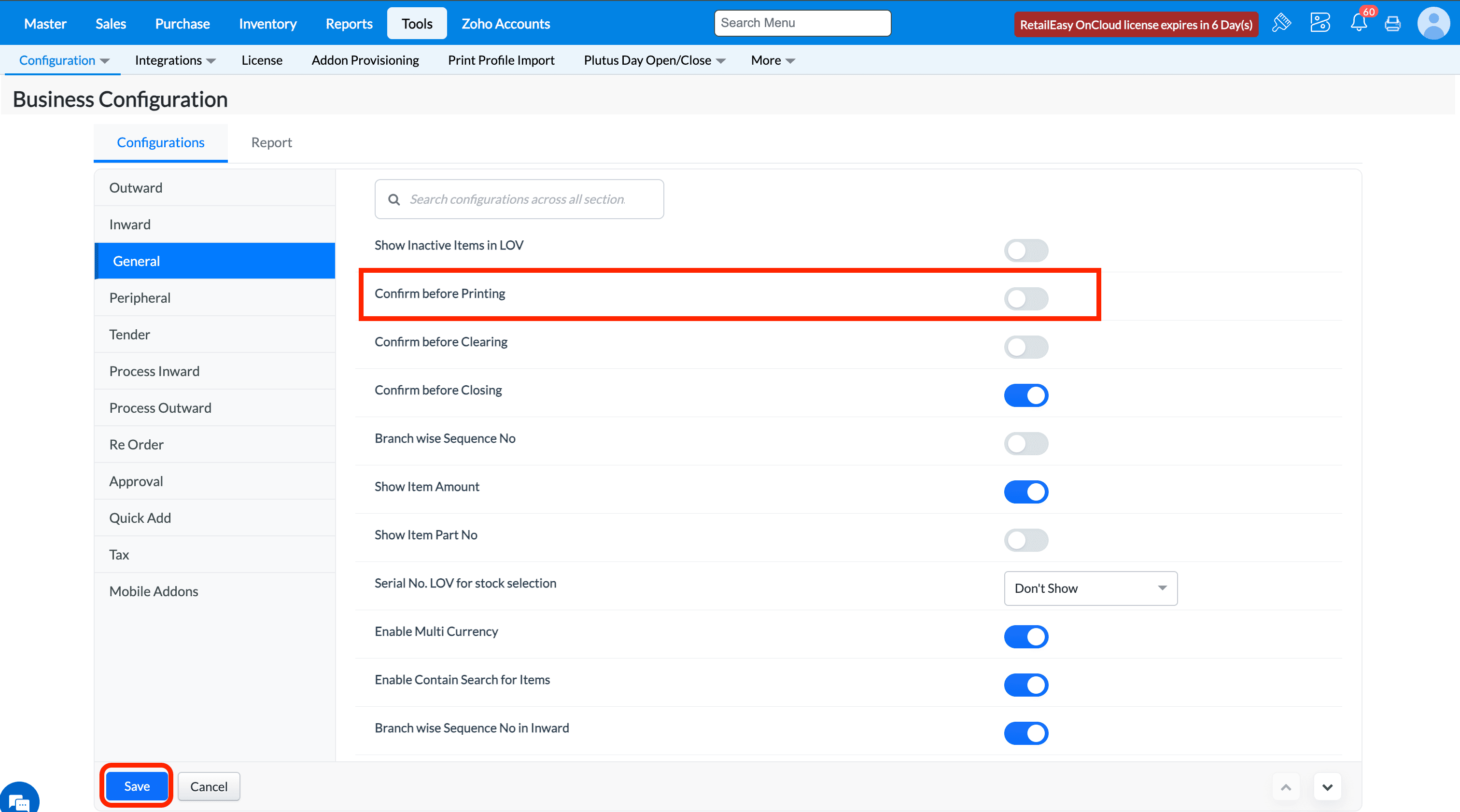
If you disable this configuration, then it won't ask for the confirmation message whenever print function is called and proceed to print.
Q3. What is the “Confirm before Clearing” option?
A2. Selecting this check box will cause TruePOS to display a “Do you want to clear?” confirmation when you press F9 to clear values from the current screen (e.g., Sales Bill screen). If you clear this check box, clearing occurs immediately without confirmation.
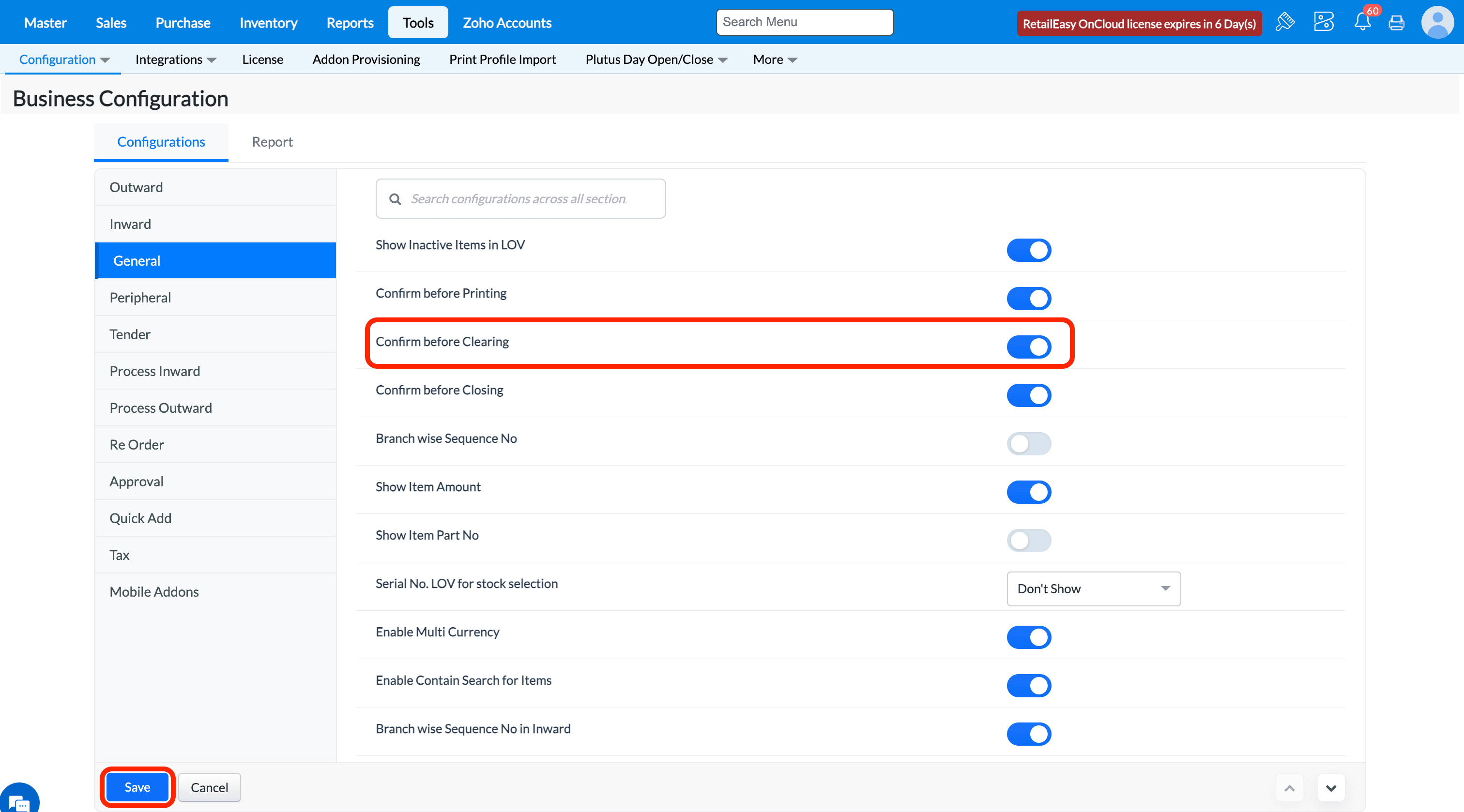
Enable this configuration to ask for confirmation message whenever clear function is used in transaction screens.
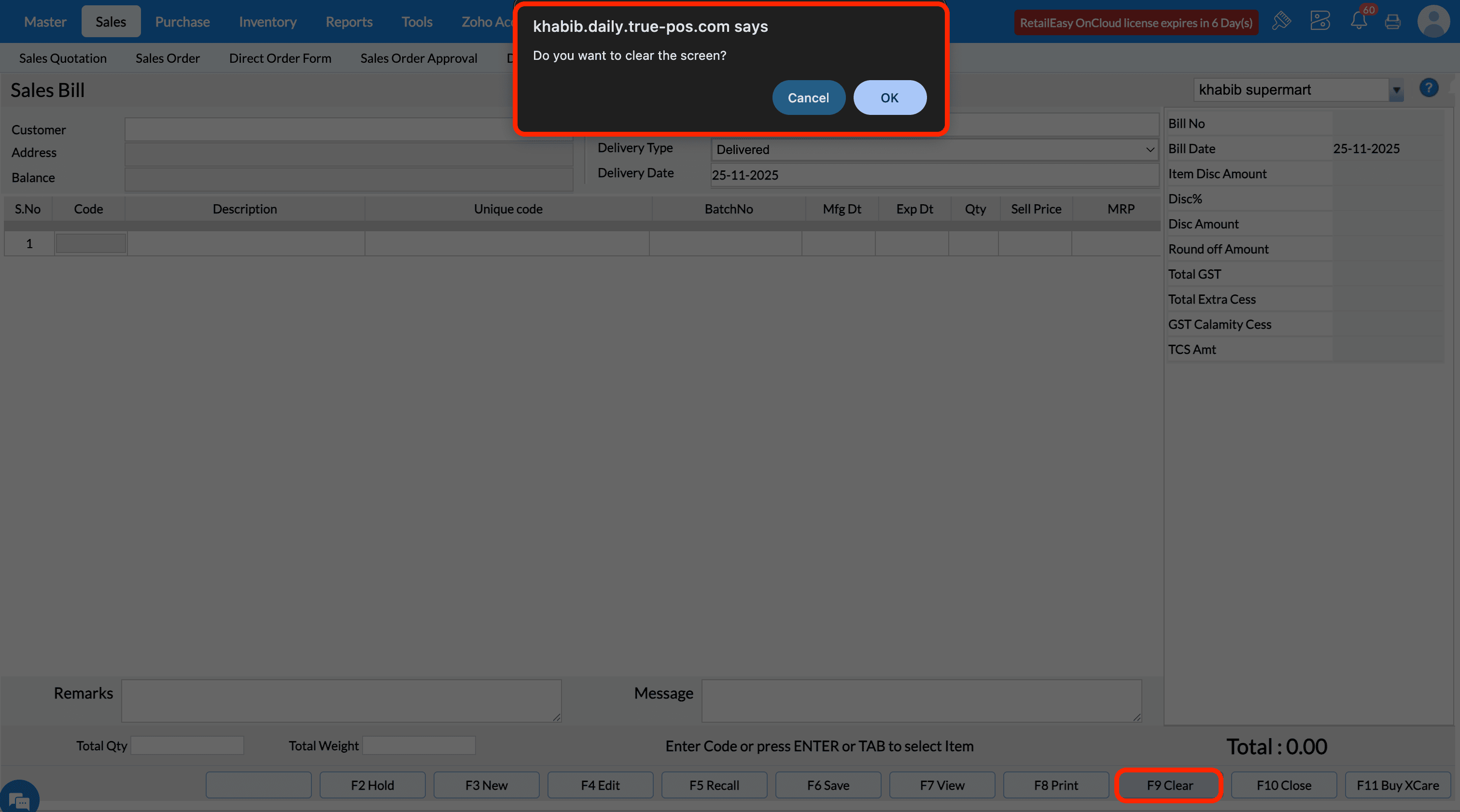
If this configuration is disabled, then it won't show the confirmation message when clicked clear function key F9 and system will proceed to clear the data from the screen.
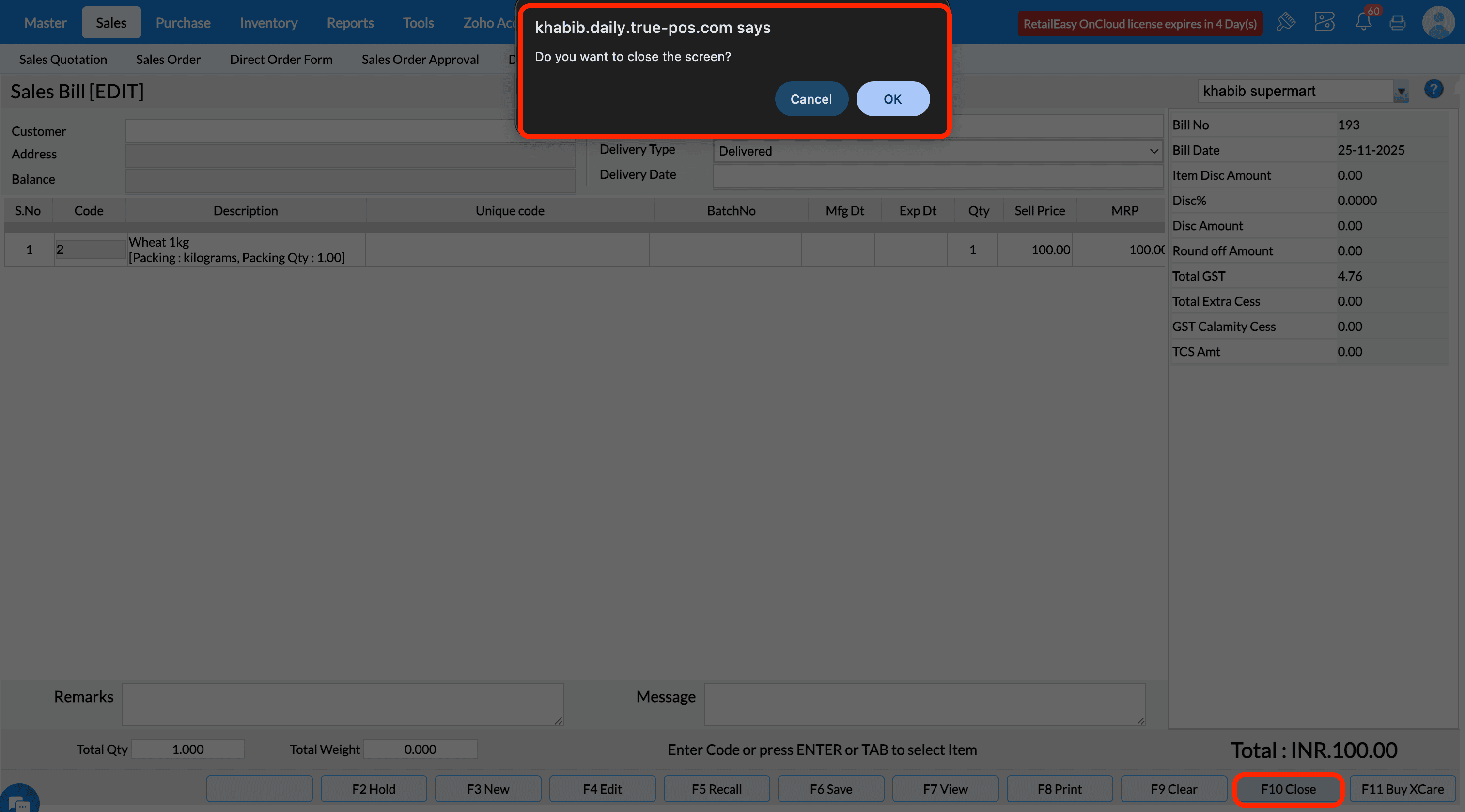
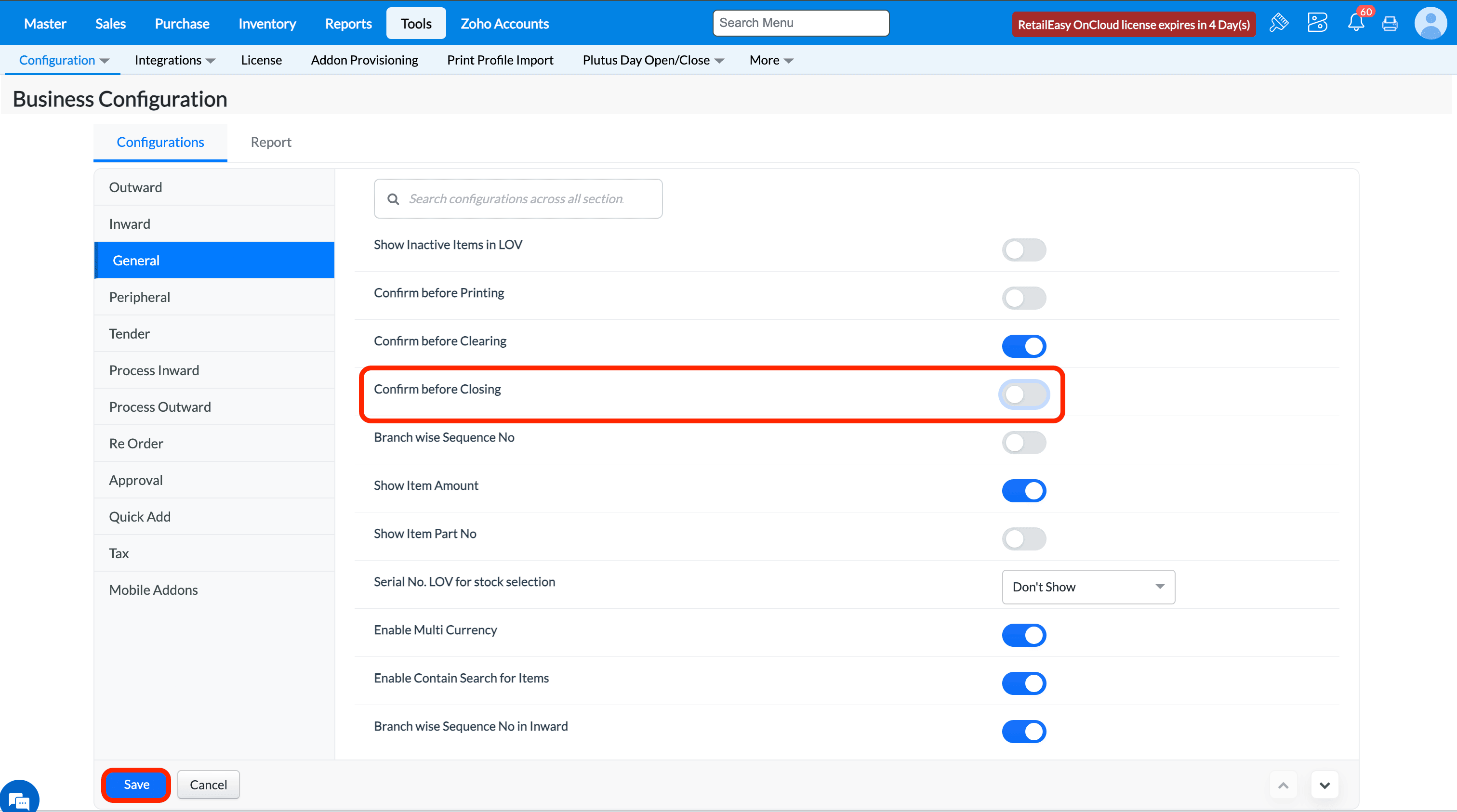
Q4. What does the “Confirm before Closing” option do?
A4. When you select this check box, pressing F10 to exit from the current screen will prompt a “Do you want to close the screen?” confirmation message.
If you clear the check box, the screen will close without any confirmation.
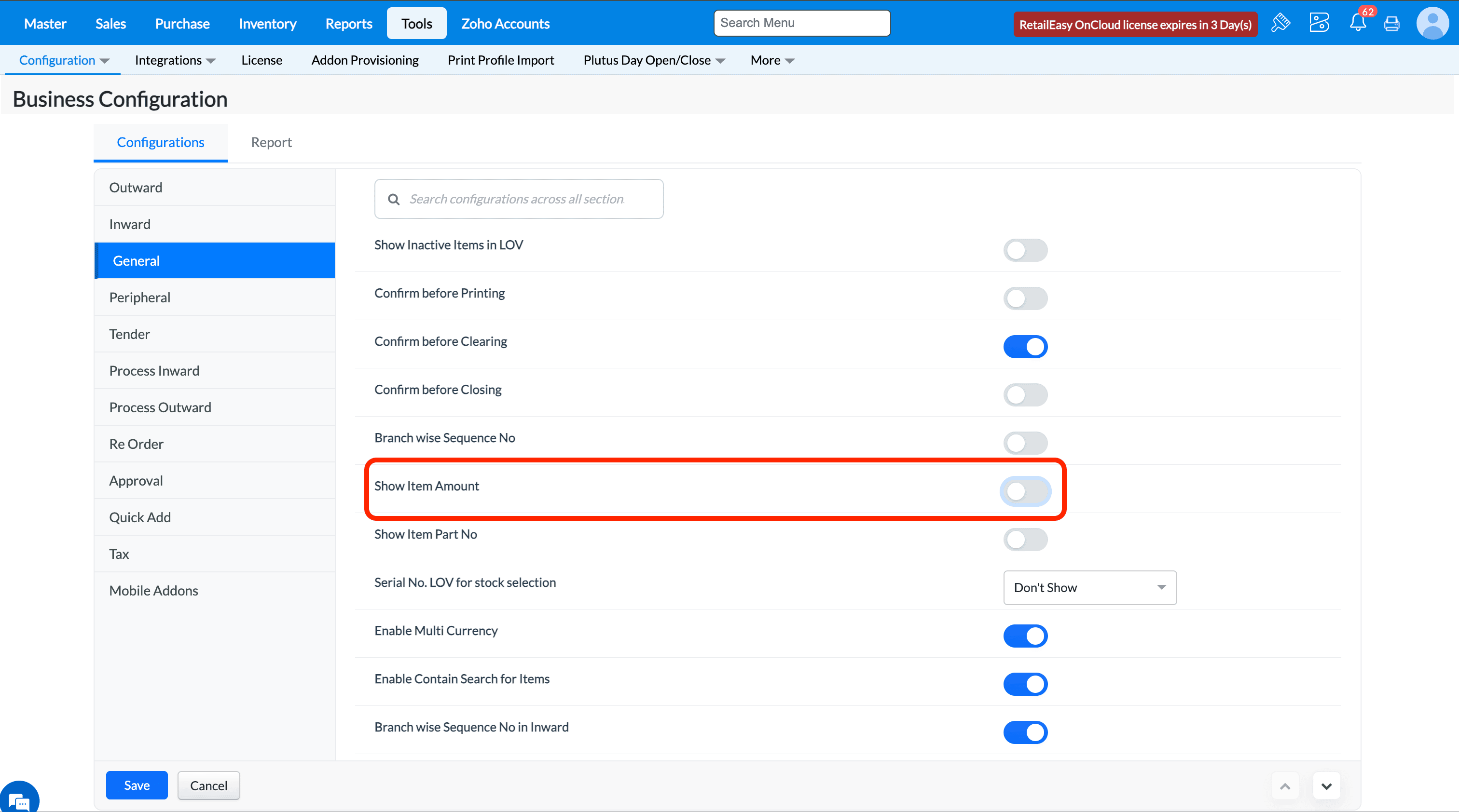
Q6. What does the “Show Item Amount” configuration do?
A6. When this check box is selected, an Amount field (showing the item’s amount) will be displayed in all screens of Purchase, Inventory and Sales modules.
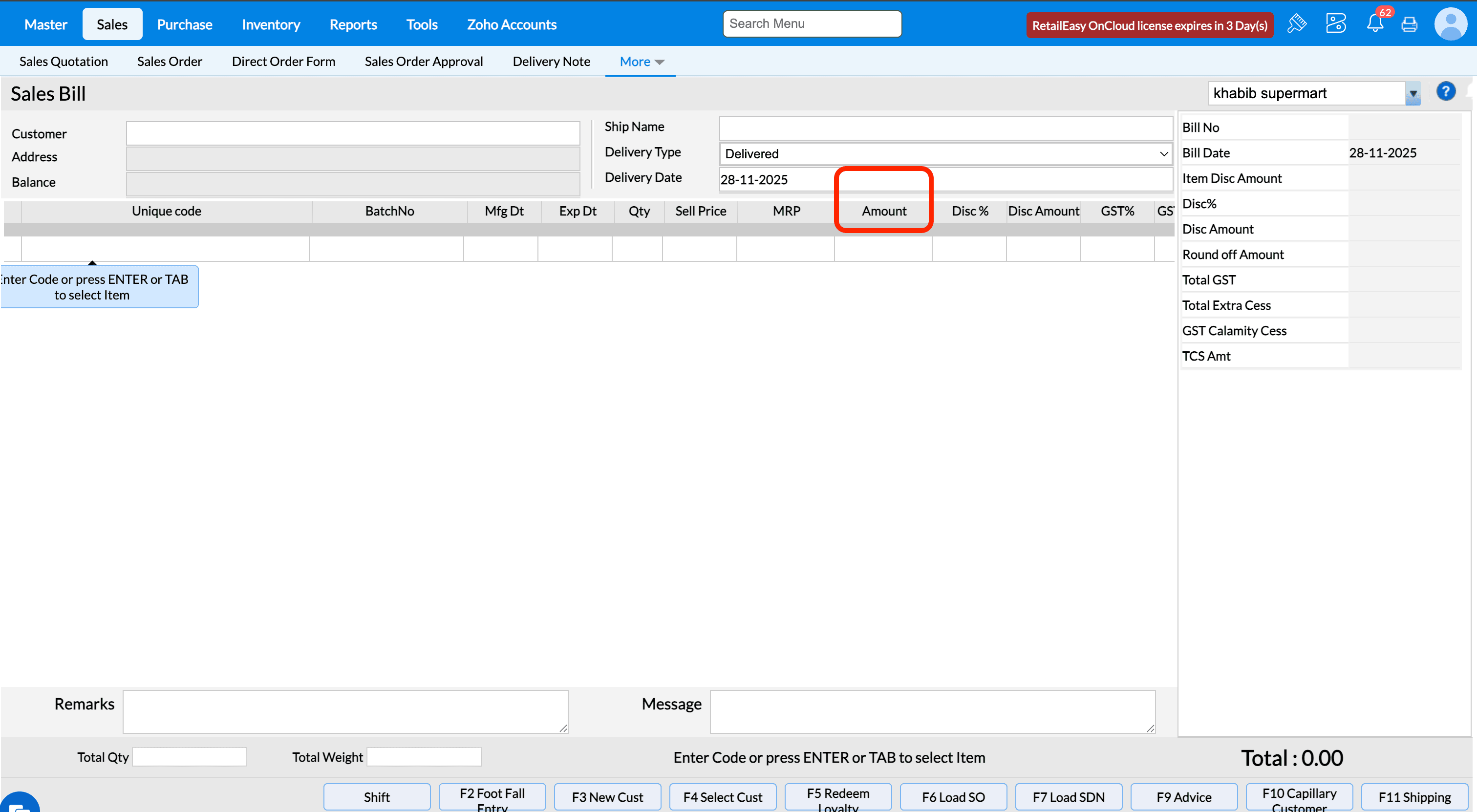
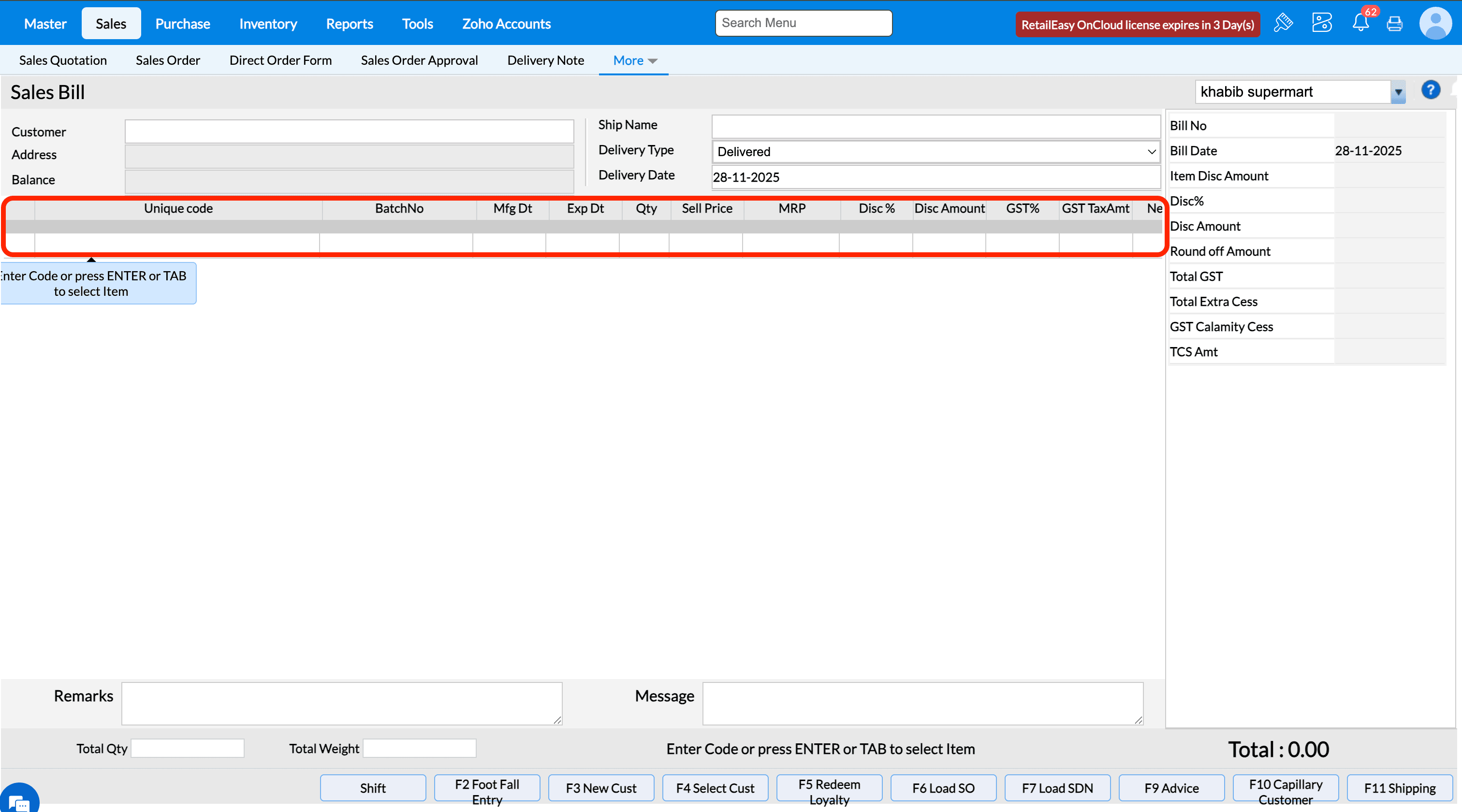
If configuration is cleared, the Amount column is hidden.
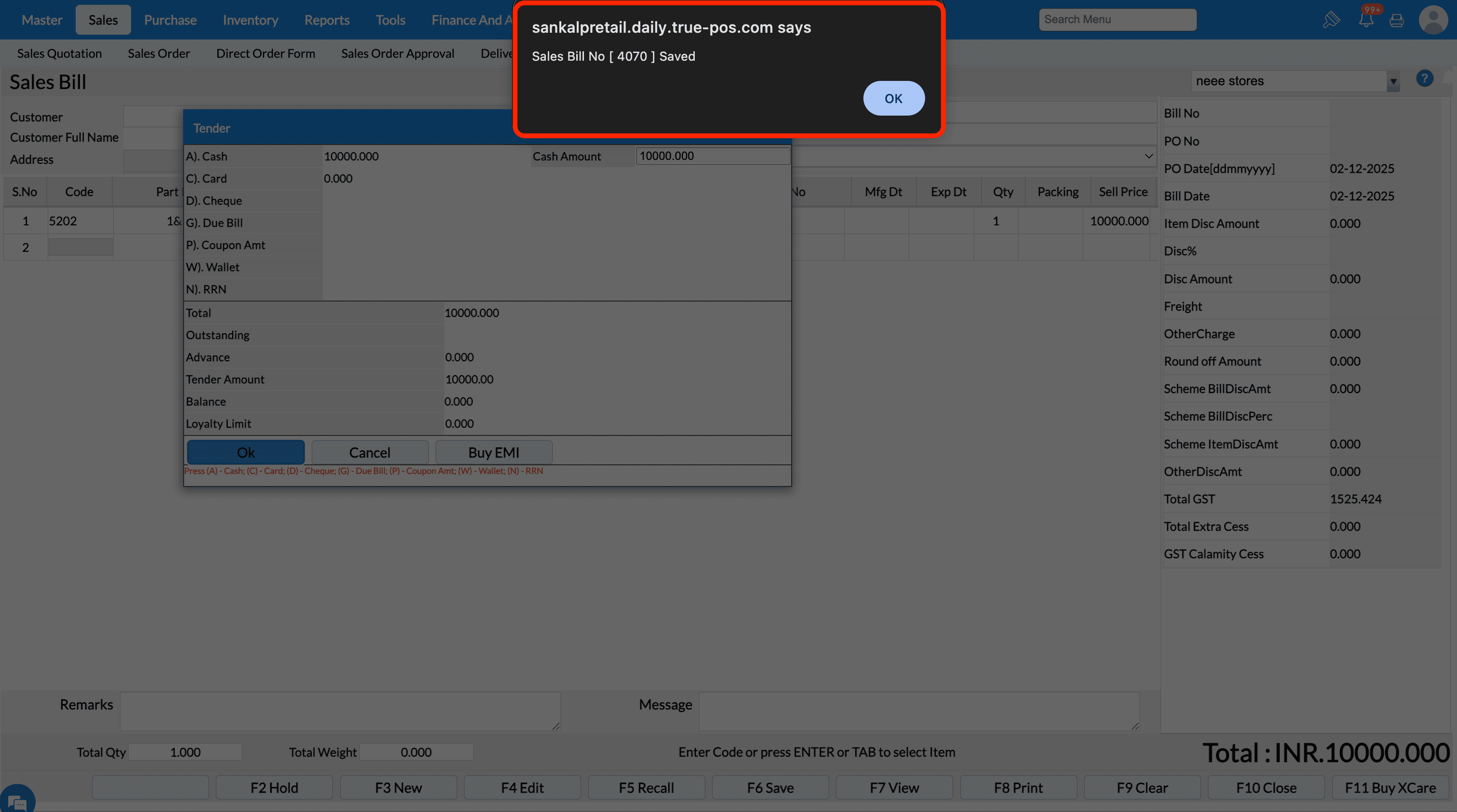
If configuration is disabled, messages will not display as popup dialogs. Ex., sales bill will get saved without any confirmation message and screen gets cleared for next bill entry.
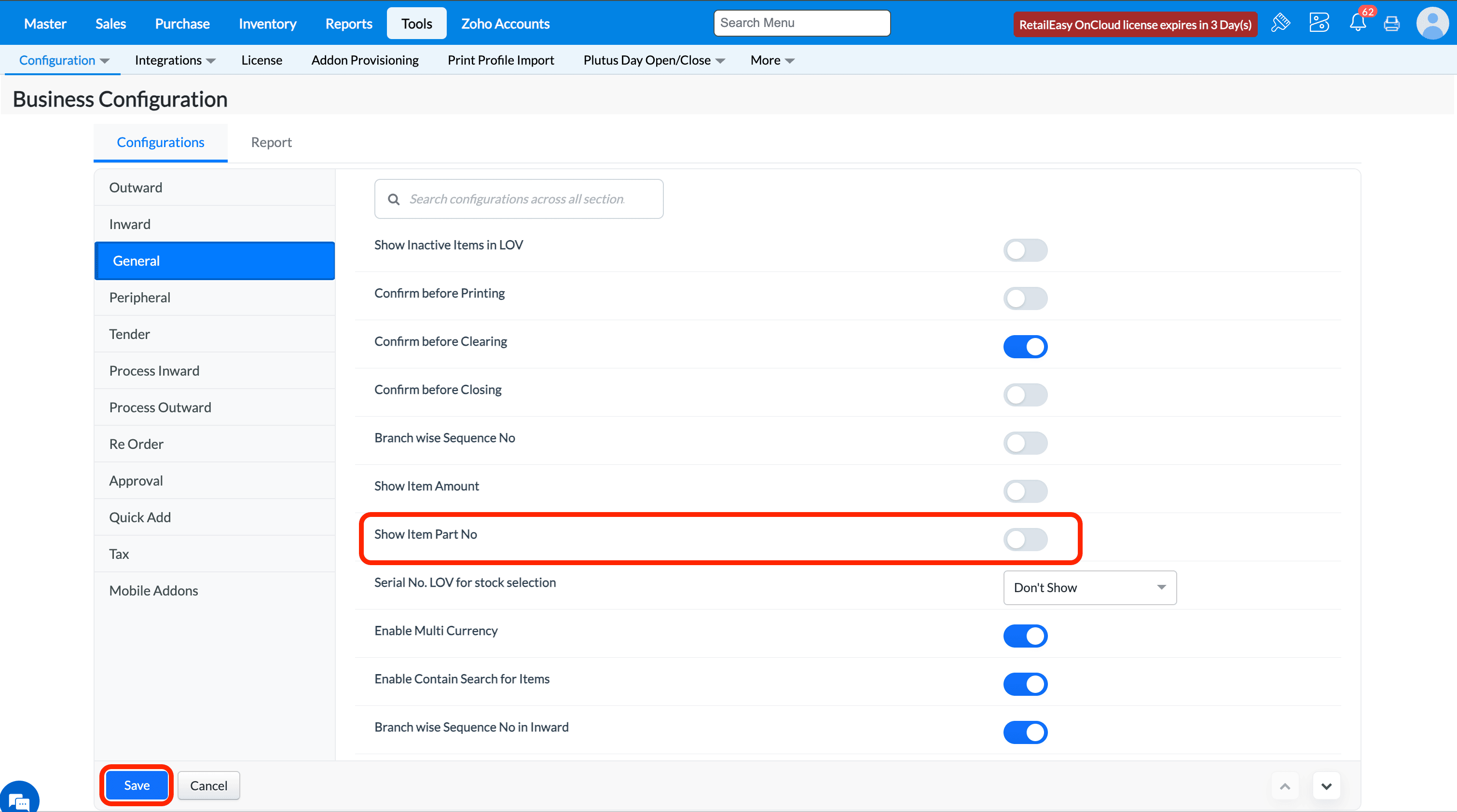
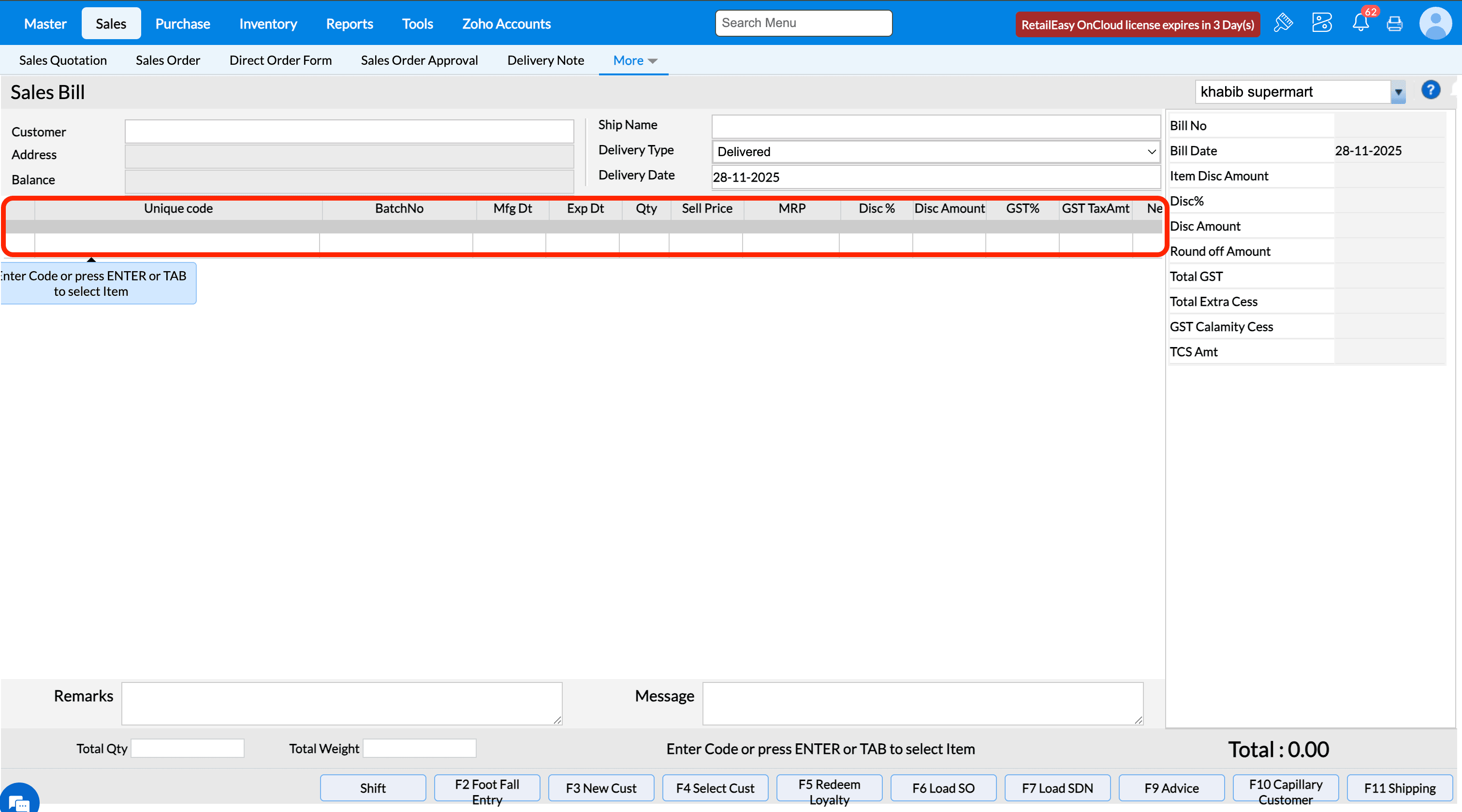
Q7. What is the “Show Part No” option?
A7. If selected, the Part Number of the item is displayed whenever you scan or enter an item code in Purchase or Sales modules.
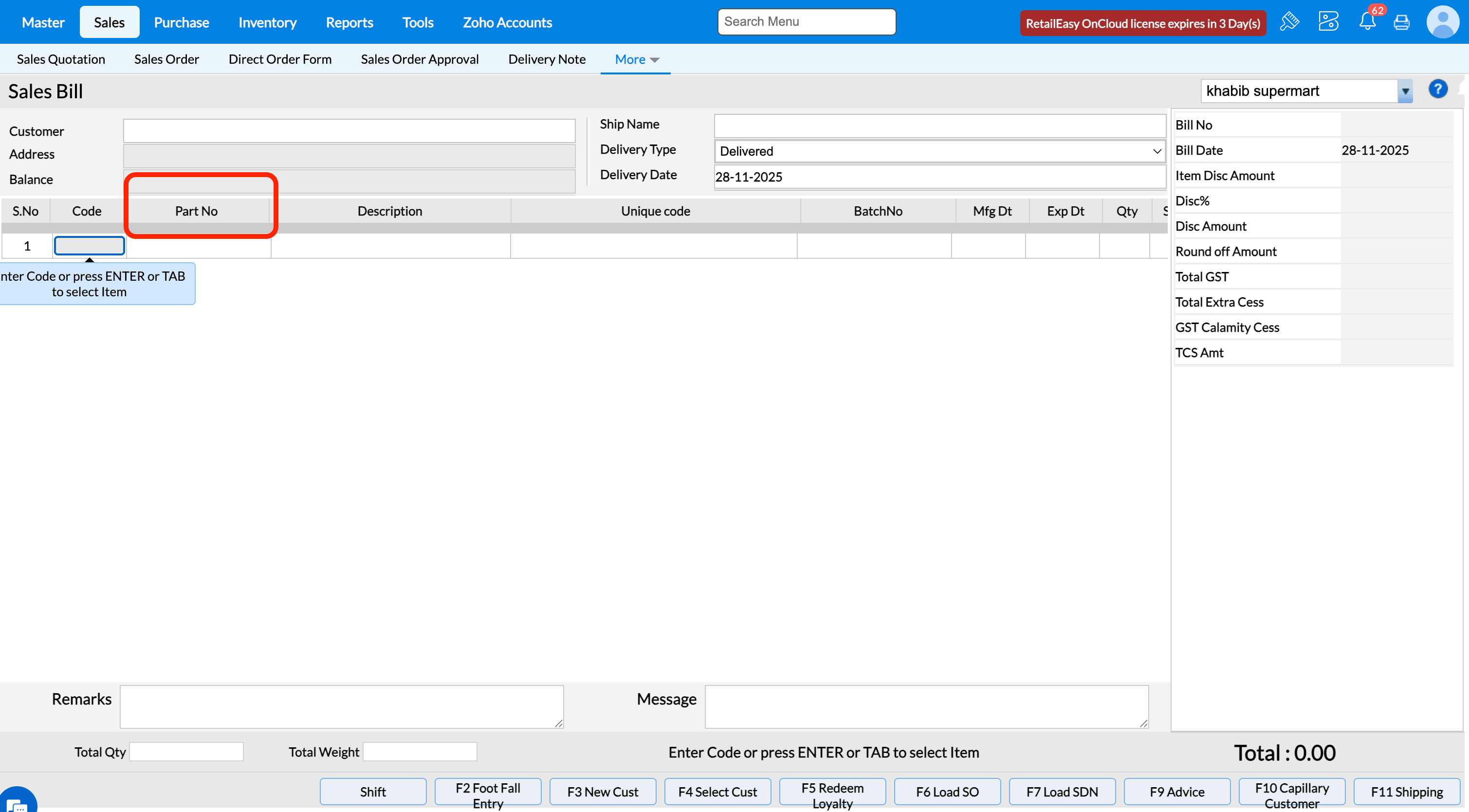
If configuration is disabled, the Part No field is hidden.
Q16. What does the 'Enable Multi Currency' configuration do?
A16. The use of this configuration is to ensure at the time of purchase or sales can be done in other currency for particular supplier or customer respectively when coupled with other configurations.
Please refer below help documents to implement the functionality in detailed.
Q17. What does the “Serial No. LOV for stock selection” option do?
Purpose - When this option is enabled, it allows flexible serial number selection during stock transactions. Users can either scan the serial number directly, enter it manually without opening the list, or select it from the List of Values (LOV), making serial number handling faster and more convenient.
a. If you Select the Option Don't Show in Serial No. LOV for stock selection Than Serial Number Will Not Show in the Sales Bill Screen for serialized Item Stock LOV.
b. If you Select the Option Show in Serial No. LOV for stock selection Than Serial Number Will Show in the Sales Bill Screen for serialized Item Stock LOV.
c. If you Select the Option Don't Show While scanning Alone in Serial No. LOV for stock selection Than Serial Number Will Scan in the Sales Bill Screen for serialized Item.
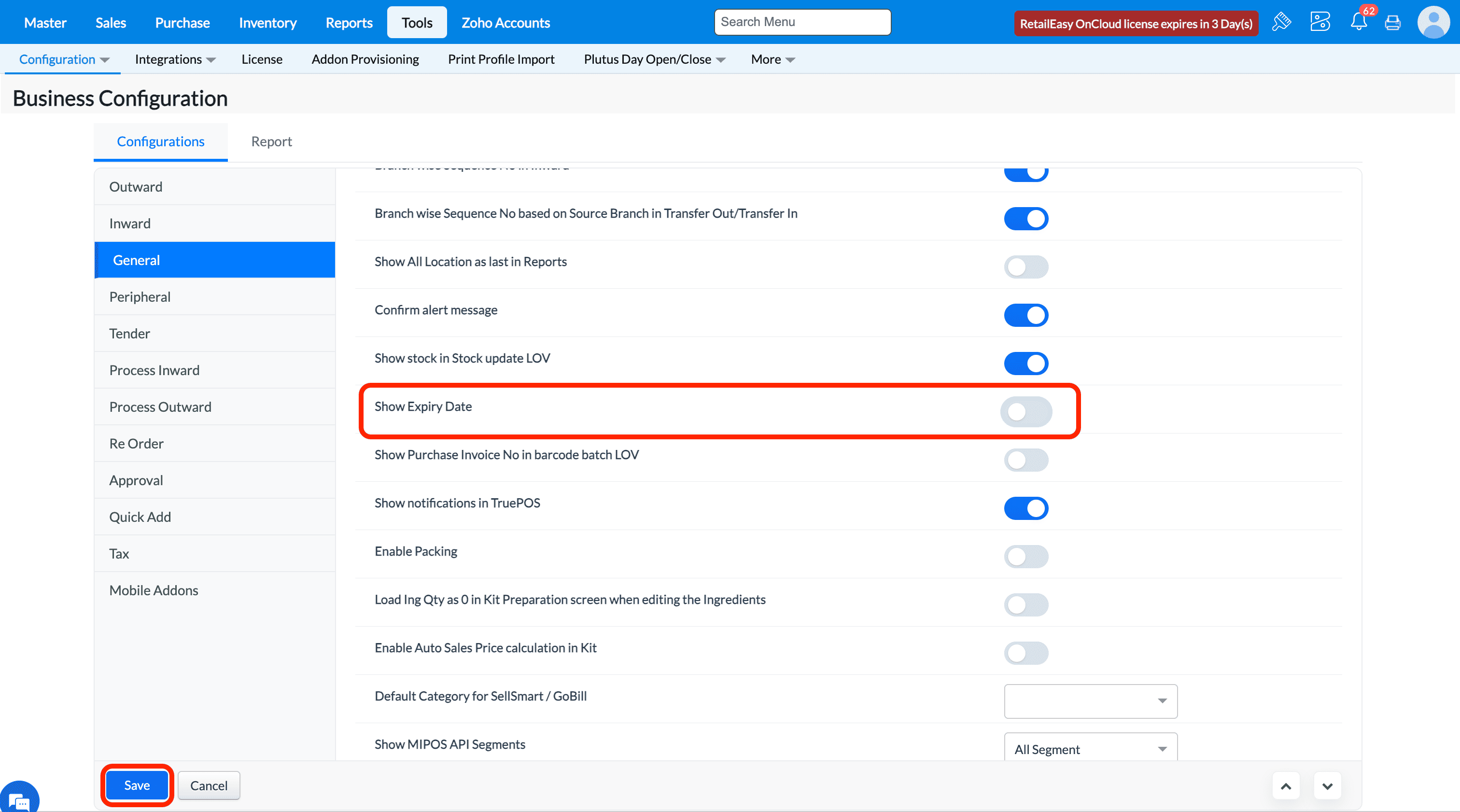
Q24. What does "Show Expiry Date" configuration do?
A24. If the configuration is enabled, then Expiry Date field will be displayed in all transactions screen.
If the configuration is DISABLED, then Expiry Date field will not be displayed in any of the transactions screen.
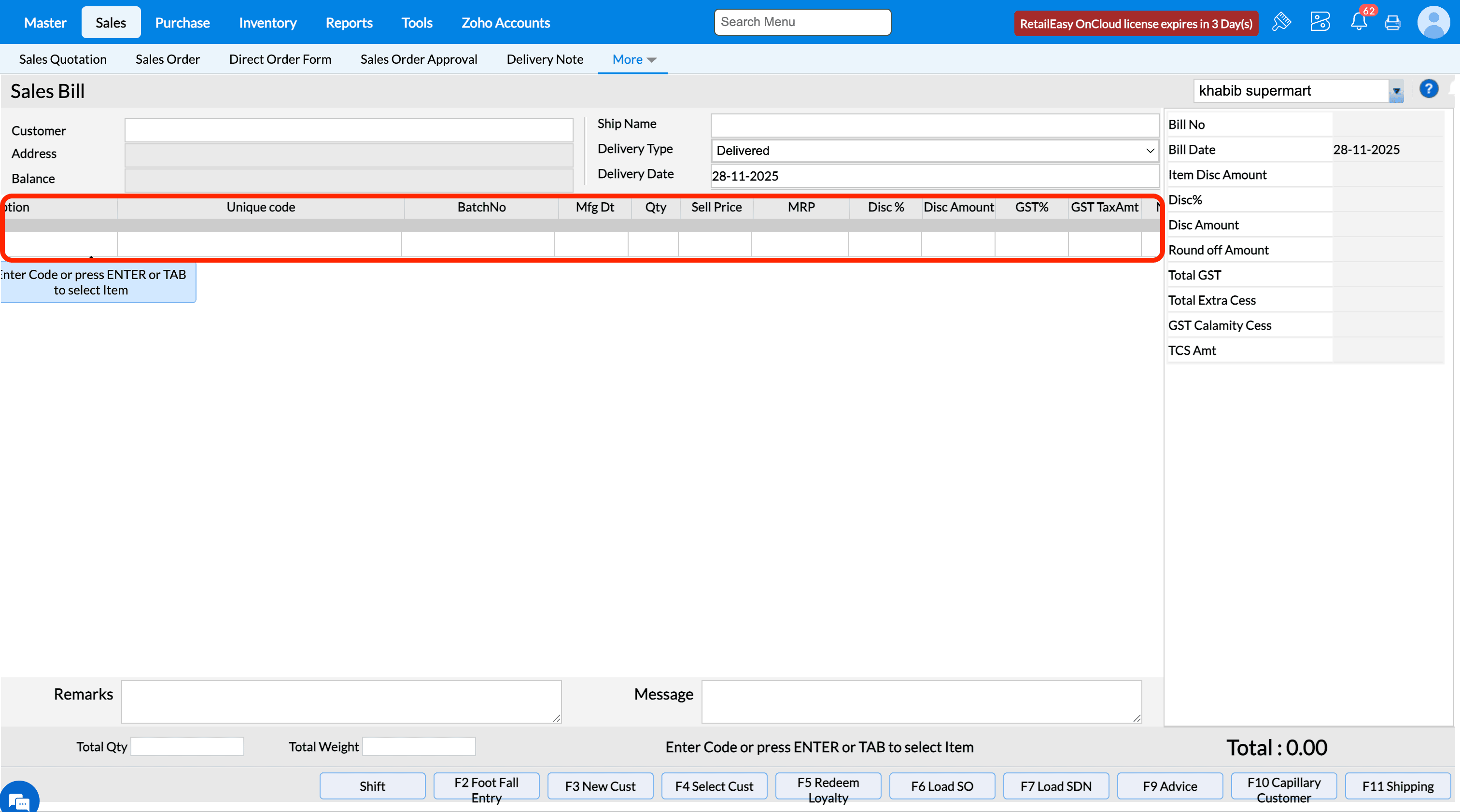
Q25. What does the 'Show Purchase Invoice No in barcode batch LOV' configuration do?
A16. The use of this configuration is to ensure if we need to display purchase invoice no of the batch when trying to print barcode in barcode printing screen. If the configuration is enabled, then the purchase invoice number will display in batch lov of item in barcode printing screen.
If the configuration is disabled, then the purchase invoice number will not display in batch lov of item and show empty in barcode printing screen.
Q26. What does the 'Show notifications in TruePOS' configuration do?
A18. The use of this configuration is that when enabled, system will display the different notifications receieved for various branches on various operations.
If the configuration is disabled, then system will not display any notifications received for any branch.
Q28. What does the 'Load Ing Qty as 0 in Kit Preparation screen when editing the Ingredients' configuration do
A22. The use of this configuration is to let system load the actual ingredient quantity at the time of edit operation during kit preparation or not load the quantity during edit.
If this configuration is enabled then when tried to edit ingredient items during kit preparation, then quantity will not be loaded in screen.
If this configuration is disabled then when tried to edit ingredient items during kit preparation, the actual quantity will be loaded in screen.
Q32. What does the 'Hide offer columns in transactions' configuration do?
A32. The use of this configuration is to let system decide whether to display itemwise scheme discount related columns like Scheme Disc %, Scheme Amt,
Scheme Others, Scheme Cash in sales transaction screens. If the configuration is enabled, then item scheme discount related columns will not be visible.
If the configuration is disabled, then item scheme discount related columns will be visible.
Q33. What does the 'Enable auto mail (Sales,PO)' configuration do?
A33. The purpose of this configuration to decide whether to send an email automatically in csv format to customer or supplier when a sales or purchase order is made.
Note - We can import the invoice in csv format to any other software or purchase
How to send the invoice in CSV format
Step 1: Go Master->Customer ->Customer
Step 2: Click on Add New Customer
Step 3: Enter the valid email id
Step 3:Choose the Mail type as CSV and click on Save
To enable the configuration
Step 4:Go to Tools->Configuration->Business Configuration
Step 5: Search with auto mail and click on Enable auto mail (Sales,PO) and click on Save button
To make a sales bill
Step 6: Choose the customer and make a invoice and click on Save button
Step 7: Choose the payment and click on OK
Step 8: You will receive the mail in mentioned mail id from shipping address given
Q34. What does "Show Mfg Date" configuration do?
A34. If the configuration is enabled, then Mfg Dt field will be displayed in all transactions screen.
If the configuration is disabled, then Mfg Dt field will be displayed in all transactions screen.
Q35. What does "Show Batch No" configuration do?
A35. If the configuration is enabled, then BatchNo field will be displayed in all transactions screen.
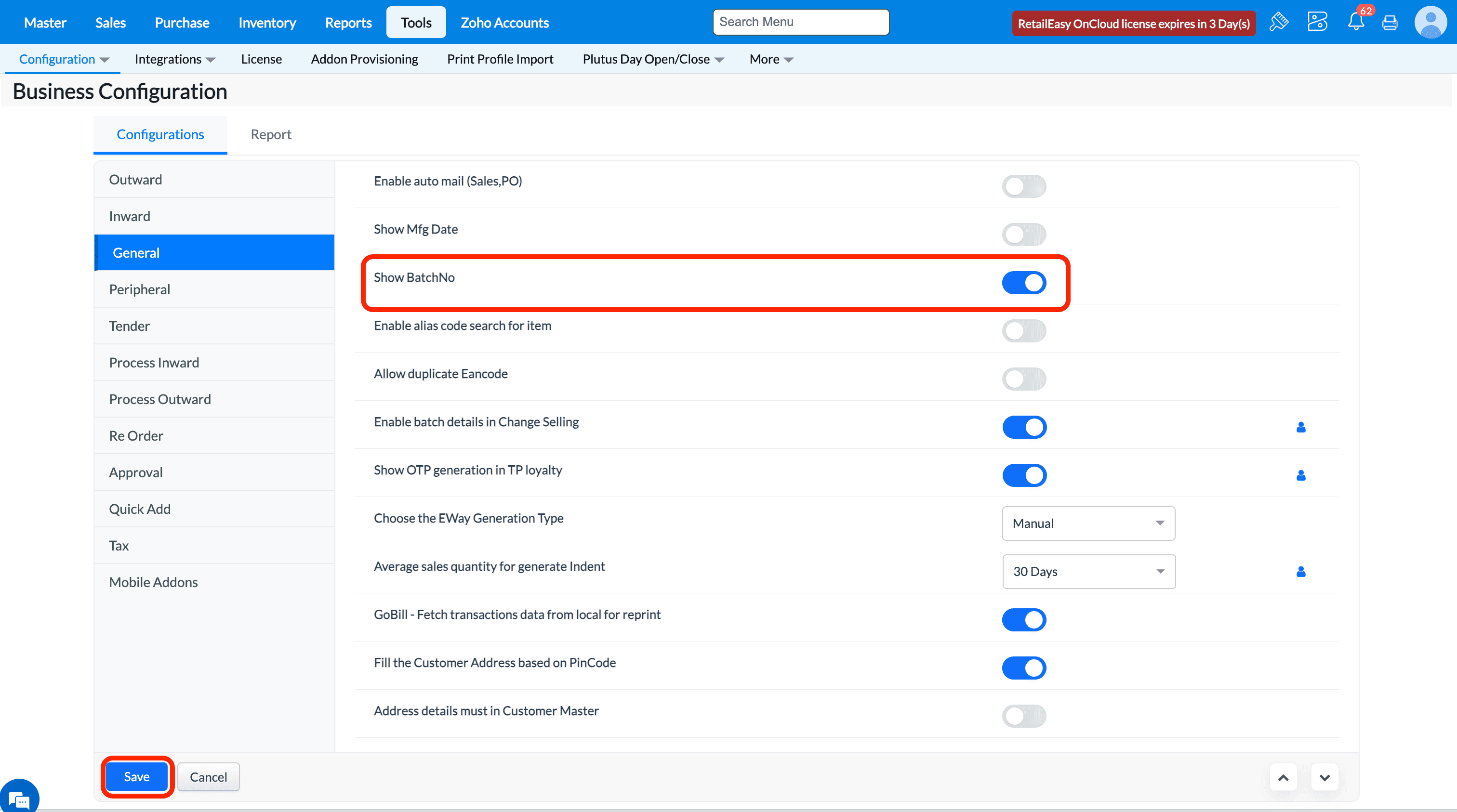
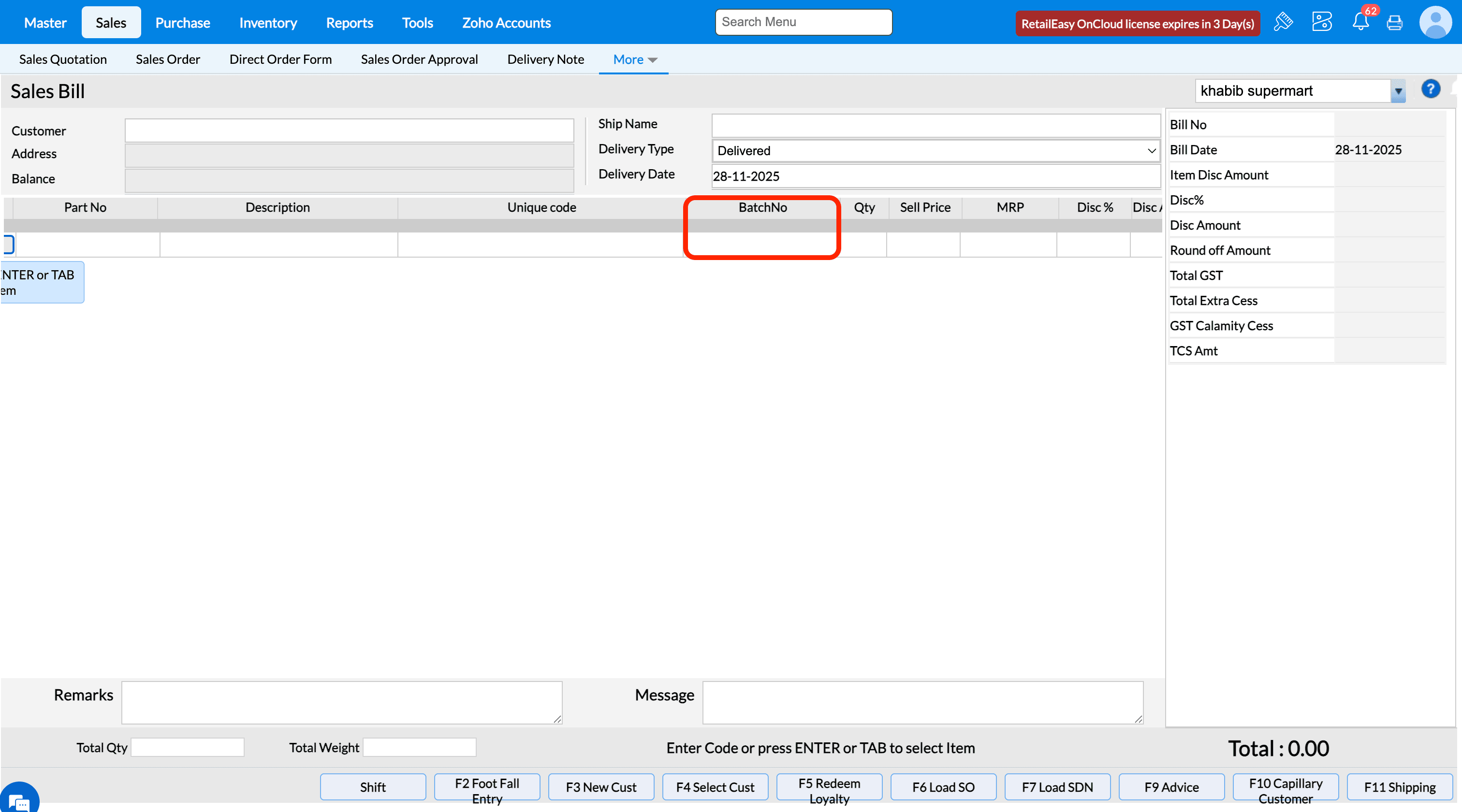
If the configuration is disabled, then BatchNo field will be displayed in all transactions screen.
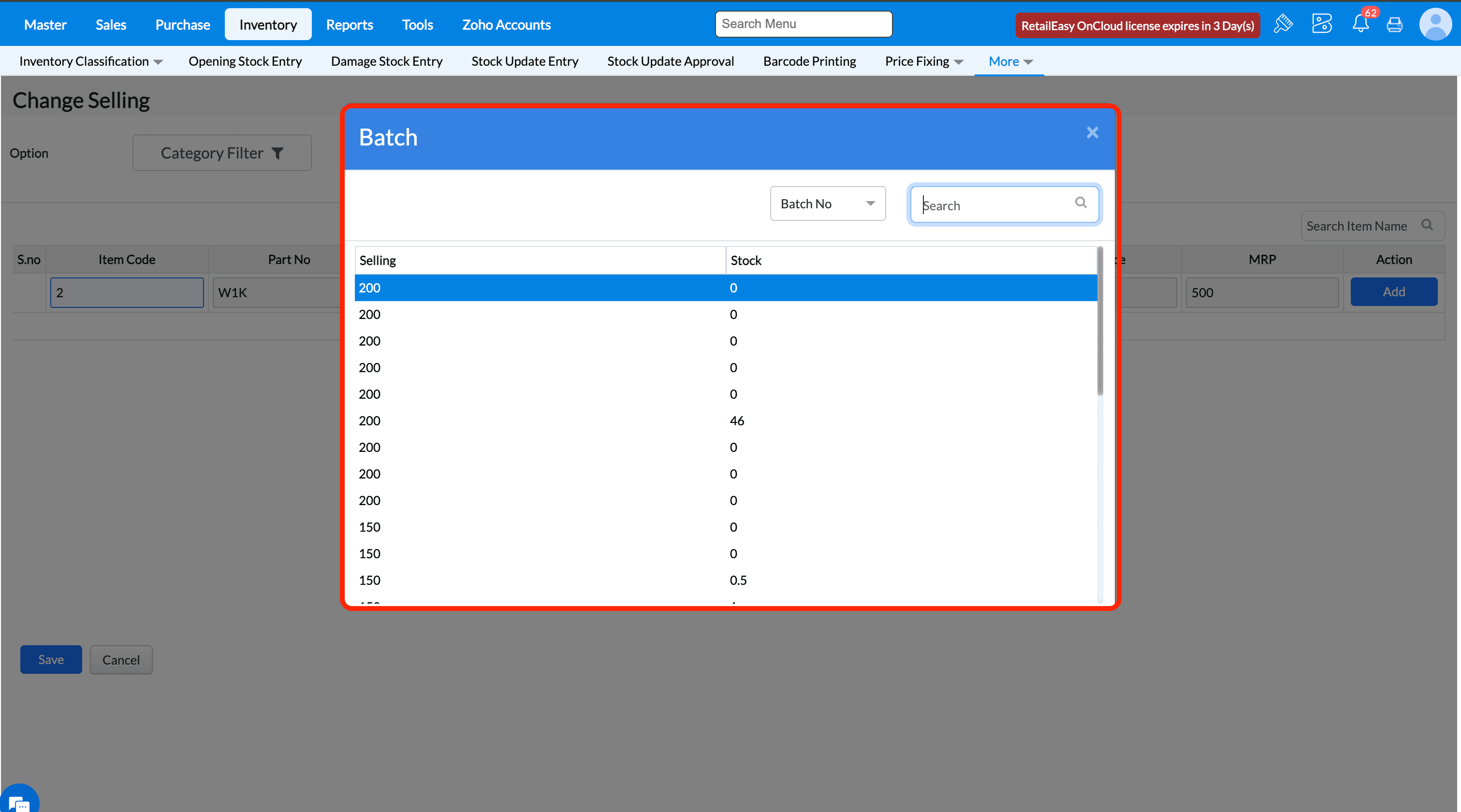
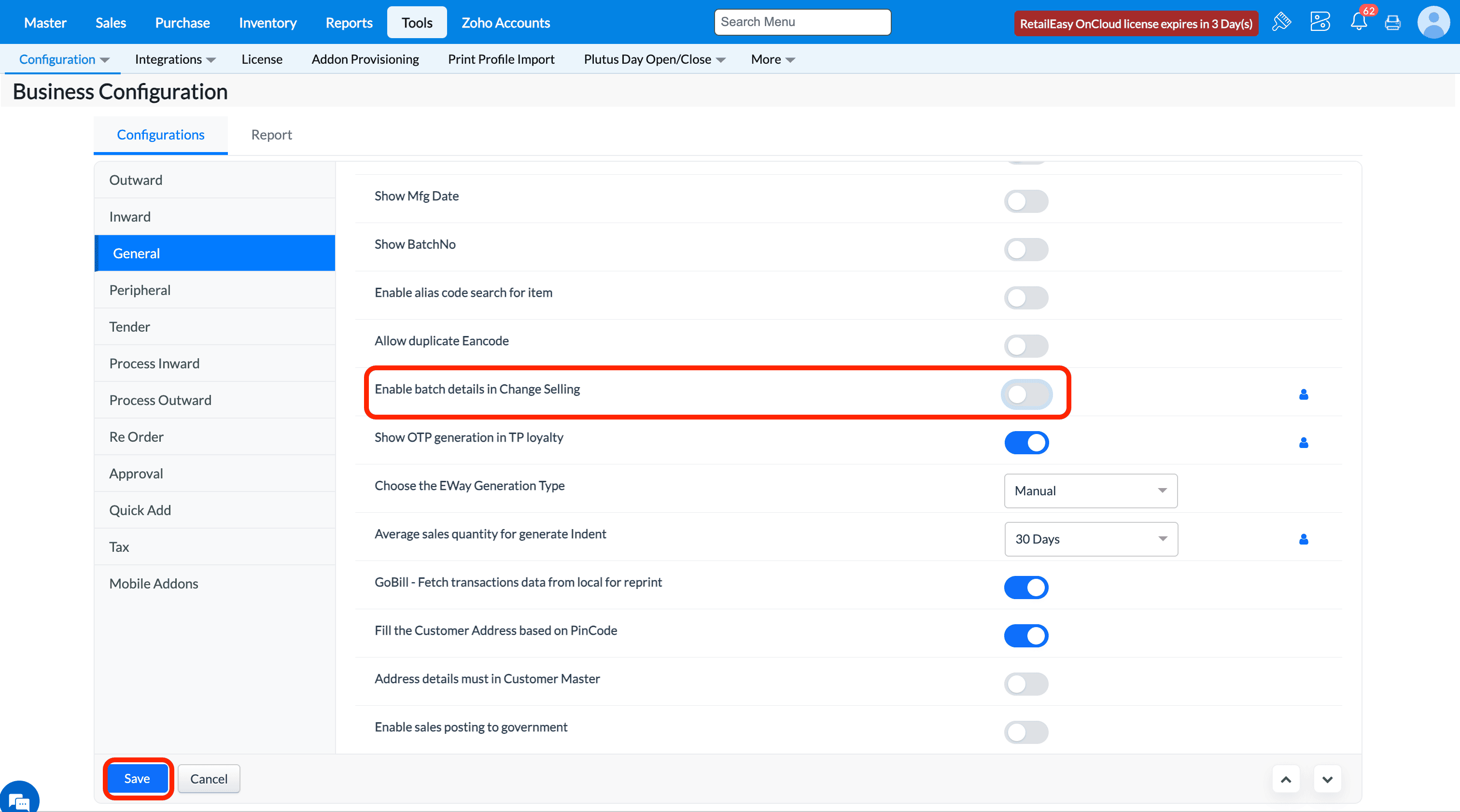
Q40. What does "Enable Batch details in Change Selling" configuration do?
A40. If the configuration is enabled, then Batch details modal popup will be displayed after selecting item in the Change Selling screen.
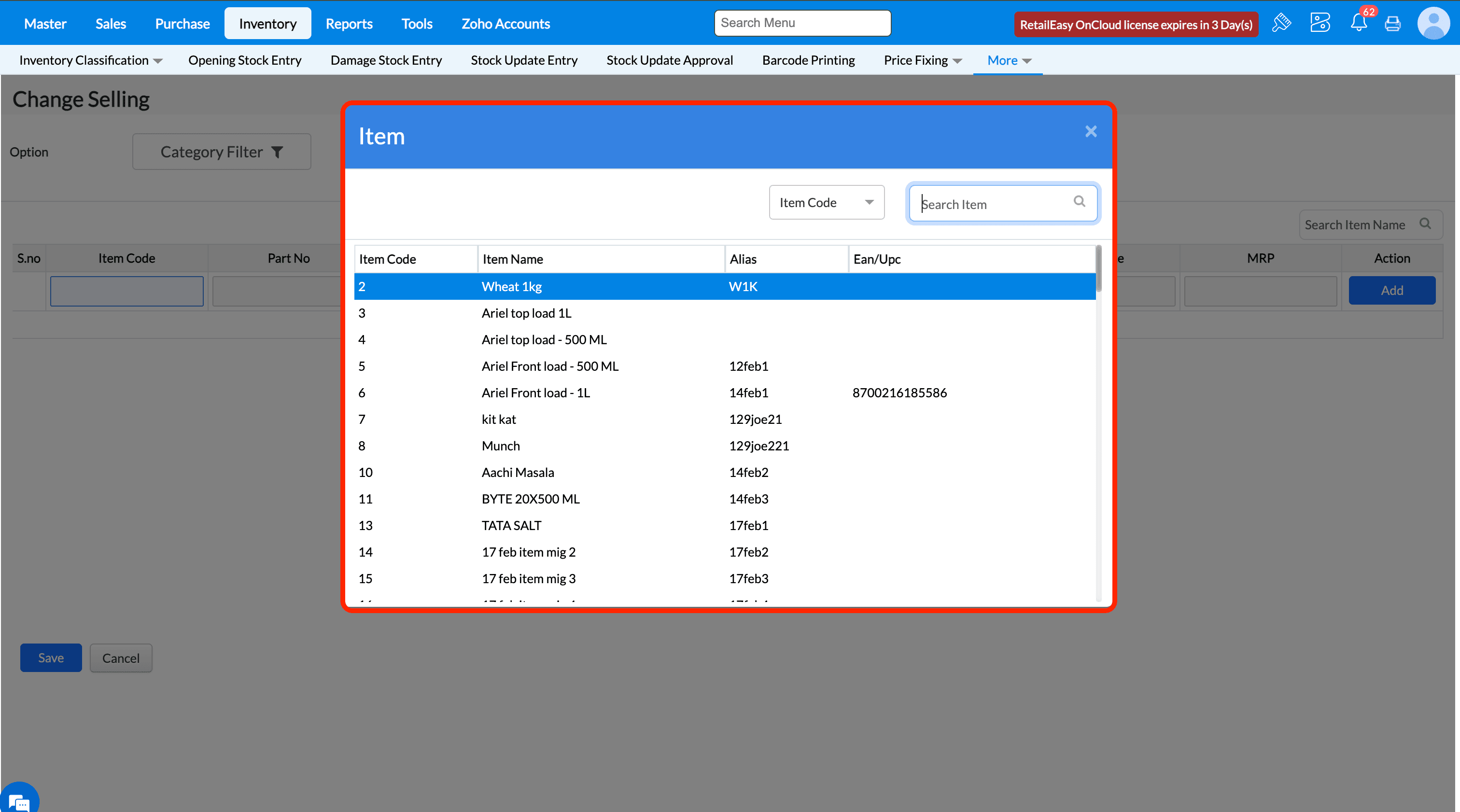
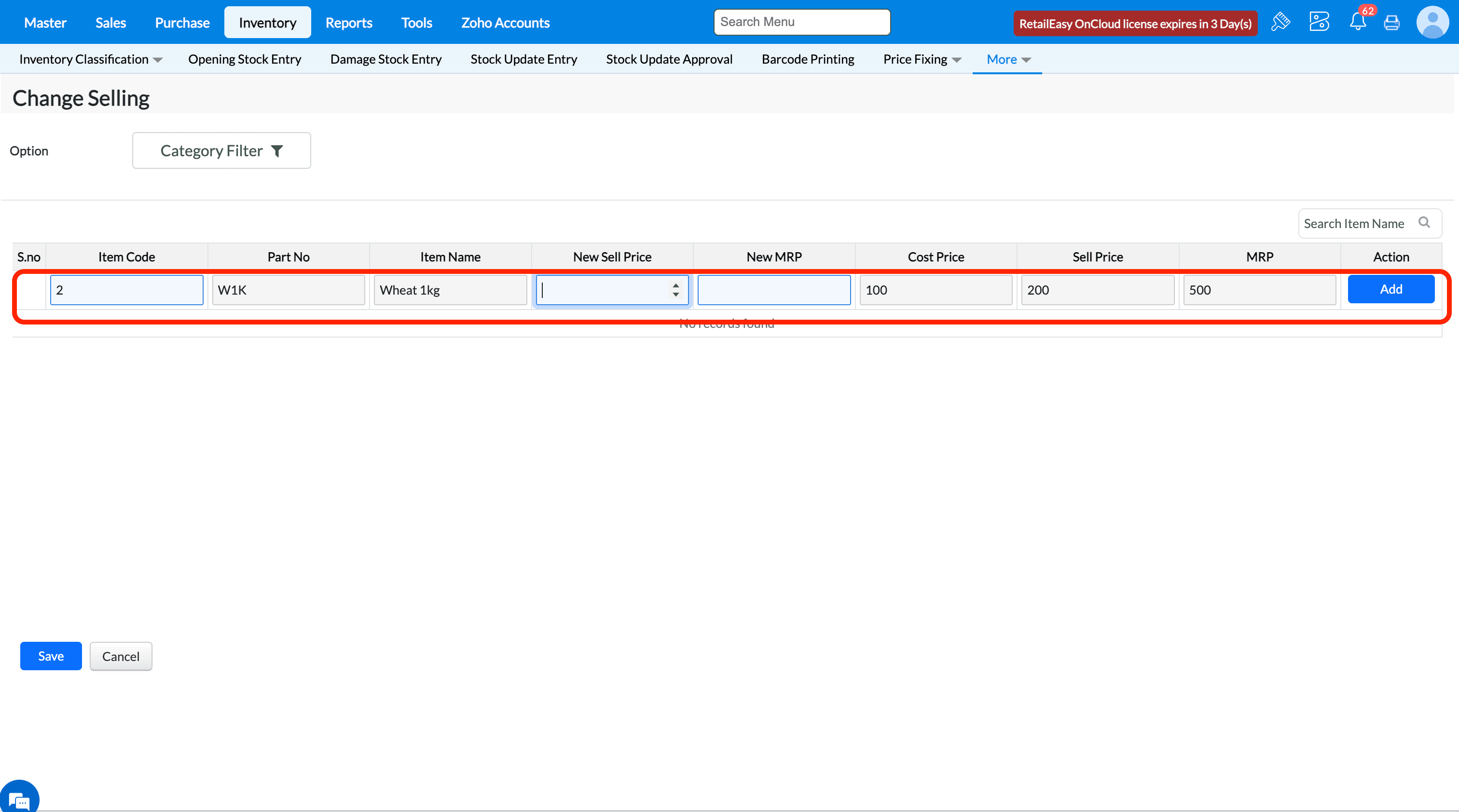
If the configuration is disabled, then Batch details modal popup will not be displayed after selecting item in the Change Selling screen.
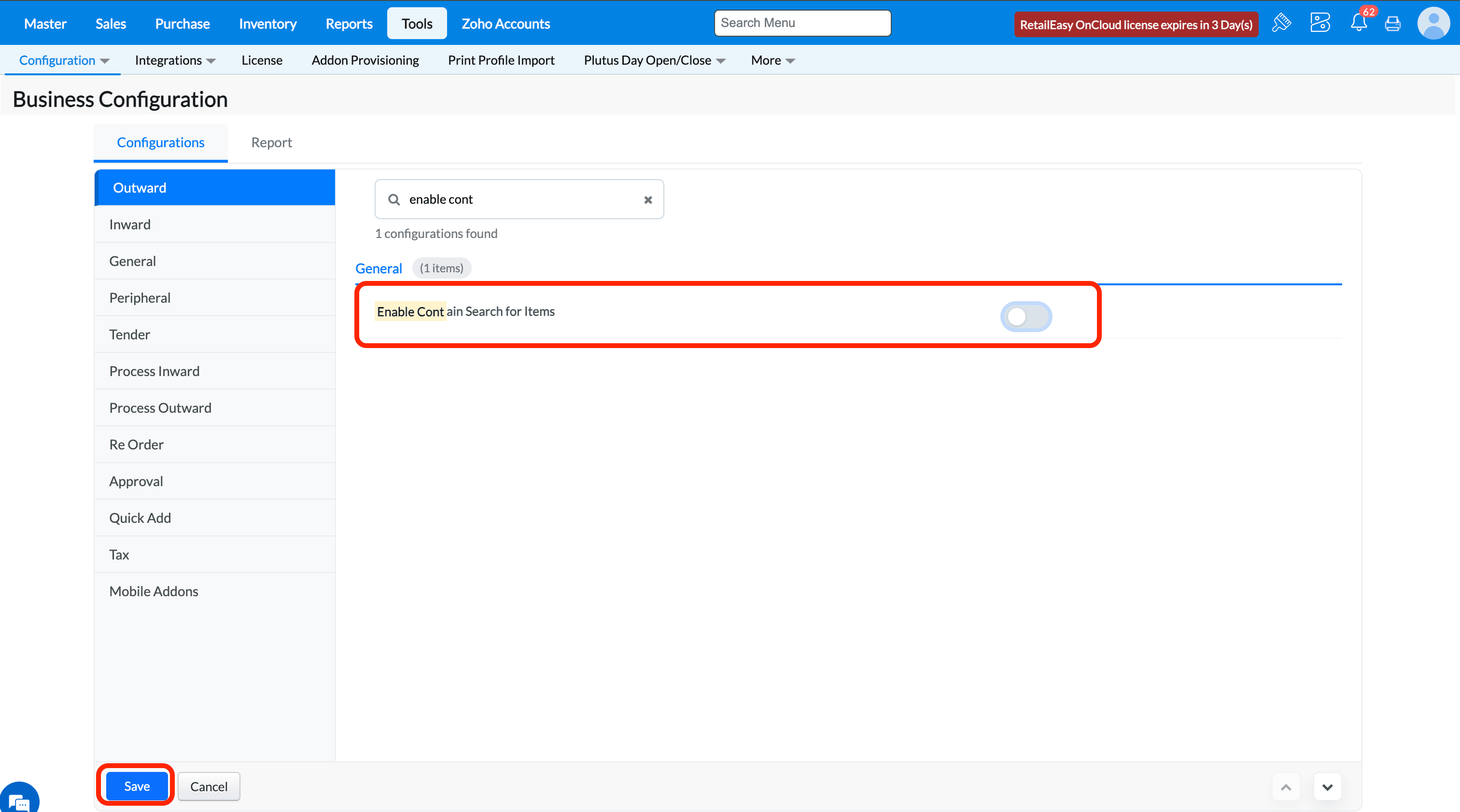
Q17. What does "Enable contains search in Item" configuration do?
A17. If the configuration is enabled, then wherever item is to be searched there we can search based on 'contains' flow. i.e, search any part of the word and if the text is present in the item then it will show the item name.
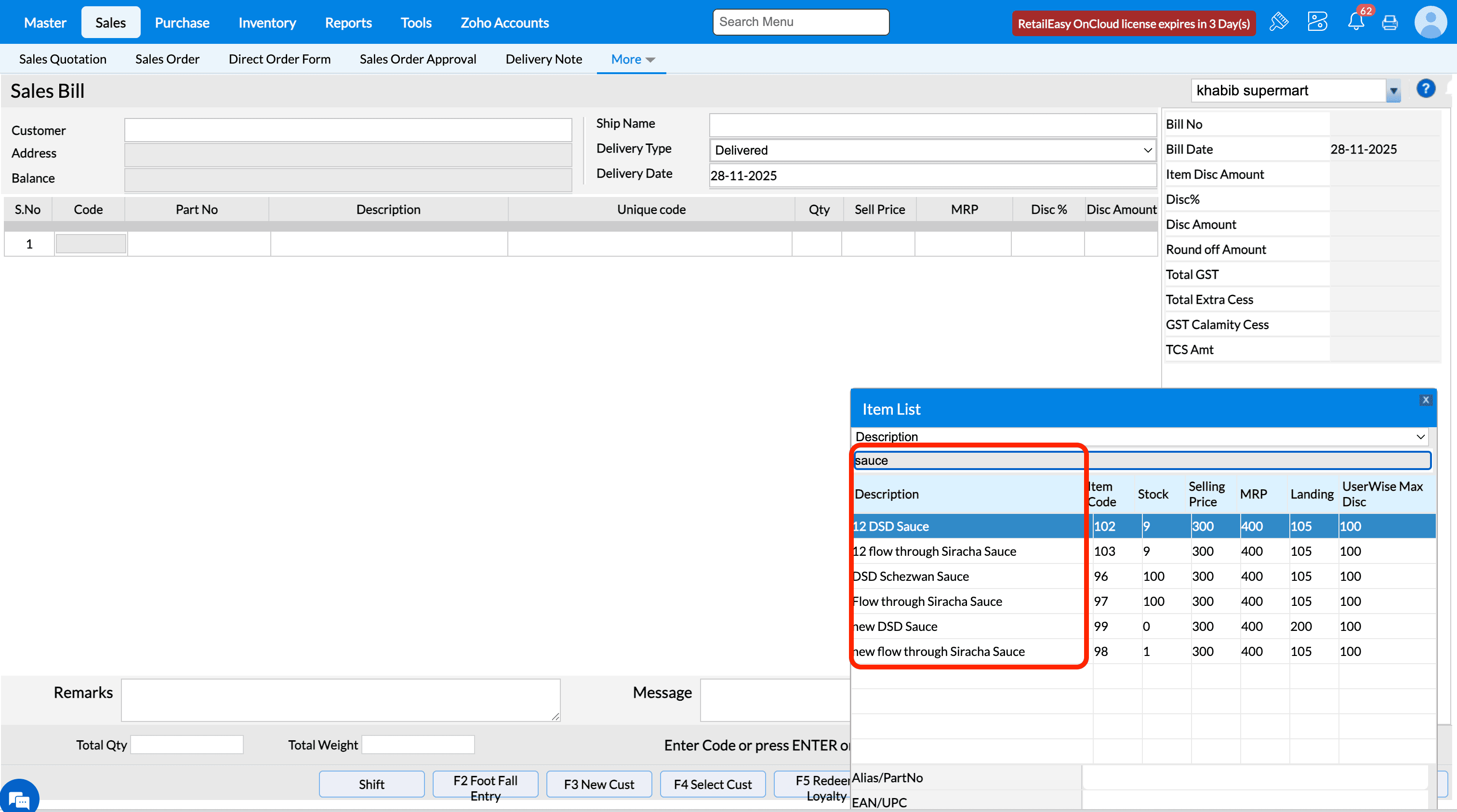
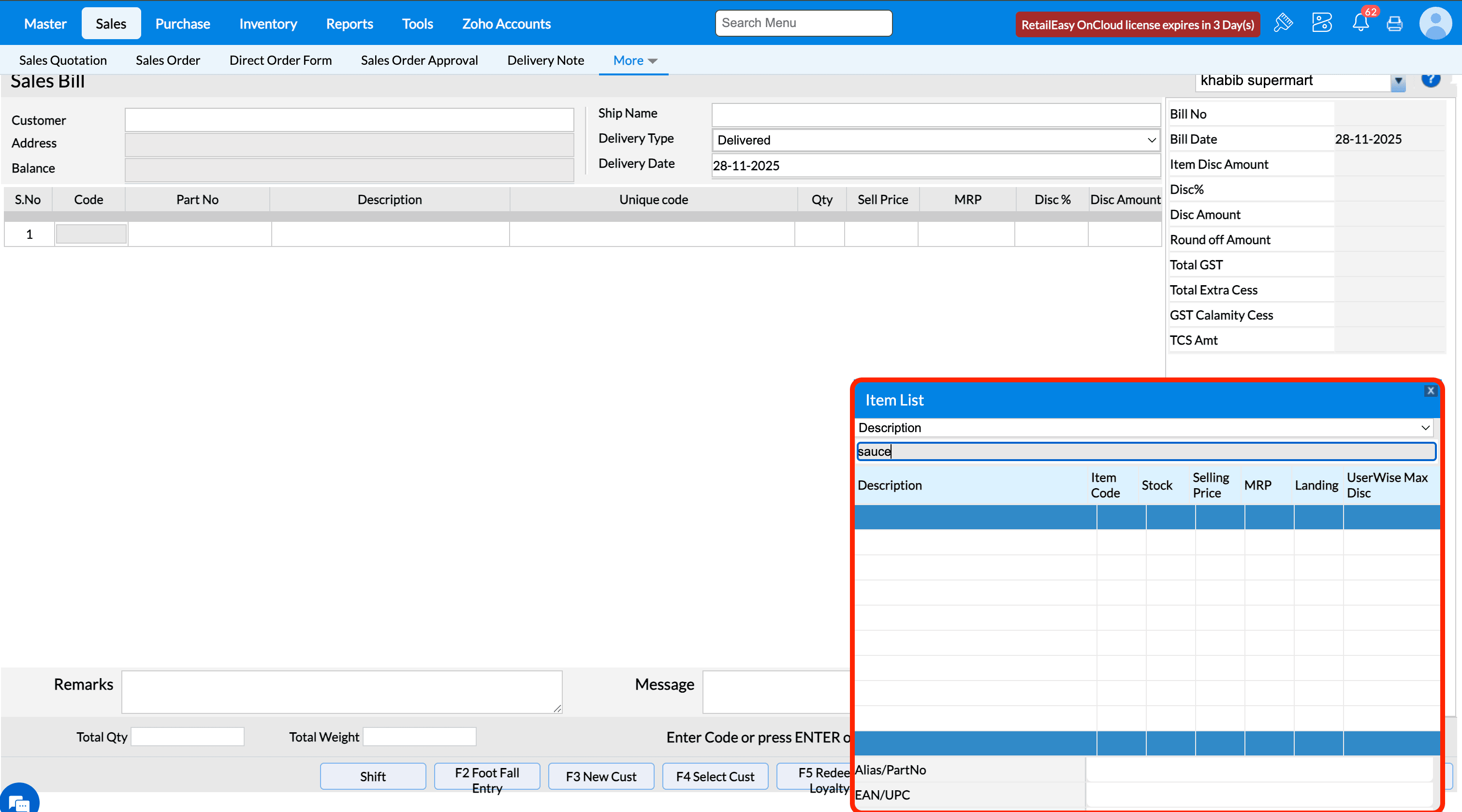
If the configuration is disabled, then item search works based on 'Starts With'. i.e, if the searched text is present in the starting of the item then it will show the item name.
Q23. What does the 'Show stock in Stock update LOV' configuration do?
A23. If this configuration is enabled then the current stock will be displayed in the item selection lov of Stock Update Entry screen.
If this configurations is not enabled, then the current stock column will not be displayed in the item selection lov.
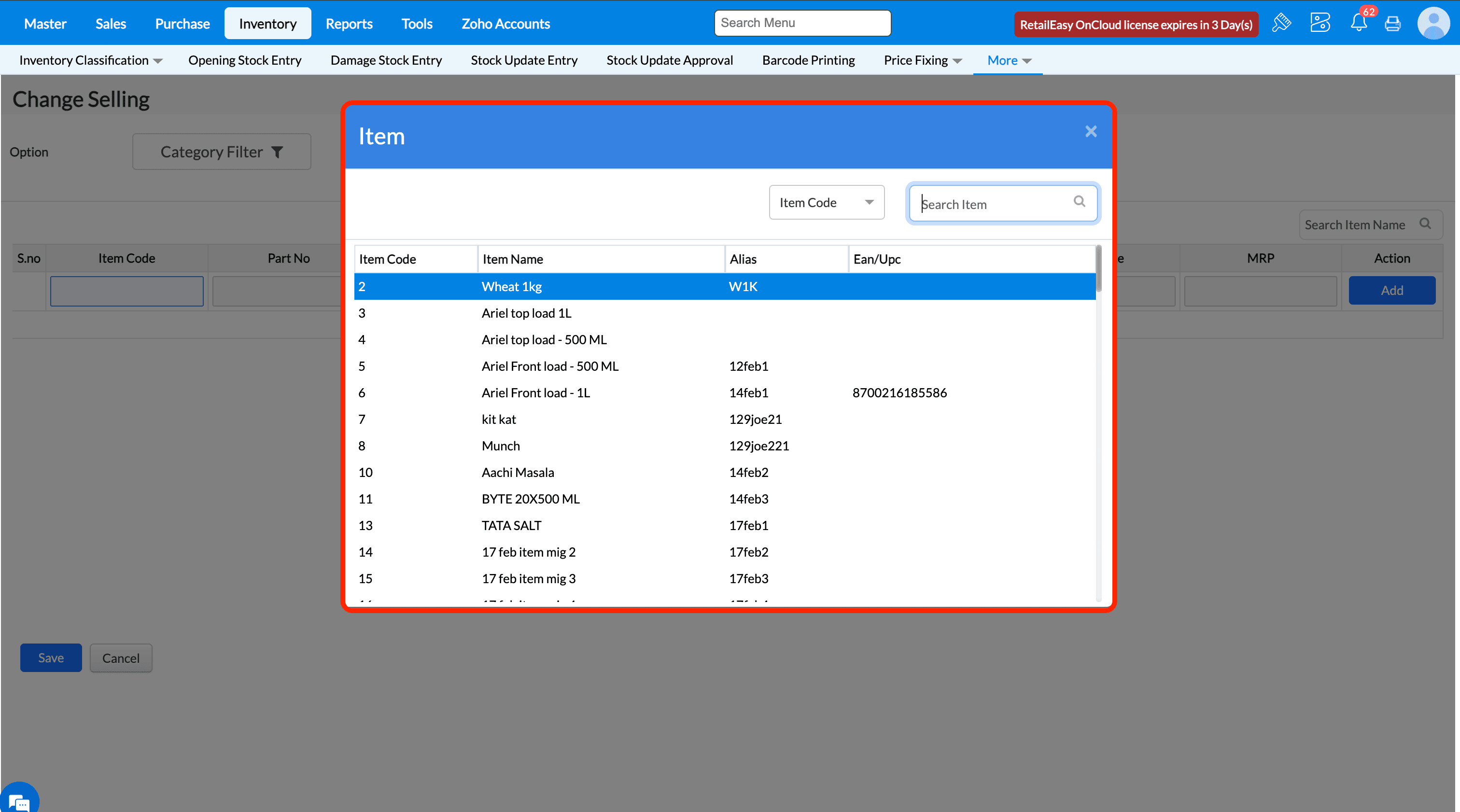
Q 36. What does the 'Enable alias code search for item' configuration do?
A 36. If this configuration is enabled, then in some transactions screens where item code search option is there, we can search item using item code.
For ex., in change selling screen, in place of item code enter the alias code 'W1K' and click enter button.
You can see the item details are being fetched correctly based on item alias code.
If this configuration is disabled, then in transactions screens, an item can be searched using item code.
For ex., in change selling screen, in place of item code enter the item code '2' and click enter button.
You can see the item details are being fetched correctly based on item alias code.
Q 37. What does the 'Allow duplicate eancode' configuration do?
A15. The use of this configuration will ensure if we need to allow duplicate ean code in the system. If the configuration is enabled, then duplicate ean code will be allowed to enter.
In Item master, you can notice the same ean code can be given to multiple items. For ex., 8901058017687 is already present in the system and when trying to map it with another item, system will allow.
If the configuration is disabled, then duplicate ean code will not be allowed to enter.
In Item master, you can notice the same ean code cannot be given to multiple items and will throw error message.
51. What does the 'GoBill - Fetch transactions data from local for reprint ' configuration do?
A51. This configuration is used to decide whether in reprint screen in gobill application if needed to fetch transactions data from local or from server. If the
configuration is enabled, then the when you try to reprint a bill, the data will be fetched from local gobill.
If the configuration is disabled, then the when you try to reprint a bill, the data will be fetched from TruePOS server.
Q56. What does the 'Validate Customer against OTP' configuration do?
The use of this configuration is to ensure while saving new customer data, the system will validate the authenticity of the data based on OTP verification to the mobile number entered.
Pre-requisites:-
Inorder for this configuration to work, you should have purchased Gofrugal Alerts product and enabled the necessary alert configuration for sending SMS under following menu Configuration -> Outlet Config -> Features tab. Please reach out to your implementation engineer or mail to 'retaileasycloud-support@gofrugal.com' to get it configured.
From the list of configuration, select the checkbox against OTP in 'Send via SMS' column
Steps to verify the configuration:-
1. Enable the configuration 'Validate Customer against OTP'.
2. In customer master screen add the valid mobile number of the customer and click on 'Update' button.
3. A new popup window opens asking to mention the OTP sent to the mentioned mobile number. Once entered the correct otp, click on 'Verify & Save'.
4. If validation is successful then you will get a success message. Click 'Save' button to save the customer details.
5. Once customer is succesfully saved, you will get corresponding success message.
If the configuration is disabled, then at the time of saving address details, it will not ask for any OTP verification and will allow to save directly.
Q58. What does the “Display inactive reps” option do?
Purpose - When this option is enabled, inactive sales representatives will also be displayed in the Sales Bill screen while selecting the salesman, allowing users to view or select reps who are marked as inactive in the master records.
Note - If You want to enable this Configuration Kindly reach us in Live chat.
Prerequisites - Kindly Enable the Configuration (Show Salesman )
* If We enable the Configuration ( Display inactive reps ) Than Inactive Rep master Will show in the sales Screen.
* If We Disable the Configuration ( Display inactive reps ) Than Inactive Rep master Will Not show in the sales Screen.
Q73. What does the 'Show HSN code' configuration do?
The use of this configuration is that when enabled, system will display the hsn code of the item(which is mapped in the item master) in the transactions screen along with item name.
Verify the HSN code mapped in the Item Master.
Here, the item HSN code is displayed alongside the item name in the Sales Bill screen.
Incase of configuration is disabled, the HSN code of the item will not be displayed along with item name in the transaction screens.
Q59. What does the “Item Wise Discount” option do?
Purpose - When this option is enabled, users can apply discounts at the individual item level during billing, allowing precise control and maintenance of item-wise discounts instead of only bill-level discounts.
Note - If You want to enable this Configuration Kindly reach us in Live chat.
* If You enable This Configuration Then You Can Provide the Item Level Discount Amount / Percent in sales Bill Screen.
* If You Disable This Configuration Then You Cannot Provide the Item Level Discount Amount / Percent in sales Bill Screen.

Q61. What does the 'Show Route Plan' configuration do?
A61. The purpose of this configuration is to decide whether to show the route planner menu in earnsmart application or not. If the configuration is enabled then the route planner menu is displayed in earnsmart app.
If the configuration is disabled then the route planner menu is not displayed in earnsmart app.
Q62. What does the 'Allow to edit Route Plan' configuration do?
A62. The purpose of this configuration it to decide whether salesman who is using earnsmart applicaton should be able to edit the route planner or not. If the configuration is enabled, then the sales rep can edit route planner prepared for him.
If the configuration is disabled, then the sales rep cannot edit route planner prepared for him.
Q77. What does the 'Validate Rep Master Against OTP' configuration do?
The use of this configuration is to ensure while saving new rep data, the system will validate the authenticity of the data based on OTP verification to the phone number entered.
Pre-requisites:-
Inorder for this configuration to work, you should have purchased Gofrugal Alerts product and enabled the necessary alert configuration for sending SMS under following menu Configuration -> Outlet Config -> Features tab. Please reach out to your implementation engineer or mail to 'retaileasycloud-support@gofrugal.com' to get it configured.
From the list of configuration, select the checkbox against OTP in 'Send via SMS' column
Steps to verify the configuration:-
1. Enable the configuration 'Validate Rep Master against OTP'.
2. Go to Master -> Rep -> Rep Master and create a new rep.
3. Enter a valid phone number and click Save after entering all details.
4. A dialog window to enter OTP opens along with sms sent sucessfull message.
5. Enter a valid OTP and click on Verify & Save.
6. Upon successfull validation of OTP you will be shown a success message.
7. Click on Save
8. New Rep will be created succesfully.
If the configuration is disabled then at the time of saving the rep, system will not ask for otp verification and directly save the new rep.
Q106. What does the “Offer Management Applies to” option do?
Purpose - This option allows you to decide where offers should be applied. You can run offers based on location, branch area, circle, or state, so the same offer is applied only to selected stores or regions as per your business requirement.
1. Offer management applies to - Location wise ( While saving the Offer Location list will display ) Based on that You can mark Active / Inactive for the respective Location.
2. Offer management applies to - Branch Area ( While saving the Offer Branch Area list will display ) Based on that You can mark Active / Inactive for the respective Branch Area.
3. Offer management applies to - Circle ( While saving the Offer Branch Circle list will display ) Based on that You can mark Active / Inactive for the respective Circle.
4. Offer management applies to - State ( While saving the Offer Branch State list will display ) Based on that You can mark Active / Inactive for the respective State.
Q107. What does the “Load GST% for return basedon” option do?
Purpose -This option lets you decide how GST percentage is applied during sales or purchase returns. You can choose whether the GST% should be taken from the item master or from the original transaction.
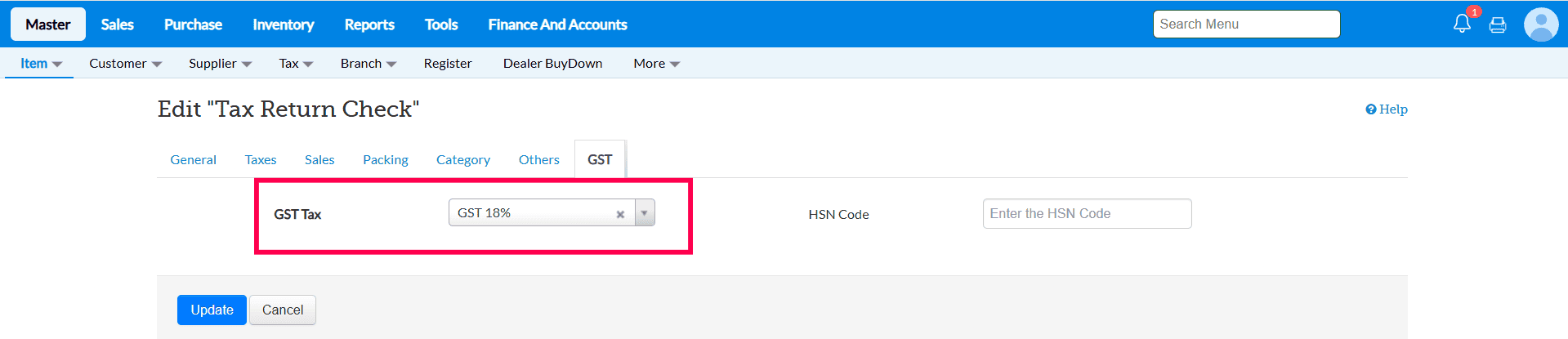
1. Master - If you select the option Master in Configuration ( Load GST% for return basedon ) than at time of return Tax % will take from item master.
a. Item master Tax % set as 18%
b. In purchase transaction GST % is 5 %
c. While making the Purchase Return Based in item master Tax is Taking 18%

2. Transaction - If you select the option Transaction in Configuration ( Load GST% for return basedon ) than at time of return Tax % will take from original transaction.
a. In Purchase transaction GST % is 18

b. While making the Purchase Return Based in transaction Tax is Taking 18%


